Page 116 – 6. Shapes and Pixel Mapper effects
TitanUniversal_Man_v8-0_TT.doc 05 August 2014
Example 1: Odd/Even
1> Select your fixtures.
2> Open the Selection Pattern menu by pressing the 'All' key.
3> Choose [Odd] from the softkey options. (This will select all the
odd numbered fixtures according to fixture order.)
4> Record a group.
5> Press '+1' (or 'Next') key. (This will select all the even
numbered fixtures.)
6> Merge this into the first group.
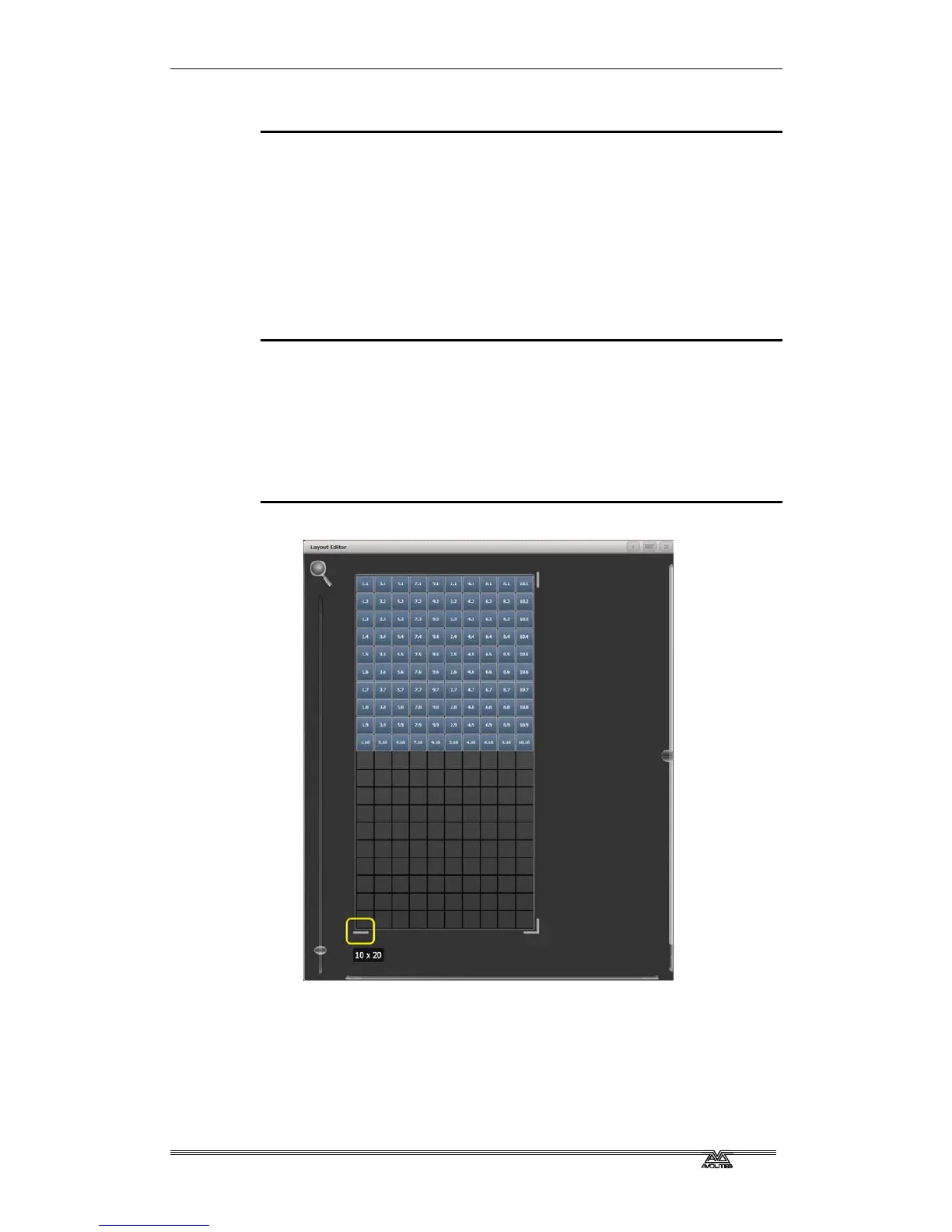
7> Open the Layout Editor. ([Shapes And Effects]/[Pixel
Mapper]/[Edit Group Layout]/(select group).)
By doing the above you should be able to see how we have quickly
created a layout where the all the odd fixtures are arranged together
on the left followed by all the even fixtures on the right.
This arrangement could be used as it is. A block element animated to
run horizontally left to right will run across all your odd fixtures
followed by all the even fixtures.
An alternative goal might be a vertical 'cascading' effect:
1> Click on the vertical resize tool and drag down until the grid is
at least twice the original height.



 To Next Page