Page 18 – 2. Setting up and using the console
TitanUniversal_Man_v8-0_TT.doc 05 August 2014
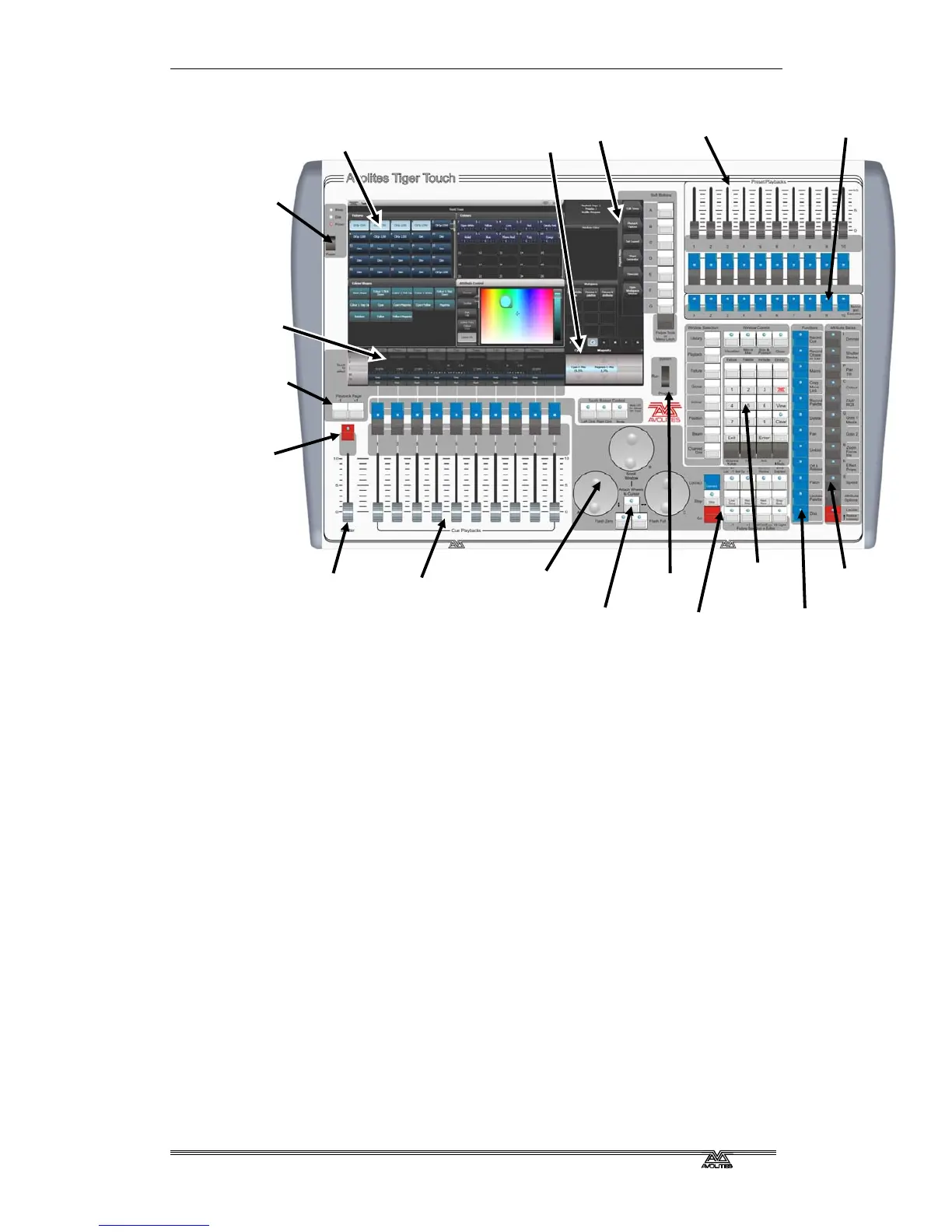
The main controls
The Workspace windows on the touch screen contain touch buttons
for fixtures, palettes, groups, playbacks, macros and more. You can
also set fixture attributes and show information windows.
The System display and menu area of the touch screen is the
nerve centre of the console and shows you what is going on. This part
of the display shows various screens of information depending on
what you are currently doing.
The Menu Softkeys (labelled A – G) are used to select control
options. The display next to the buttons shows what each one will do.
The options for each key change depending on what the console is
doing. Softkey commands are shown in the manual with square
brackets like this: [Edit Times]
The Preset Playbacks are used to store and play back cues or
chases that you need frequently. These playbacks are not changed by
the page select buttons, but you can assign macro buttons to change
pages (see section 7.1.2 on page 170).
The Macro Buttons store frequently used sequences of keypresses
which can be replayed with a single button press. Playbacks can also
be stored here.
The Master fader controls the overall output of the console. You will
normally have this set at Full. The DBO button allows you to
blackout the whole console.
Preset playbacks
Workspace windows with
touch buttons
Master fader
Power switch
Attribute
select buttons



 To Next Page