2. Setting up and using the console - Page 19
TitanUniversal_Man_v8-0_TT.doc 05 August 2014
The Playback faders are used to store and play back cues or
chases. The Page Select buttons let you change to a different page
of playbacks. The touch screen above the faders shows information
about each playback.
The Mode switch selects Programming, Run or System modes of
operation.
The Control wheels are used to set control values (attributes) for
the fixtures, and to set chase speeds and fades. The touch screen
above the wheels shows information about the attributes being
controlled. Press the Window Scroll Button to switch the wheels
into scroll mode – this is used to move a selection box around the
screen when editing.
The Numeric keypad and other control buttons are used to enter
values and change controls on the console.
The blue Function buttons are used to carry out functions such as
storing cues, copying, saving to disk, etc. These buttons have lights
on to indicate when they are active.
The Attribute select buttons are used to select which attributes of
a fixture (e.g. colour, gobo, pan, focus) are going to be controlled
using the Control wheels. The buttons have lights on to show you
which attributes are active. The bottom (red) button allows you to
locate fixtures, which sets them to a known start position while
programming.
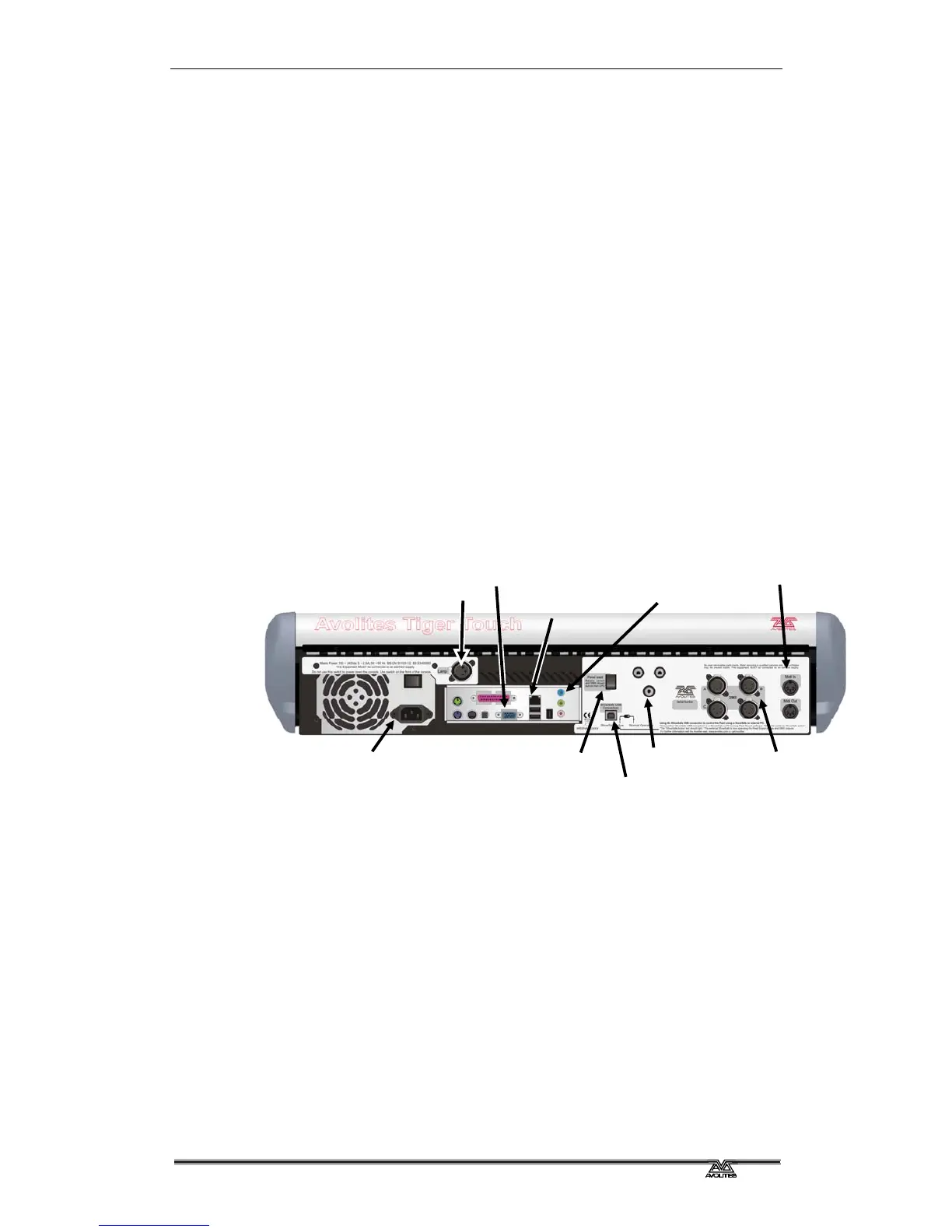
The back panel
All the connections required for the console are found on the back
panel. Most are self-explanatory.
The Panel reset switch may be pressed to restart the front panel
electronics if something odd happens with the switches and faders.
The main board will continue running but the DMX output will be
interrupted until the restart is completed.
The USB reserve socket and switches are for future expansion. The
switch should be set to 'Normal operation'.
Desk lamp socket
VDU socket (blue)
Ethernet socket (top)
and 2x USB
Mains inlet
VDU mounting
point
DMX outputs (4)
USB reserve socket
and switch
MIDI in and out
Audio in (blue)
Panel reset switch



 To Next Page