BD BACTEC™ FX Instrument User’s Manual
154
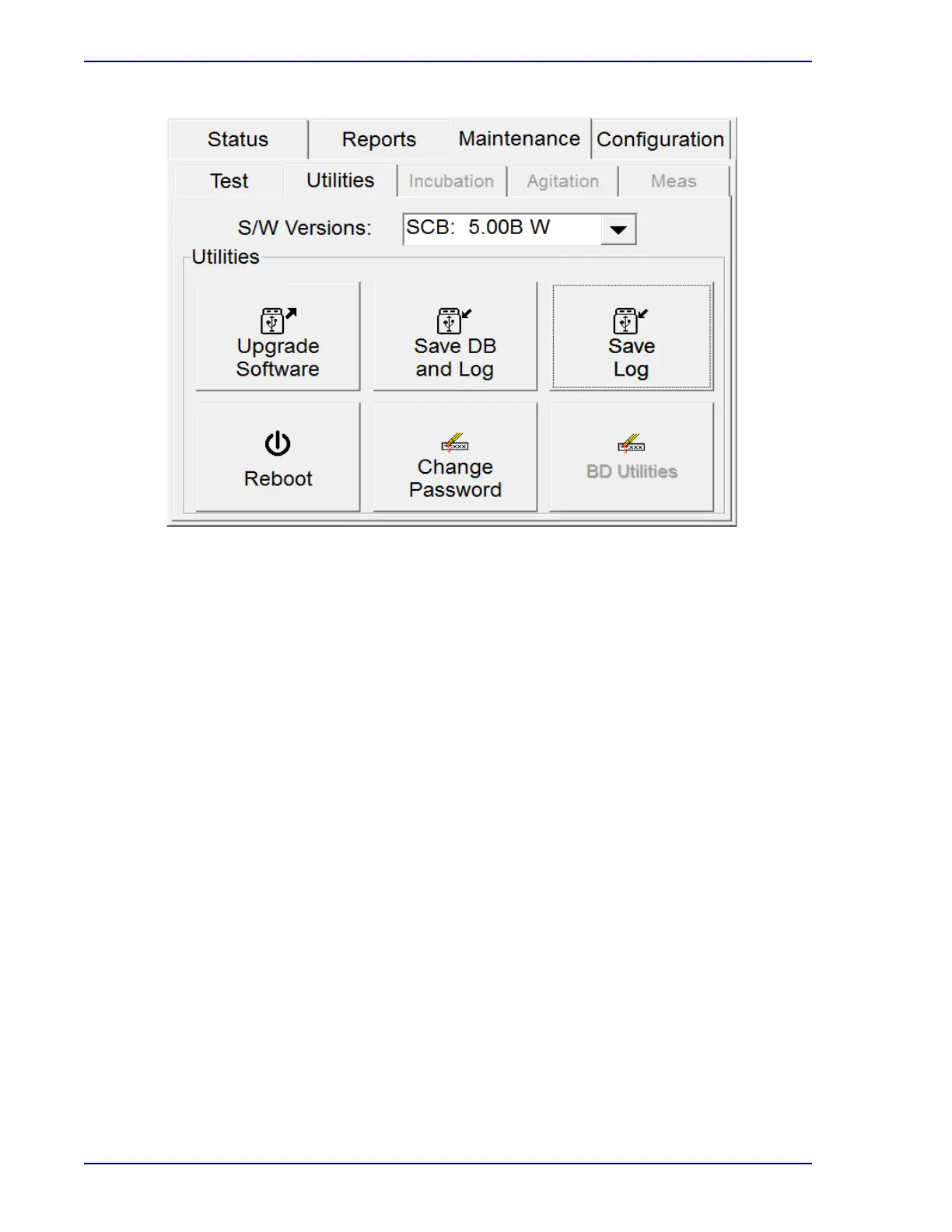
Figure 6-6 – Maintenance – Utilities Menu
6.4.1 Upgrade Software
1 Open the access panel to the right of the LCD Touchscreen.
2 Insert the flash drive containing the software update in the USB port.
3 Select Upgrade Software.
4 When the Enter Password window appears, select the blank password field. Enter the
Supervisor password with the onscreen keyboard, then select ENTER, followed by OK.
5 To continue with the software upgrade, select Yes in the UTIL07 message box. To cancel the
installation, select No.
6 The screen blanks and the instrument then reboots. The new software loads as the instrument
reboots.
7 When the UTIL15 message appears, the update process is complete. Remove the USB flash
drive.
6.4.2 Save DB and Log
To save the vial database and event log files to a flash drive:
1 Open the access panel to the right of the LCD Touchscreen.
2 Insert a flash drive in the USB port.
3 Select Save DB and Log.
4 The Busy icon appears.
5 When complete, two messages appear. Select OK in each message box.







 To Next Page