6 – Maintenance
155
6.4.3 Save Log
To save the event log files to a flash drive:
1 Open the access panel to the right of the LCD Touchscreen.
2 Insert a BD-supplied flash drive in the USB port.
3 Select Save Log.
4 The Busy icon appears.
5 When complete, a message appears. Select OK.
6.4.4 Reboot
To reboot the BD BACTEC FX application / main computer:
1 Select Reboot. A confirmation message asks if you want to reboot the application.
2 Select Yes to reboot, or select No to cancel the reboot. A message window confirms that you
select Yes when the confirmation message appears.
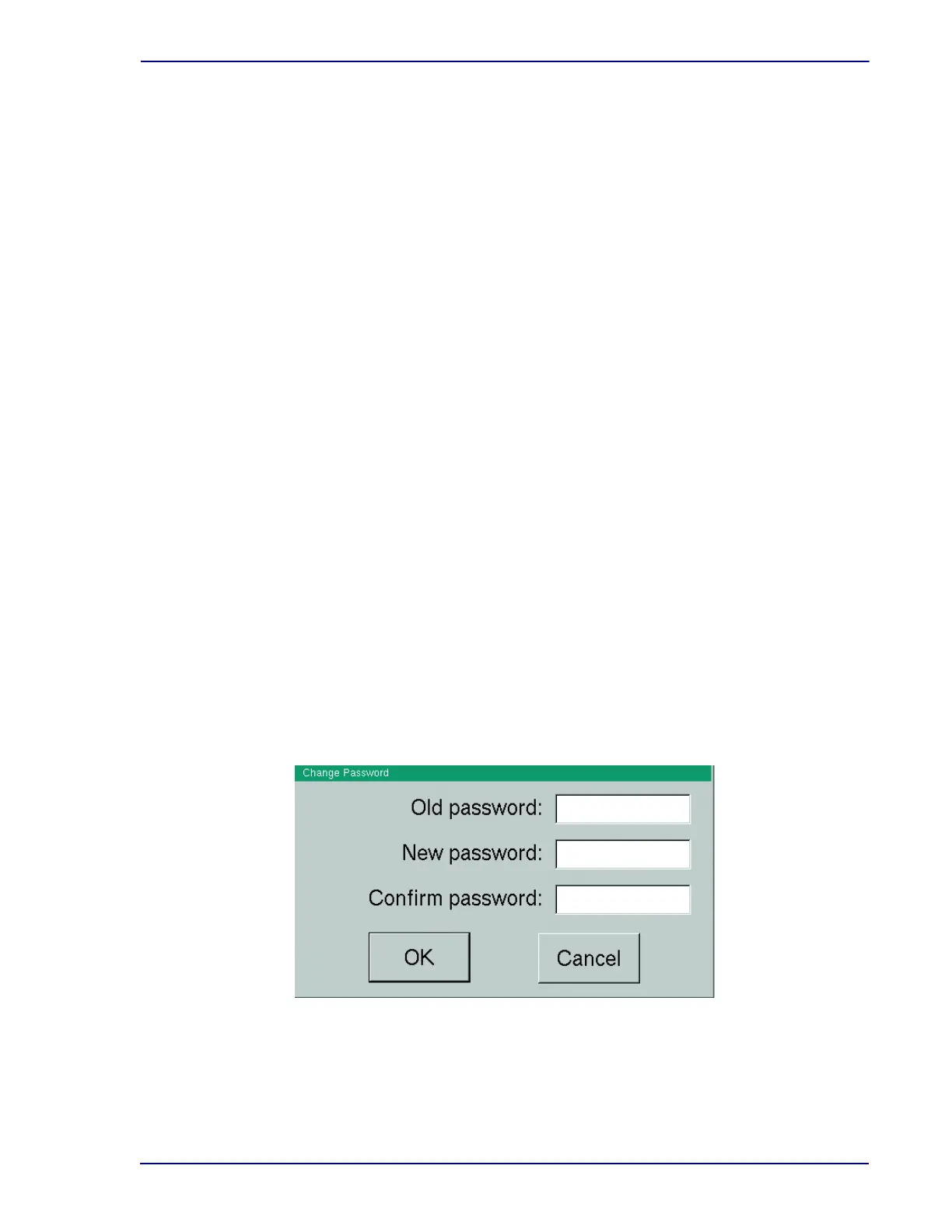
6.4.5 Change Password
To change the password:
1 Select Change Password.
2 The password window appears.
3 Enter the current password in the Old Password field.
4 Enter the new password in the New Password field.
5 Repeat the new password in the Confirm Password field.
6 Select OK.
If the same password has been entered in the New Password and Confirm Password fields, and the
new password conforms to the requirements, a message appears confirming that the password was
changed.
For additional information, refer to Section 5.5.3.5.
Figure 6-7 – Change Password Window
6.4.6 BD Utilities
This function is for BD use only.







 To Next Page