BD BACTEC™ FX Instrument User’s Manual
26
To save configuration changes, select Save (shown below).
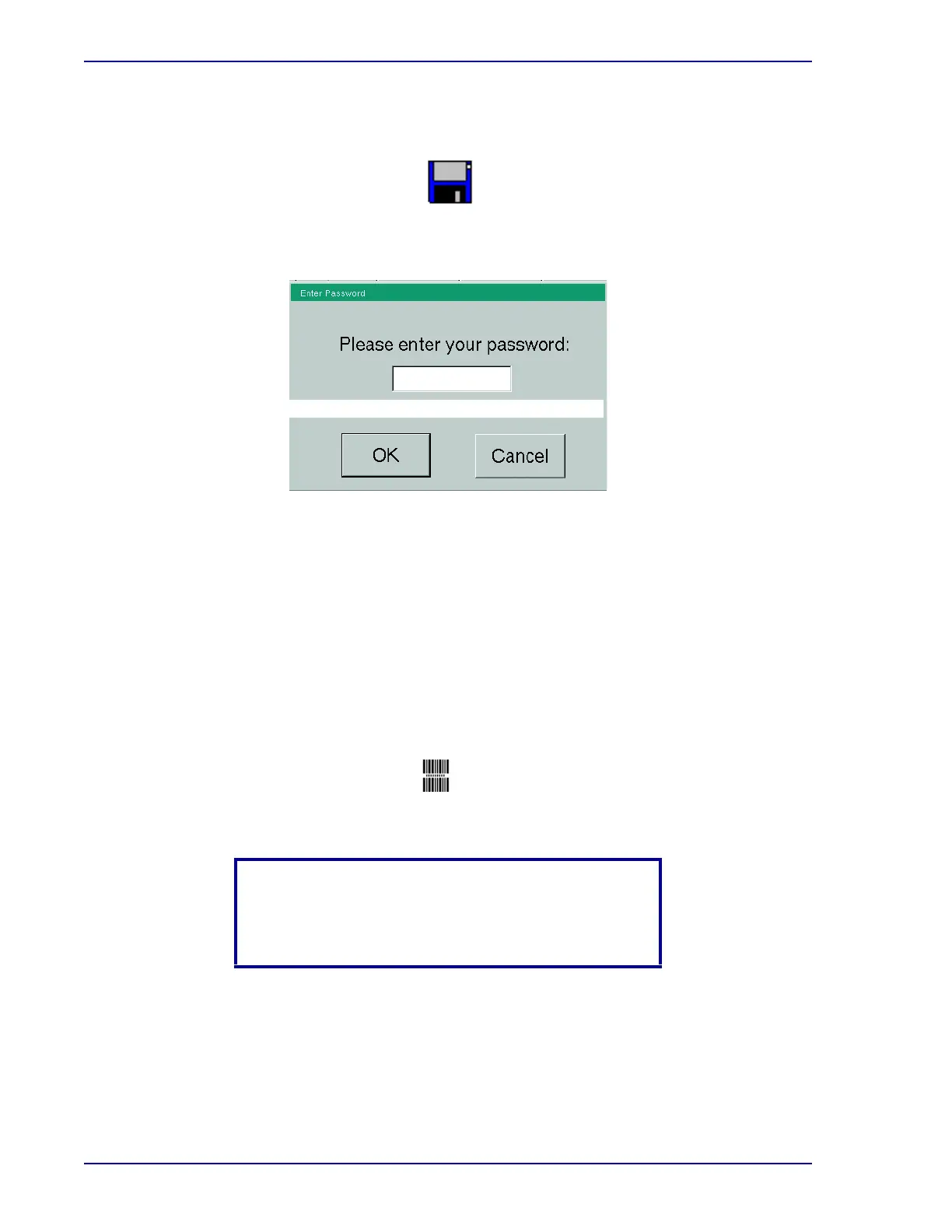
To enter a password, select the password field to display the onscreen keyboard (see Section 3.10).
Figure 2-3 – Password Window
Enter the Supervisor password (default: BACTECFX). Select ENTER and then OK to enter the
password.
2.4.1 Lab Configuration
Lab Configuration enables you to set values that are unique to how your laboratory functions. Such
discretionary values include media protocol lengths, accession barcoding enable/disable, language,
etc. See Media Protocols.
Workflow Window:
Select whether Accession Barcoding is enabled (checked) or disabled (unchecked) by
toggling the white box to check on or off. The default setting is enabled (checked). When
Accession Barcoding is enabled, the system turns on the barcode reader for an accession
barcode to be scanned during certain activities and interprets any non-vial-sequence barcode
scan as an accession. The accession barcode may not both begin with the numbers “44” AND
be 12 digits long, which is the format of a vial sequence barcode.
Accession Barcode Enable/Disable
NOTE
Accepted barcode symbologies include Code 128,
Codabar, Code 39, and Interleaved 2 of 5.
Select the field to access onscreen keyboard







 To Next Page