2 – Installation
39
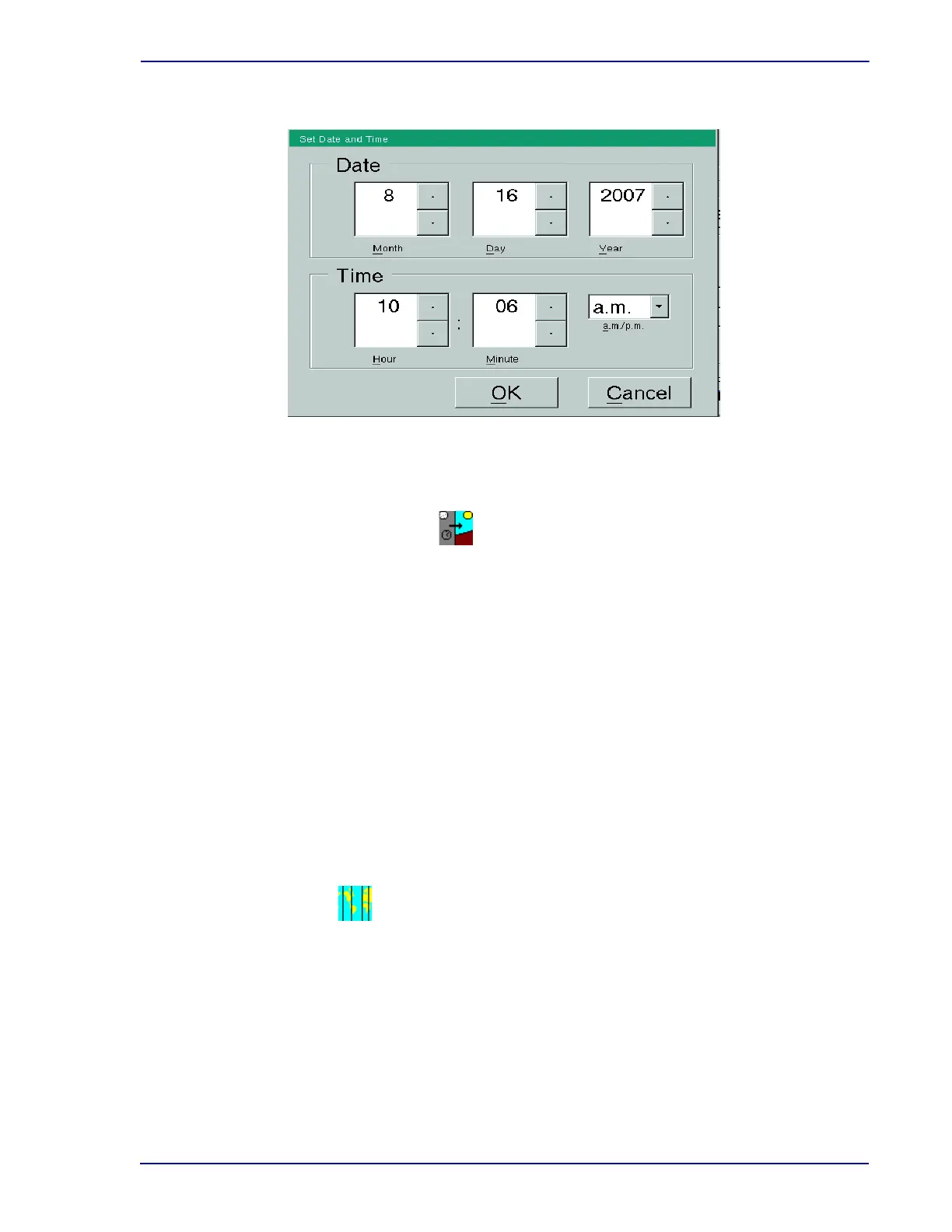
Figure 2-9 – Set Date and Time Window
Daylight Saving Time Window:
The Daylight Saving Time field is represented by a day/night icon with an arrow between the
two. Select whether the system clock is automatically set forward one hour for Daylight Saving
Time (checked) or is set at Standard Time (unchecked). The default value is Standard Time
(unchecked).
Set Range button
To set the date range during which Daylight Saving Time is active, select Set Range. In the
Start DST window, select the Up or Down Arrow in the Month, Day, and Hour value you want
to set for the beginning of Daylight Saving Time. In the End DST window, select the Up or
Down Arrow in the Month, Day, and Hour value you want to set for the end of Daylight Saving
Time. The Start and End dates/times are shown to the right of the icon.
When the clock reaches the From date/time, the time automatically advances one hour. When
the clock reaches the To date/time, the time automatically decreases one hour.
Timezone GMT Offset Window:
The Timezone Offset field is represented by a map icon. To change the time zone offset, select
the Up or Down Arrow to increase or decrease the value in the Hrs (Hours) or Min(utes) field.
This value is your time zone difference from GMT (Greenwich Mean Time).
Select negative integers if you are west of the Prime Meridian and east of the International
Date Line. Select positive integers if you are east of the Prime Meridian and west of the
International Date Line. Hours values can be from –14 to 14; minutes values can be
from 0 to 59.
The default value is –5 hours 0 minutes (USA Eastern Time Zone).
Daylight Saving Time checkbox
H(ou)rs/Min(utes)







 To Next Page