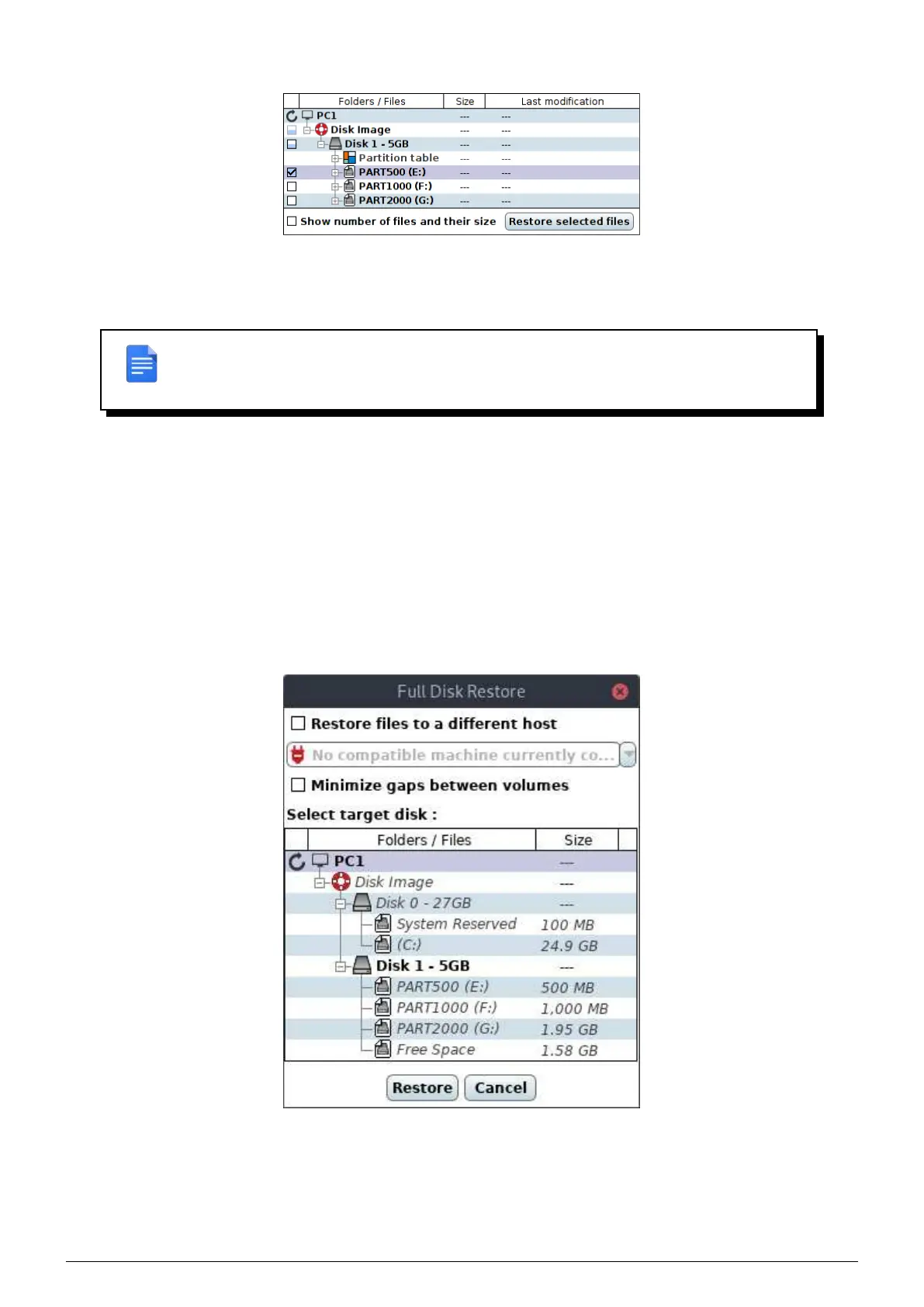
FIGURE 11.2 – Selection of image to restore
Once elements to restore have been selected (you can use restore filters), click on
Restore selected files button, a
new window allow you to define restoration target.
REMARK : System or system reserved volumes / disks can only be overwritten once the
system that ties on them is not running. To restore such elements, it is necessar y to boot
the machine on a
Flash Rescue flash drive.
11.2.1 Full disk restore mode
In the
Restore tab, if you select a disk or several volumes and you click on Restore selected files, the Full disk
restore
window appears.
Then you can specify :
• The machine on which you want to restore.
• The disk on which you want to restore.
You have also the ability to restore volumes one after the other at the beginning of the disk without respecting their
original position by checking the
Minimize gaps between volumes box.
FIGURE 11.3 – Full disk restore window
Only those elements are selectable :
• Empty disks with equal or greater capacity than sum of all sizes from volumes to restore (and gaps between
them if Minimize gaps between volumes has not been checked).
• Disks with the same partitionning than the disk to restore.
Data Safe Restore User manual Version 3.08 Page 46



 To Next Page