Once the target selected, click Restore.
REMARK : If you restore on an existing volume, a confirmation window will be displayed
before the restoration to take effect.
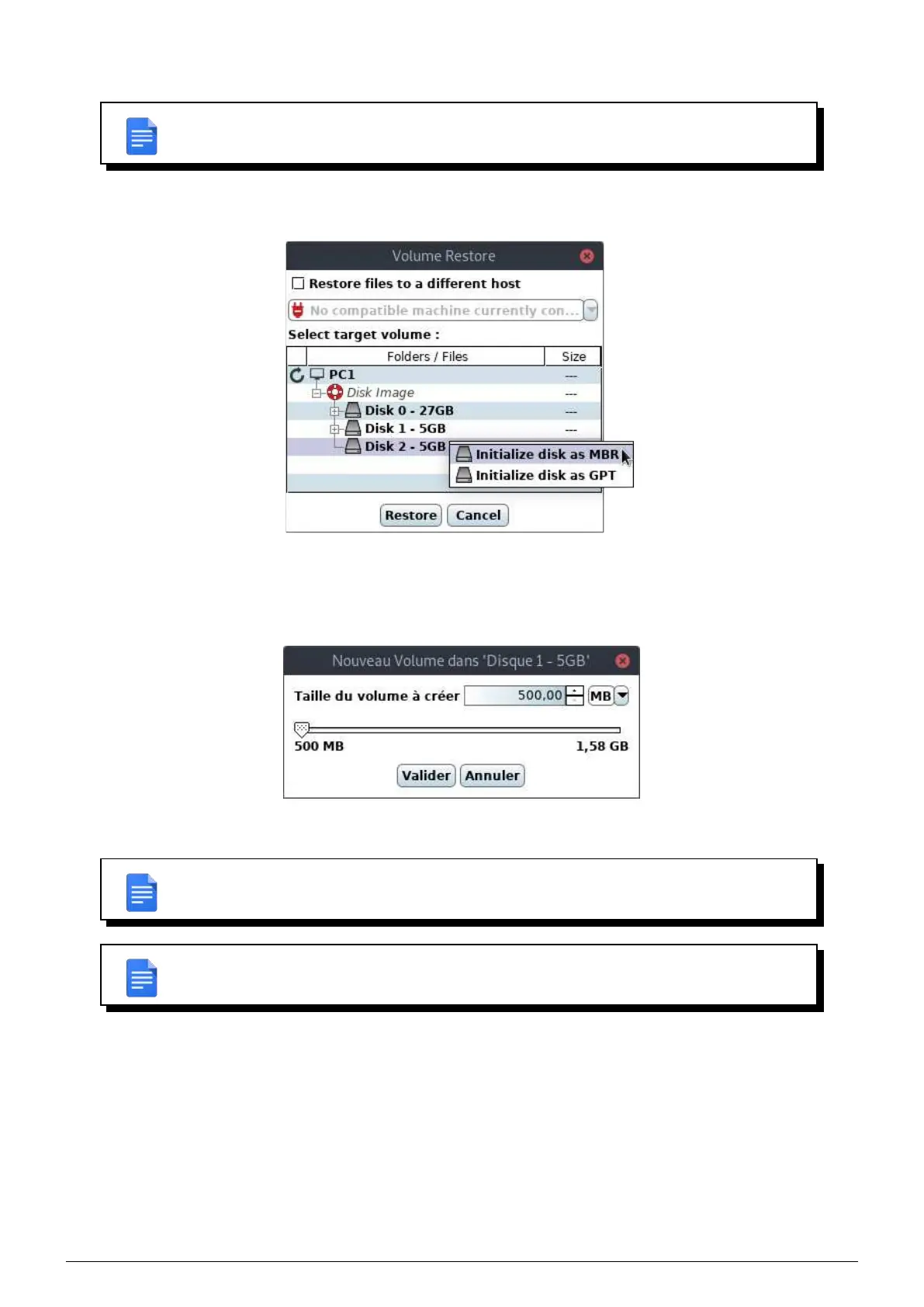
In order to restore on an empty disk, it must have a partition table. To create a partition table, right click on the disk in
question in the
Volume restore window, and select the appropiate option.
FIGURE 11.5 – Volume restore window : disk initialization
If you restore a volume containing an NTFS or ReFS filesystem in a free space, a new window will allow you to define
the size of the volume to create. You can then specify a size between the original size of the volume and the free
space size.
FIGURE 11.6 – Volume restore window : size choice of the volume to create
REMARK : Once the target selected, a new window will summarize chosen choices.
REMARK : If you restore a volume in a greater volume and if the filesystem in it is NTFS
or ReFS, it will be extended to fit all the space.
11.2.3 Partition table restore mode
In the
Restore tab, if you select a partition table and you click on Restore selected files, the Partition table
restore
window appears.
Then you can specify :
• The machine on which you want to restore.
• The disk on which the partition table must be restored.
Data Safe Restore User manual Version 3.08 Page 48



 To Next Page