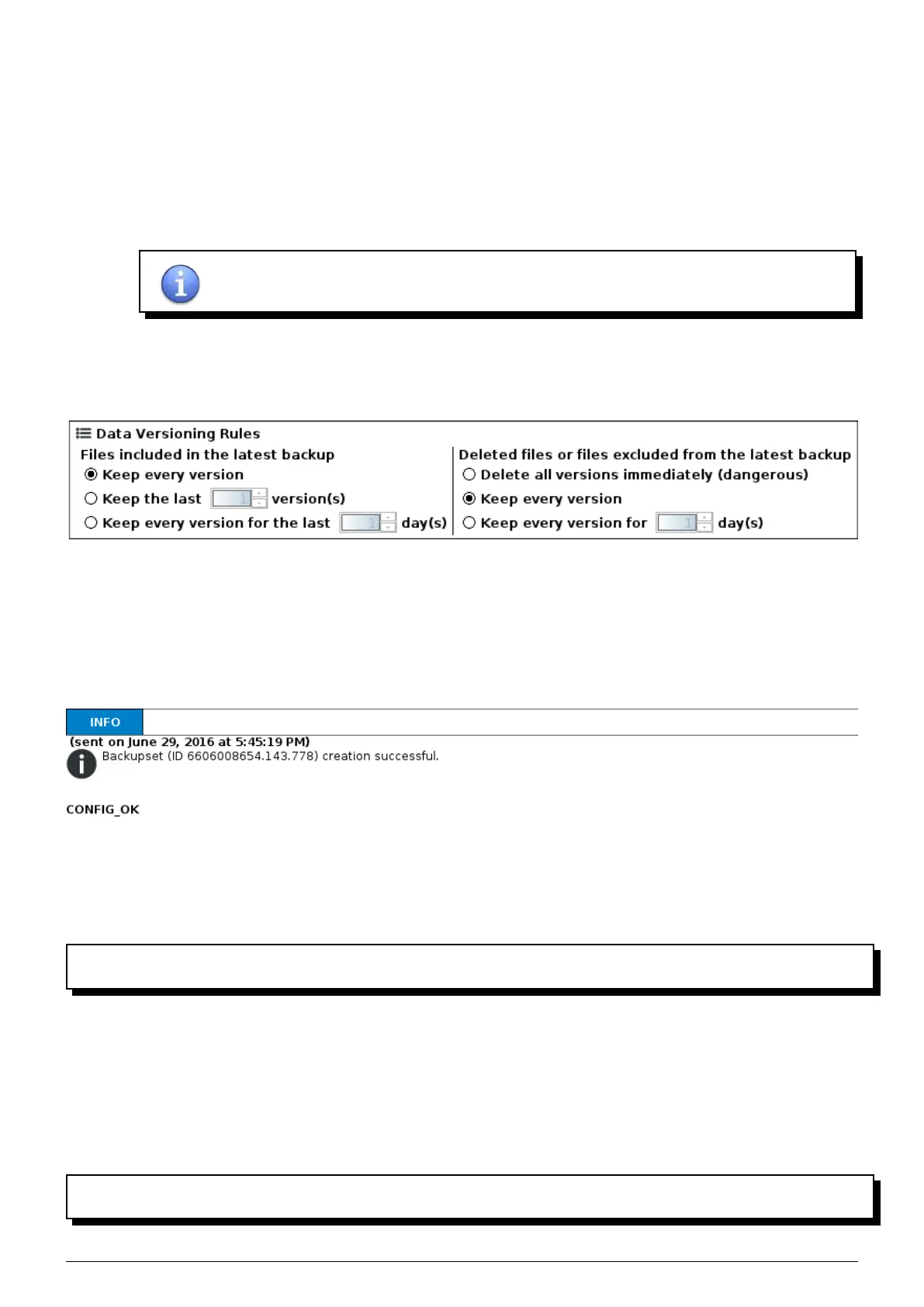
◦ Keep the last ’X’ versions : Lets you decide the number of versions of files you wish to keep. Once this
number of versions is reached, any new version will overwrite the oldest in the backup.
◦ Keep every version for the last ’X’ days : Each version of backed up files will be kept for ’X’ days, except
for the most recent version which by default is kept for an indefinite period.
• Files unselected in the backupset or deleted from the client workstation :
◦ Delete all versions immediately : deleted or excluded files will be automatically removed from all previous
backups both locally and remotely.
NOTE : the ’Delete immediately’ option will cause the permanent loss of data deleted or
unselected by accident. Use this option with extreme caution.
◦ Keep every version : deleted or excluded files will be stored permanently both locally and remotely.
◦ Keep every version for ’X’ days : deleted or excluded files will be stored for a preset number of days before
being per manently deleted both locally and remotely.
FIGURE 6.13 – Data versioning rules
6.1.8 Add
Click on the button to validate the creation of this backupset. This operation creates authentication keys and may take
a few minutes. Once the confirmation message appears at the bottom of the page, the machine is secure, all that
remains is to choose which files to back up.
FIGURE 6.14 – End of configuration
6.2 Creating an additional backupset
Backupsets enable you to save data in different ways for the same machine. Once the first backupset has been
created for the machine, you can duplicate this set as many times as you wish and modify it according to your needs.
1. Select the backupset to duplicate from the list of backupsets.
2. Click on
’Copy’, and a new backupset will appear in the list on the left.
3. Select the new backupset and make any changes necessary independently of the initial backupset.
6.3 Selecting the data to be backed up
Now that you have secured the machine, you will need to select the files and folders to be backed up. Advanced users
can use ’wildcards’ in the backup (6.4).
Data Safe Restore User manual Version 3.08 Page 29



 To Next Page