Configuration
On startup the Control Panel will automatically enroll all
the BPI Bus peripherals (refer to “Power supply” under
“INSTALLING”). Any changes after automatic enroll
-
ment must be made by the Installer.
During the polling process, the Control Panel will com
-
pare the interrogation result with the stored configura
-
tion and, in the event of mismatch, will a warning.
+
If the Control Panel is connected to a computer, it
will be possible to view the configuration by up
-
loading the Configuration page.
The Configuration Group Options is divided into pages
— one for each type of device (Keypads, Expander In,
Expander Out, Key Readers, Power Stations and Wire
-
less Module).
In the second column, the application shows the list of
supported BPI peripherals, for the type selected in the
first column: the application shows the peripheral ad
-
dress in bracket followed by the label assigned to.
In the third column you can set the options relevant to
the BPI peripheral selected in the second column.
The following programming instructions refer to options
common to all BPI peripherals. For instructions on how
to program the options of a specific device, refer to the
relevant paragraph.
Label This option (maximum 16 characters) is for the
device label (e.g. Entrance, Kitchen, etc.). This label will
identify the Device in all the operations it is involved in.
Enabled The devices connected to the BPI Bus must
be Enrolled, otherwise the Control Panel will be unable
to manage them.
If a peripheral device has not been connected properly
to the BPI bus, or fails to respond (Device Lost) due to
Trouble or Tamper, an X will be shown above the s icon
on the Keypad, and the Control Panel will generate the
following event:
Ø
Warning BPI Peripheral
+
The event will be recorded in the Log (refer to
ID.TYPE for the BPI Device Lost event).
n
Keypads
The Keypads option group will allow you to enroll and
set up all the options relating to the keypad.
+
For information regarding the Enabled and Label
options, refer to “Configuration”.
Type Select the type of keypad: LCD or Touch.
Default: LCD.
EN50131 If this option is enabled, in standby mode the
keypad will hide the Control Panel and zone display sta
-
tus. To display this information, you will have to enter
your own PIN first. In the event of Alarms, Tampers, and
Troubles, indicator light G will be illuminated, but in or
-
der to view malfunction information you will have to en
-
ter your own PIN.
Default: enabled.
A
In order to comply with the EN50131-1 and
EN50131-3 standards, this option must be enabled.
3 This option is ENABLED and locked (cannot be
changed) on Grade 3 Control Panels.
SMS Notification Select the type of notification for
SMS text messages received by the GSM module:
Ø Off, no notification;
Ø
Show Alert, the keypad displays the message SMS
received;
Ø
Show Alter and Sounds, the keypad displays the
message SMS received and beeps (LCD
keypads only).
+
This option CANNOT be set if the GSM group
Present option is not enabled.
Default: Off.
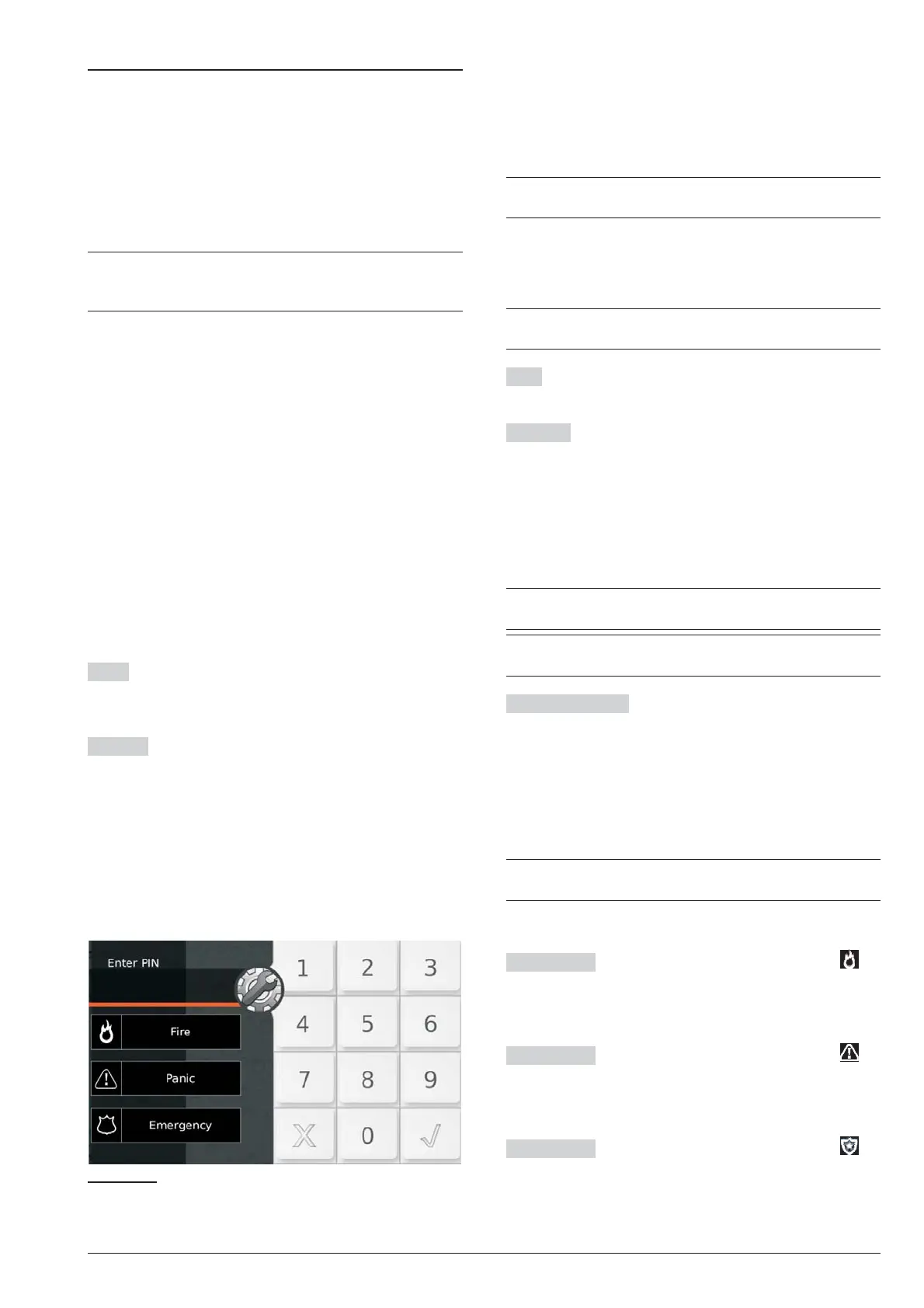
Super Key 1 Enter a label to explain the button on
the Touchscreen Keypad (Figure 24).
Valid values: up to 16 characters.
Default: Fire.
Super Key 2 Enter a label to explain the button on
the Touchscreen Keypad (Figure 24).
Valid values: up to 16 characters.
Default: Panic.
Super Key 3 Enter a label to explain the button on
the Touchscreen Keypad (Figure 24).
Valid values: up to 16 characters.
Default: Emergency.
40 Expandable Hybrid Control Panel
Figure 24 Default labels of the Super Keys on the
Touchscreen Keypad.



 To Next Page