SMS Messages
This group of options is to setup SMS Messages, as de
-
scribed below.
Label Assign a label to the message: this information
is not saved in the control panel, which is why the icon
for downloading the option does NOT change its ap
-
pearance when modified.
Message Enter the required message.
Downloading/Uploading
Once the options have been set up, they must be down
-
loaded to the Control Panel concerned, as follows.
To perform the Downloading/Uploading you must:
Ø
disarmed all the partitions;
Ø
exit from the Installer Menu;
Ø
enter the Installer PIN when required (default 0104
or 00104 for Grade 3 Control Panels);
Ø
connect the Control Panel to the PC on which BOSS
is installed.
+
It is also possible to download/upload options us
-
ing a USB key as described in “KEYPAD
OPERATIONS > 2.6) Option Download/Upload via
USB Key”.
n
Connecting the Control Panel to the PC
You can connect the Control Panel to a PC:
Ø
locally, via the RS232 Serial Port;
Ø
locally, via the USB Serial Port;
Ø
locally, via LAN net (request the IP Module);
Ø
remotely, via the Internet, via GPRS (request the
GSM Module);
Ø
remotely, via the Internet, via IP (request the IP Module).
3
In order to comply with EN50131 Grade 3 stan-
dards, ONLY use the ABS-IP IP Module to down-
load/upload options remotely: the ABS-GSM
GSM/GPRS Module CANNOT be used.
Connecting via RS232 Serial Port
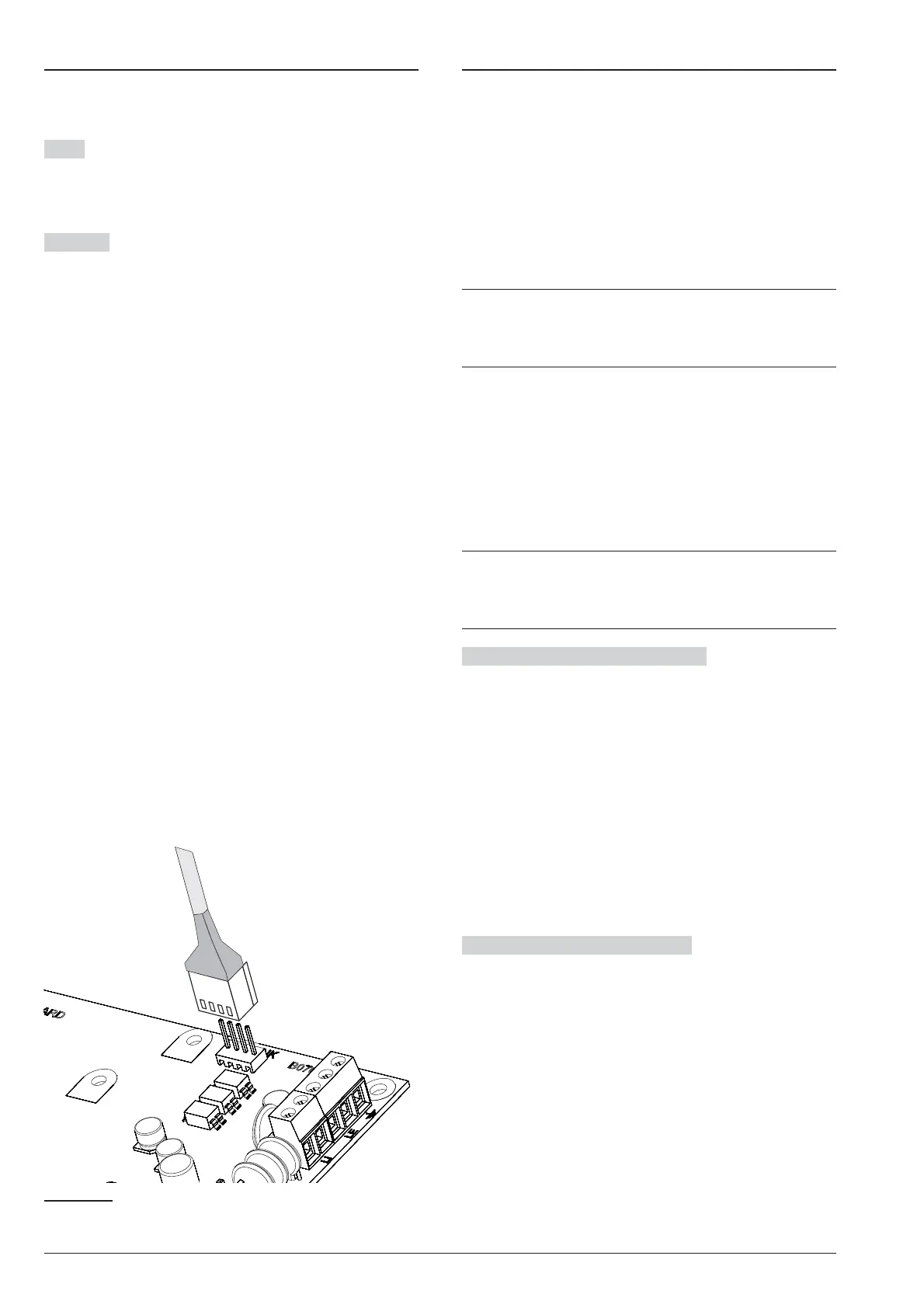
1. Connect the Control Panel RS232 serial port (10,
PC-LINK) to a free RS232 serial port on the PC us-
ing the PC-LINK cable (accessory item), as shown
on Figure 27.
2. Select the PC serial port used for connection with
the Control Panel, as follows:
– select Modem Manager Configuration from the
Tools menu;
– select the PCLINK - COM1 connection;
– select the PC serial port where the Control Panel
is connected to, from the Port menu;
– click OK.
Connecting via USB Serial Port
1. Connect the Control Panel USB serial port (22)toa
free USB serial port on the PC using the USB-5M
cable (optional) or an equivalent USB cable.
2. Select the PC serial port used for connection with
the Control Panel, as follows:
– select Modem Manager Configuration from the
Tools menu;
– select the PCLINK - COM1 connection;
– select the PC serial port where the Control Panel
is connected to, from the Port menu;
– click OK.
ABSOLUTA PROGRAMMING FROM THE PC 83
Figure 27 PC-Link connection.



 To Next Page