1.2) Output Test
This option will allow you to test the system Outputs.
1. Access the Installer menu, as indicated in the para
-
graph “Access to the operations”.
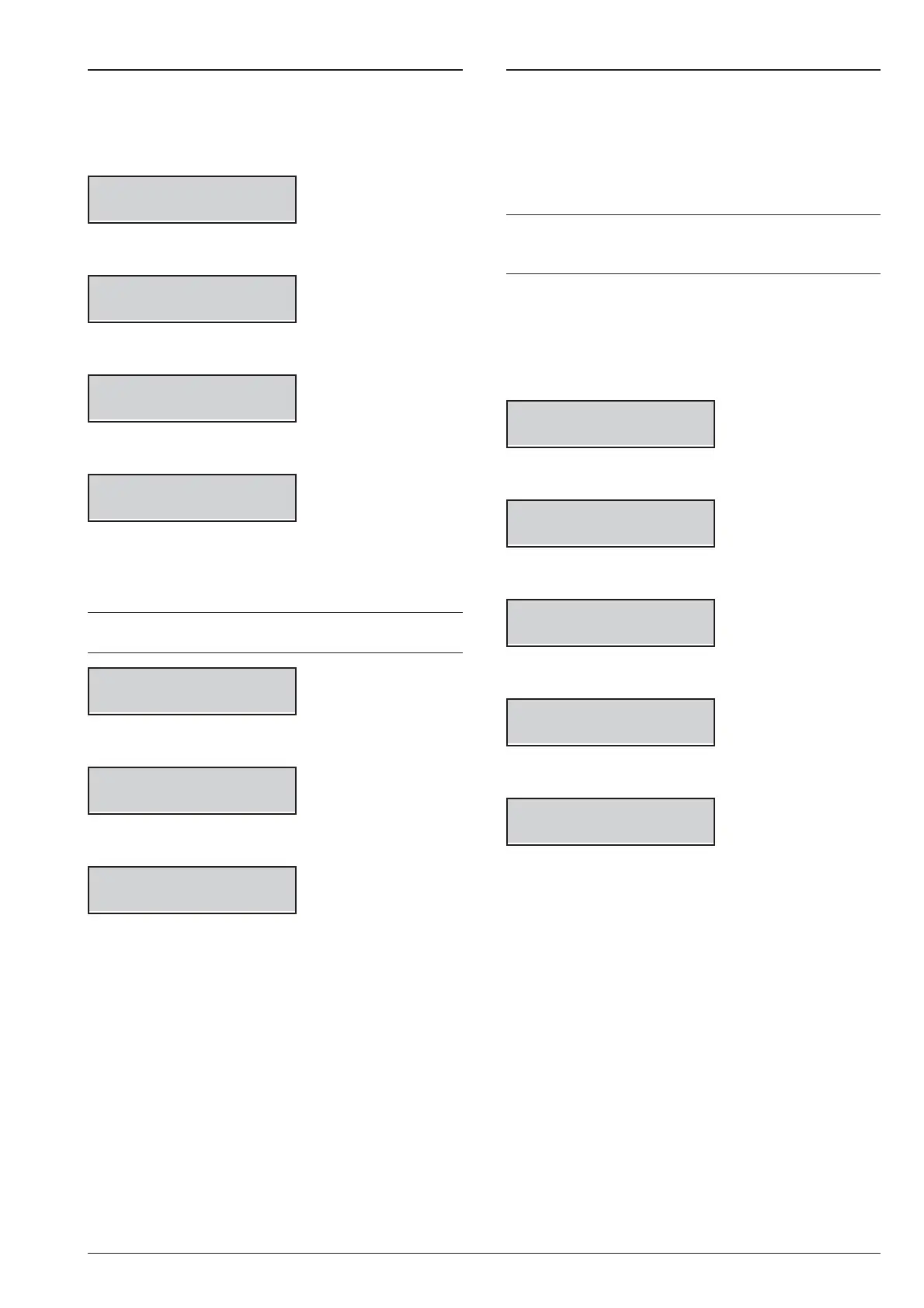
INSTALLER
1act. 2prg 3view
2. Select the Action option by pressing 1.
INSTALLER 1.1
ZONE test
3. Select the OUTPUT test option.
INSTALLER 1.2
OUTPUT test
4. Press ENTER.
On/Off Output -
5. Enter the ID Number relevant to the Software Out
-
put to be tested: the display bottom line shows the
label of the selected output.
+
If the corresponding Output is active the second
line blinks
On/Off Output 01
Output 01
6. Press ON to activate the selected Output.
Output 01
Activated
7. Press OFF to deactivate the selected Output.
Output 01
Deactivated
8. Press ON to re-activate the selected Output or
press ESC to select a different Output and go back
to step 5.
1.3) Changing the PIN
This option will allow to you to change the Installer PIN
or the Level 4 PIN, depending on the menu you are run
-
ning (Installer Menu or Level 4 Menu): the default In
-
staller PIN is 0104 (00104 for Grade 3 Control Panels);
the default Level 4 PIN is 0400 (00400 for Grade 3 Con
-
trol Panels).
+
You must press A, before enter the Installer PIN, to
access the Installer Menu, and B, before enter the
Level 4 PIN, to access the Level 4 Menu.
You can change the PIN as follow.
1. Access the Installer menu or the Level 4 menu, as
indicated in the paragraph “Access to the opera
-
tions”.
INSTALLER
1act. 2prg 3view
2. Select the Action option by pressing 1.
INSTALLER 1.1
ZONE test
3. Select Change My PIN.
INSTALLER 1.3
Change my PIN
4. Press ENTER.
INSTALLER
New PIN
5. Enter the new Installer PIN, then press ENTER.
INSTALLER
Again
6. Enter again the new Installer PIN, then press
ENTER:
Ø
if the entries match, the new Installer PIN will be
memorized and the Keypad go back to step 3,
Ø
otherwise the Keypad will sound the error signal and
go back to step 4.
92 Expandable Hybrid Control Panel



 To Next Page