OPERON D 850 SURGICAL TABLE
USING THE SERVICE PROGRAM
700000120 Rev. 1
6-5
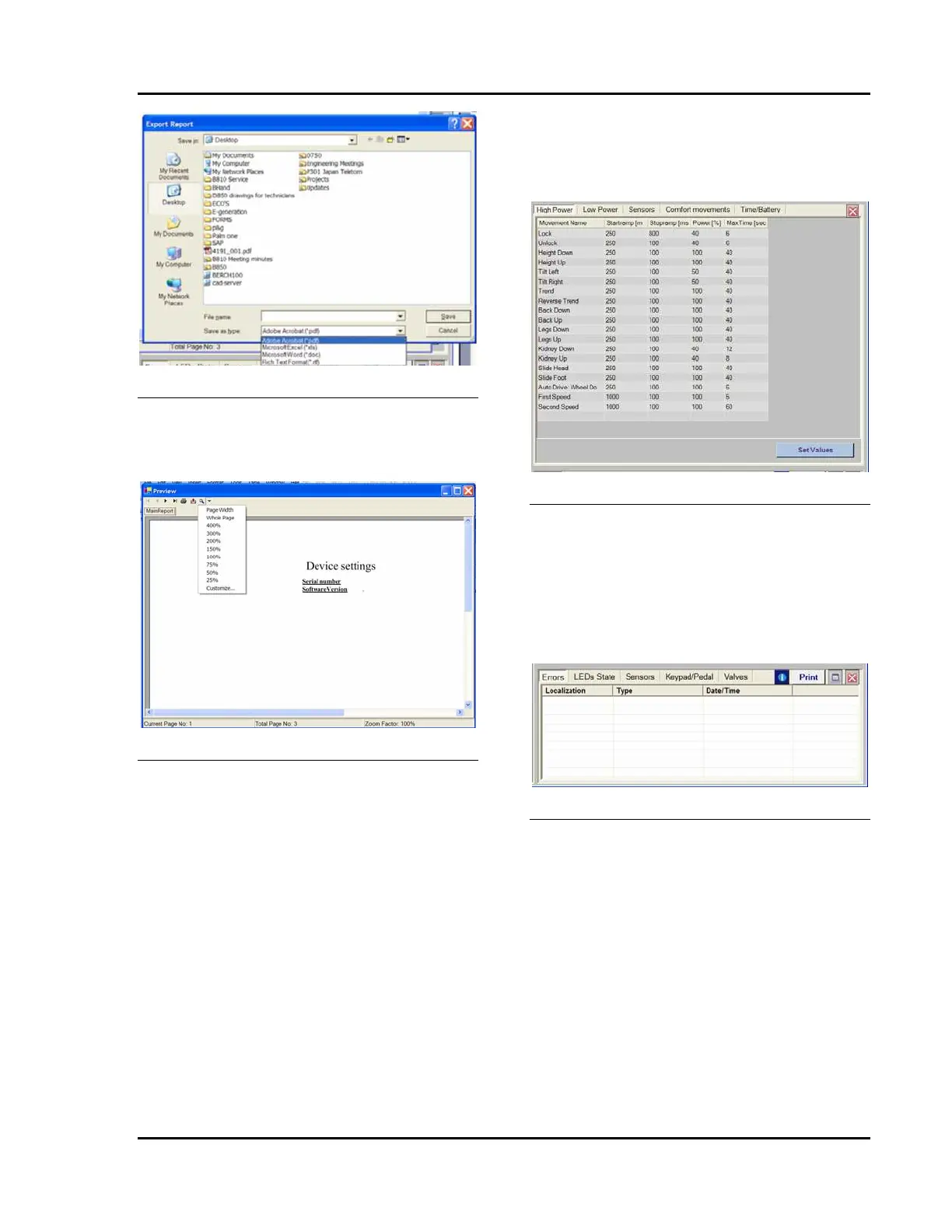
Figure 6-10 Export Report Screen
Zoom
Selecting this option displays the standard
windows zoom menu.
Figure 6-11 Zoom Menu
Exit
Selecting this option exits from the OPERON
D850 Service Program.
• You do not receive a warning or prompt
before the program shuts down.
• New settings in any form will not be
automatically saved on exit. You must use
the “save settings to file” command to save
any new settings. You can select the exit
option by clicking on the “X” box on the
right corner of the menu bar.
View Menu
The View menu offers you two choices:
Device Settings
Selecting this option displays the Device
Settings Screen. Clicking the Device Settings
button causes the Settings Forms to appear.
Figure 6-12 Device Settings Screen
System information
Selecting this option displays the System
Information Screen, from which you can read
the Errors file and the status of LED indicators,
sensors, pendant keypad/ footswitch pedals and
valves. You may also print any of this
information by selecting the Print button.
Figure 6-13 System Information Screen
Errors
Selecting this option displays the errors file
screen. By clicking the “i” icon, the last 100
error codes recorded by the CPU will be
displayed. Errors are displayed on a First
In/First Out (FIFO) basis. If more than 100
errors are logged, each new error after the one-
hundredth will result in the elimination of the
oldest error in the register. After you have dealt
with all of the codes, you can press the Clear
Error button on the top bar of the System Info
window to clear the codes. Clearing the codes
only clears them from the table’s CPU memory.
The error codes remain in the Service
Program’s



 To Next Page