OPERON B850 SURGICAL TABLE
USING THE SERVICE PROGRAM
Rev. 1 700000120
6-8
The communications settings between your
computer and the table’s CPU will be set
automatically during the Connect to Device
process. You may only change the COM port.
• Click on the COM Port you wish to use:
COM 1 or COM 2.
• If you change your mind on any setting, go
back and modify it.
• If you decide to leave the settings as they
are, click on the “Cancel” button.
Alternatively, you can click on the “X”
button in the upper right corner. Either of
these actions will close the form.
• Once you have the settings the way you
want them, click on “OK” to save them, and
exit the COM Options form.
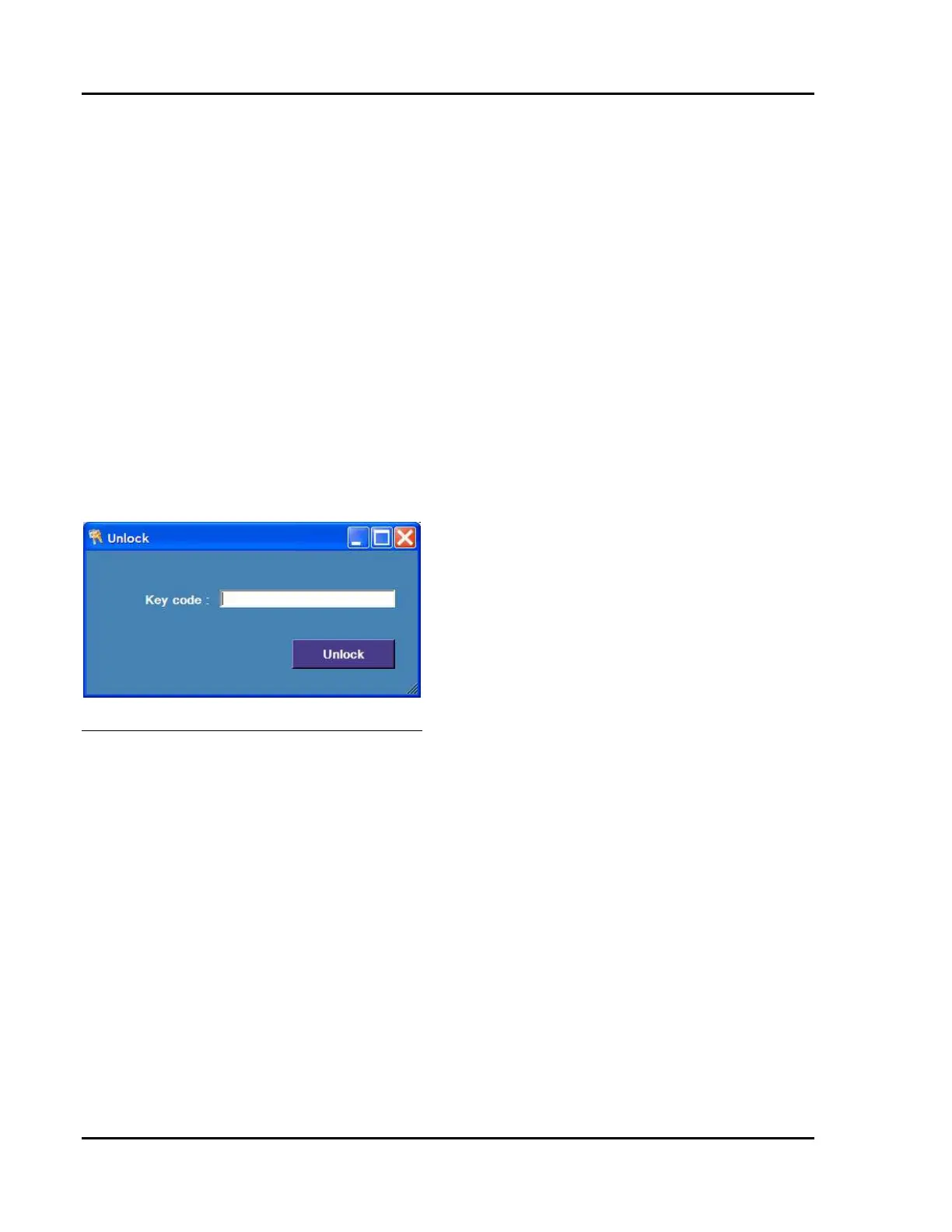
Unlock
This option prompts the user for a “Key-Code”
for virtual control of table functions.
Figure 6-21 COM Unlock Screen
This is a purchased feature; please see your
BERCHTOLD Corporation Sales/Service
Representative.
About Menu
This option displays the software version, the
service program version, and the serial number
of the table.
Buttons
All of the buttons along the top of the screen are
associated with corresponding menu options
described above.
• Clicking the File Open button causes the
File Open screen to appear. This window
can be exited by clicking the X in the upper
right hand corner.
• Clicking the Print Device Settings button
causes the Device settings report to be
compiled and displayed. This window can
be exited by clicking the X in the upper right
hand corner.
• Clicking the Device Settings button causes
the Device Settings screen to appear. This
window can be exited by clicking the X in
the upper right hand corner.
• Clicking the System Information button
causes the System information screen to
appear. This window can be exited by
clicking the X in the upper right hand
corner.
• Clicking the Download from MCU button
downloads all settings from the table to the
service computer.
• Clicking the Upload to MCU button uploads
all settings to the table from the service
computer.
• Clicking the Set Default Values button
uploads the default file settings to the table.
• Clicking the Delete Errors button deletes all
errors stored in the MCU. This is not
recommended.
• Clicking the Valves Test button causes the
Valves Test Screen to appear.
• Clicking the COM Interface button causes
the COM Options setting form to appear
• Clicking the Unlock COM Interface button
causes the Unlock COM interface dialog
box to appear.
• Clicking the Open File button presents a
standard Windows Open File screen.
• Clicking the Save File Settings button
presents a standard Windows File Save
screen.
• Clicking the Print Device Settings button
compiles all of the device settings into a
report preview, which can be printed,
exported, or viewed.
Device Settings Screen
The Settings Forms are organized on five tabs:
1. High Power



 To Next Page