OPERON D 850 SURGICAL TABLE
USING THE SERVICE PROGRAM
700000120 Rev. 1
6-7
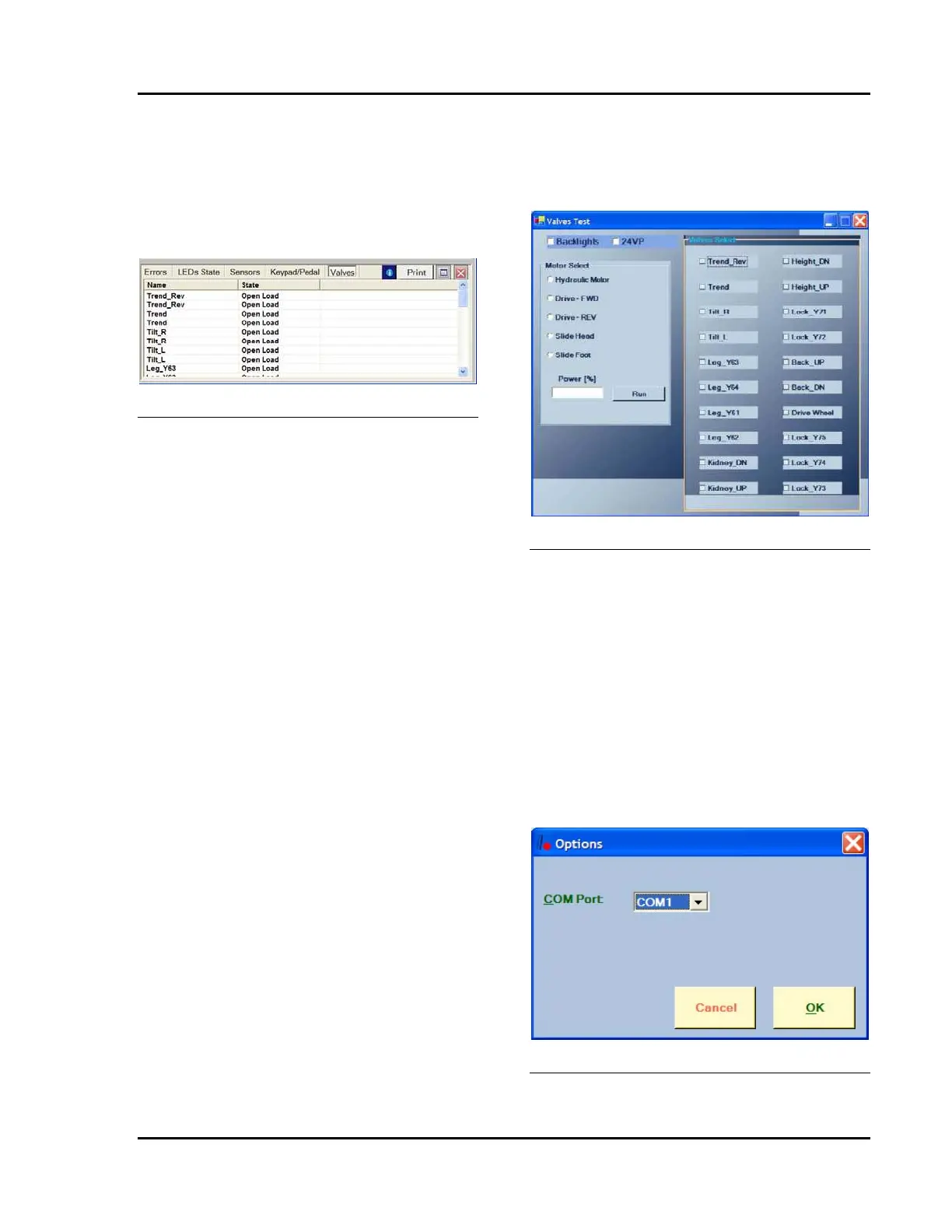
Valves
Selecting this option displays the Valves
information screen. By clicking the “i” icon, the
system will read the current status of all of the
valves in the D850 hydraulic system. This list
can be sorted by valve Name and State (Open
Load means the switch is open).
Figure 6-18 Valves Information Screen
MCU Menu
The MCU menu offer you four choices
1. Download from MCU
Selecting this option downloads all
settings from the table to the service
computer.
2. Download to MCU
Selecting this option uploads all
settings to the table from the service
computer. This is the same as selecting
the Set Values button on the device
settings screens.
3. Set default values
Selecting this option uploads the
default file settings to the table.
4. Delete errors (NOT
RECOMMENDED)
Selecting this option deletes all errors
accumulated in the table.
Test Menu
The Test menu offers only one option:
1. Valves Test
Selecting this option displays the
Valves Test Screen. This screen
allows the user to activate motors and
switches to aid in troubleshooting a
problem. For instance, to operate the
floor lock cylinders without the hand
pendant (and without the associated
signal delays and voltage ramps), one
would select the Hydraulic Motor box,
the 24VP box and the Lock_Y71 and
Lock_Y72 boxes. Then input the
power in percent (Power Width
Modulation [PWM] percentage) and
click RUN. Click RUN again to stop.
Figure 6-19 Valves Test Screen
COM Interface Menu
This menu offers three choices
1. Connect to device
Selection this option initiates
communication between the table
MCU and the service computer and
downloads all of the settings of the
table to be displayed via the service
program.
2. Options
Selecting this option displays the COM
Options setting form.
Figure 6-20 COM Options Screen




 To Next Page