CB (E6.1) 07/2017 Page 70/145
If no USB device has been connected, the message “No USB device found” is displayed.
Confirm the message with “OK” and insert the USB medium.
This symbol on the controller display in the initial view indicates that data are being transmitted
via the USB port.
During a prolonged transfer, the message “USB data transfer in progress” is displayed. Confirm the
message with “OK”.
Following data transfer, the message “USB data transfer completed” is displayed. Confirm the message
with “OK”.
10.2 Importing data from USB drive
Insert the USB stick or the plug of your USB drive into the USB port in the instrument box.
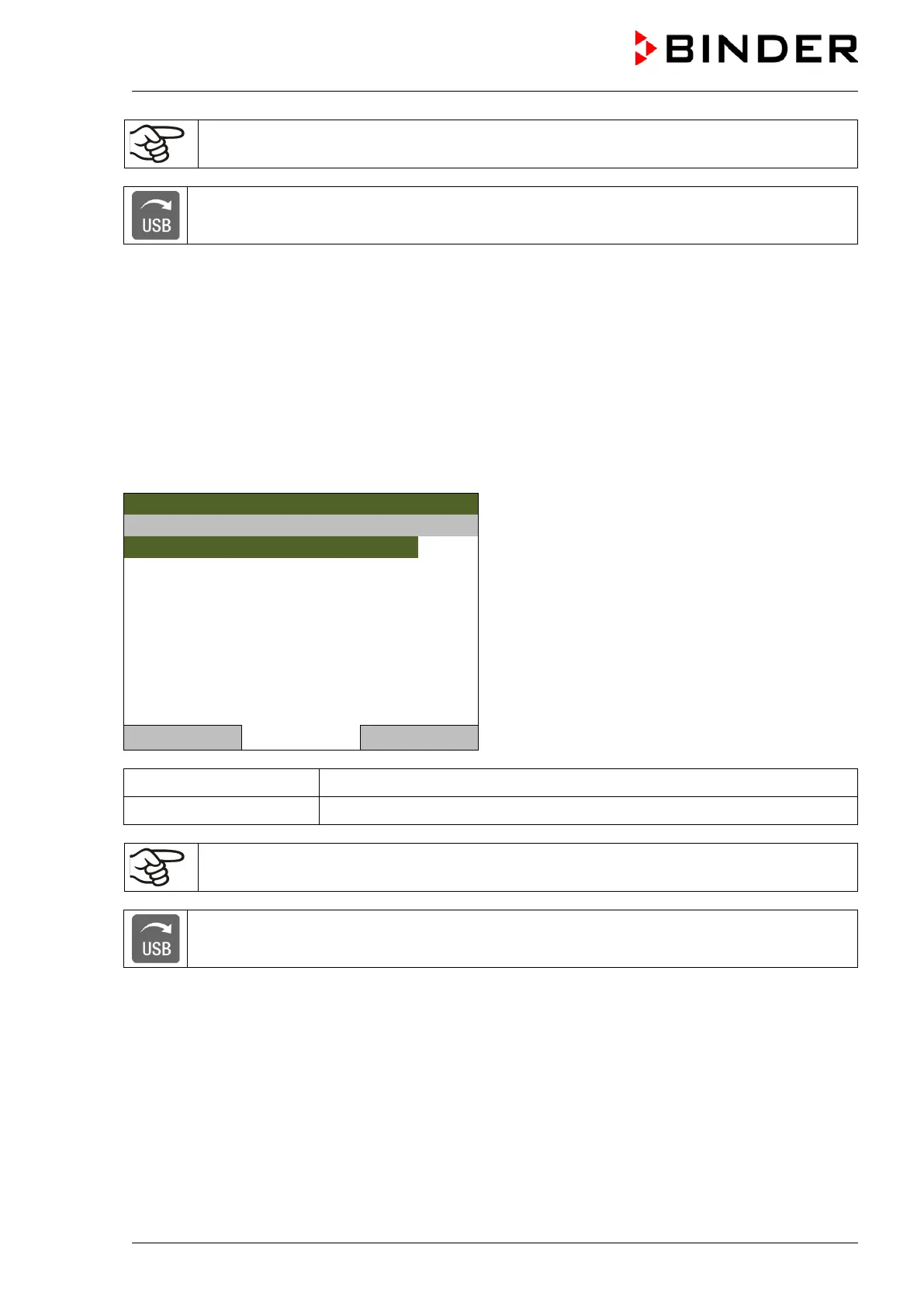
To configure data import from USB media, go to Menu > Import/Export > Import from USB drive
08.03.2013 05:05:06
Submenu “Import from USB drive”.
Select the desired data type
and press the operating button.
Data is read from the connected media.
..\ Import from USB drive
Close Home
Configuration
(Service only)
Firmware
(Service only)
If no USB device has been connected, the message “No USB device found” is displayed.
Confirm the message with “OK” and insert the USB medium.
This symbol on the controller display in the initial view indicates that data are being transmitted
via the USB port.
During a prolonged transfer, the message “USB data transfer in progress” is displayed. Confirm the
message with “OK”.
Following data transfer, the message “USB data transfer completed” is displayed. Confirm the message
with “OK”.



 To Next Page