--------------------------e
••••
Getting Started
3 Fasten the grip belt.
Adjust the grip belt so that you can
reach the zoom lever with your index
finger, and the start/stop button with
your thumb.
The
Wireless
Controller
Inserting
the
Battery
(Lithium
Button
Battery
CR2025)
•
@~2.i
..
c.+~....
CD
®
.....••••••.•
~
.
1#
I
~
Tab
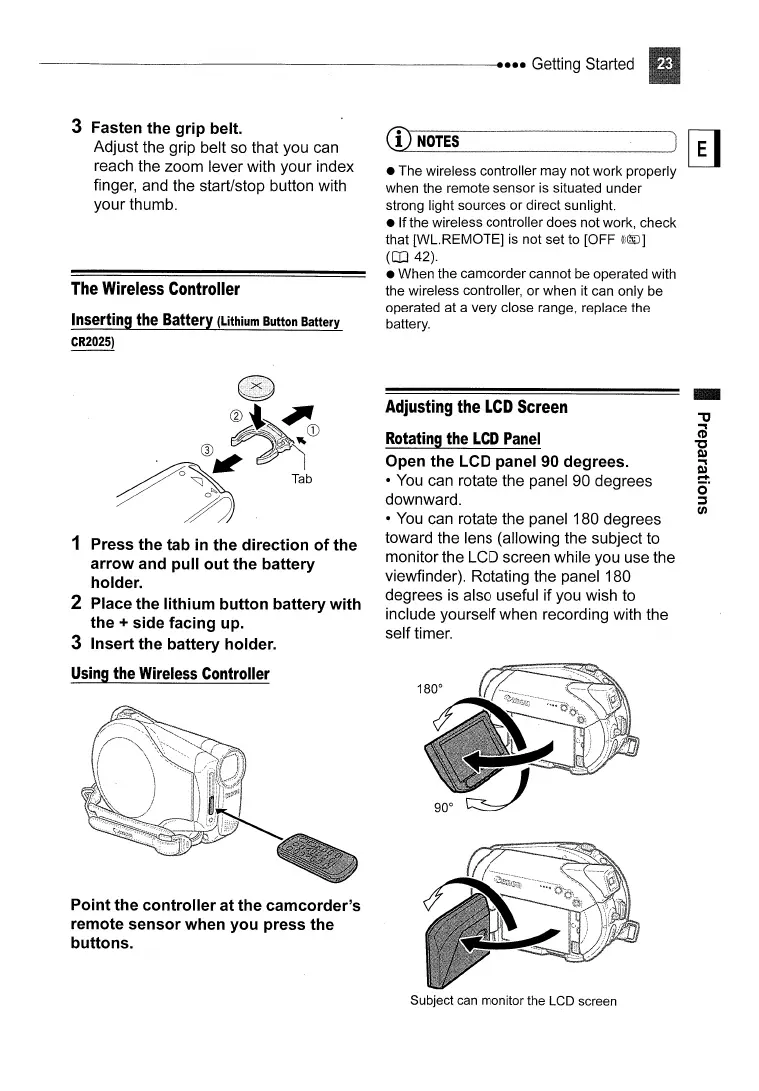
1 Press the tab
in
the direction of the
arrow and pull out the battery
holder.
2 Place the lithium button battery with
the
+ side facing up.
3 Insert the battery holder.
Using
the
Wireless
Controller
Point the controller at the camcorder's
remote sensor when you press the
buttons.
(J)NOTES--------
)
~
• The wireless controller may not work properly
when the remote sensor is situated under
strong light sources or direct sunlight.
• Ifthe wireless controller does not work, check
that [WL.REMOTE]
is
not set to [OFF
(((@J]
(CD
42).
• When the camcorder cannot be operated with
the wireless controller, or when it can only be
operated at a very close range, replace the
battery.
Adjusting
the
LCD
Screen
Rotating
the
LCD
Panel
Open the LCD panel 90 degrees.
•
You
can rotate the panel 90 degrees
downward.
•
You
can rotate the panel 180 degrees
toward the lens (allowing the subject to
monitor the LCD screen while you use the
viewfinder). Rotating the panel 180
degrees is also useful if you wish to
include yourself when recording with the
self timer.
Subject can monitor the LCD screen



 To Next Page