------------------------
••••
Menu Options Lists
[mBDATE],
[e>TIME],
[lli!e>
DATE &
TIME]
[mlON],
[1m
OFF]
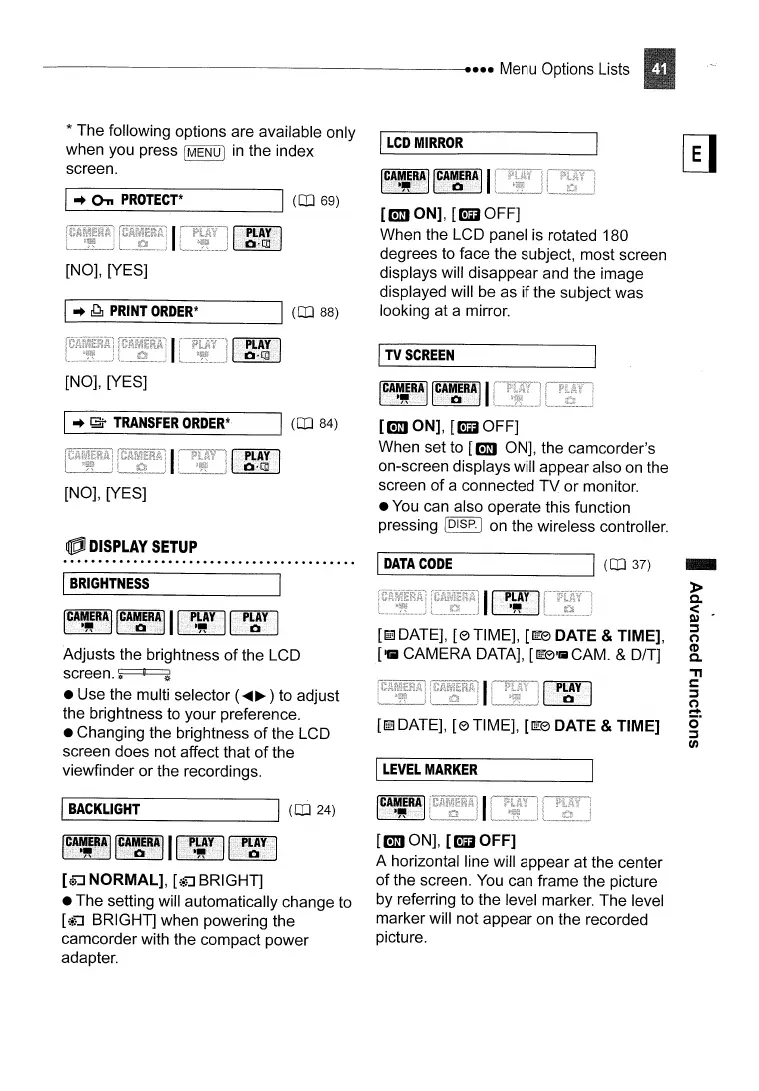
When set to
[mi
ON], the camcorder's
on-screen displays will appear also on the
screen
of
a connected
TV
or monitor.
•
You
can also operate this function
pressing
IDISP.j
on the wireless controller.
[mlON],
[1m
OFF]
When the LCD panel is rotated 180
degrees to face the subject, most screen
displays will disappear and the image
displayed will be as if the subject was
looking at a mirror.
I
LEVEL
MARKER
I
TV
SCREEN
1....-1
D_AT_'A_C_O_DE
-----ll
(OJ 37)
I
LCD
MIRROR
r~~ttR~J
[C~~~~ll
Adjusts the brightness
of
the LCD
screen.~
• Use the multi selector (
.....
~
) to adjust
the brightness
to
your preference.
• Changing the brightness
of
the LCD
screen does not affect that
of
the
viewfinder or the recordings.
lfIk'l
DISPLAY
SETUP
[NO], [YES]
[NO], [YES]
[NO], [YES]
* The following options are available only
when you press
(MENU I
in
the index
screen.
1....-
1
B_AC_K_L_IG_HT
---J
1
(oj
24)
I
BRIGHTNESS
I
..
ddJ
PRINT
ORDER*
I_
..
_~_·
_T_RA_N_S_F_ER_O_R_D_ER_*
__
-II
(OJ 84)
1_
..
_On
__
PR_O_TE_C_T*
---J1 (OJ 69)
[\i.J
NORMAL],
[{~r.l
BRIGHT]
• The setting will automatically change to
[{~r.l
BRIGHT] when powering the
camcorder with the compact power
adapter.
[mi
ON], [1m
OFF]
A horizontal line will appear at the center
of
the screen.
You
can frame the picture
by referring to the level marker. The level
marker will not appear on the recorded
picture.



 To Next Page