-------------------------__e
••••
Playback
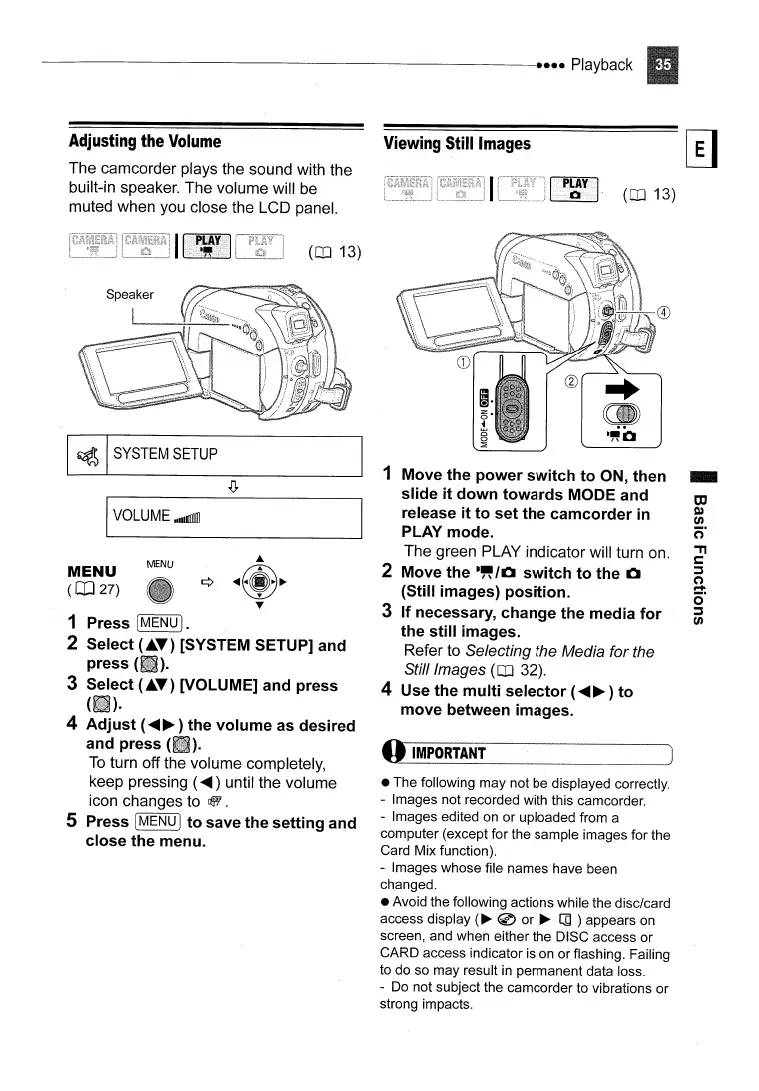
Adjusting
the
Volume
The camcorder plays the sound with the
built-in speaker. The volume will be
muted when you close the LCD panel.
Viewing
Still
Images
(OJ 13)
.J
(I
IMPORTANT
• The following may not be displayed correctly.
- Images not recorded with this camcorder.
- Images edited
on
or uploaded from a
computer (except for the sample images for the
Card Mix function).
- Images whose file names have been
changed.
• Avoid the following actions while the disc/card
access display
(~
® or ~
[]
) appears on
screen, and when either the DISC access or
CARD access indicator is on or flashing. Failing
to do so may result
in
permanent data loss.
- Do not subject the camcorder to vibrations or
strong impacts.
1 Move
the
power
switch
to
ON, then
slide
it
down
towards
MODE and
release
it
to
set
the
camcorder
in
PLAY mode.
The green PLAY indicator will turn on.
2 Move
the
-,.
10
switch
to
the 0
(Still images)
position.
3
If
necessary,
change
the
media
for
the
still
images.
Refer to Selecting the Media for the
Still Images
(OJ 32).
4 Use
the
multi
selector
(
.....
~
)
to
move
between images.
(OJ 13)
MENU
I
VOLUME.dIIlllII
1 Press I
MENU)
.
2 Select
(.~T)
[SYSTEM SETUP] and
press
(
).
3 Select
(.T)
[VOLUME] and press
OlD·
4
Adjust
(
.....
~)
the
volume
as desired
and
press
(II).
To
turn off the volume completely,
keep pressing (
.....
) until the volume
icon changes to
~.
5 Press
[MENU)
to
save
the
setting
and
close
the
menu.
MENU
(CD
27)
~
SYSTEM
SETUP



 To Next Page