\j\jIDESCRJ
PLAYL/ST
Editing
the
Scenes
Creating
a
Playlist
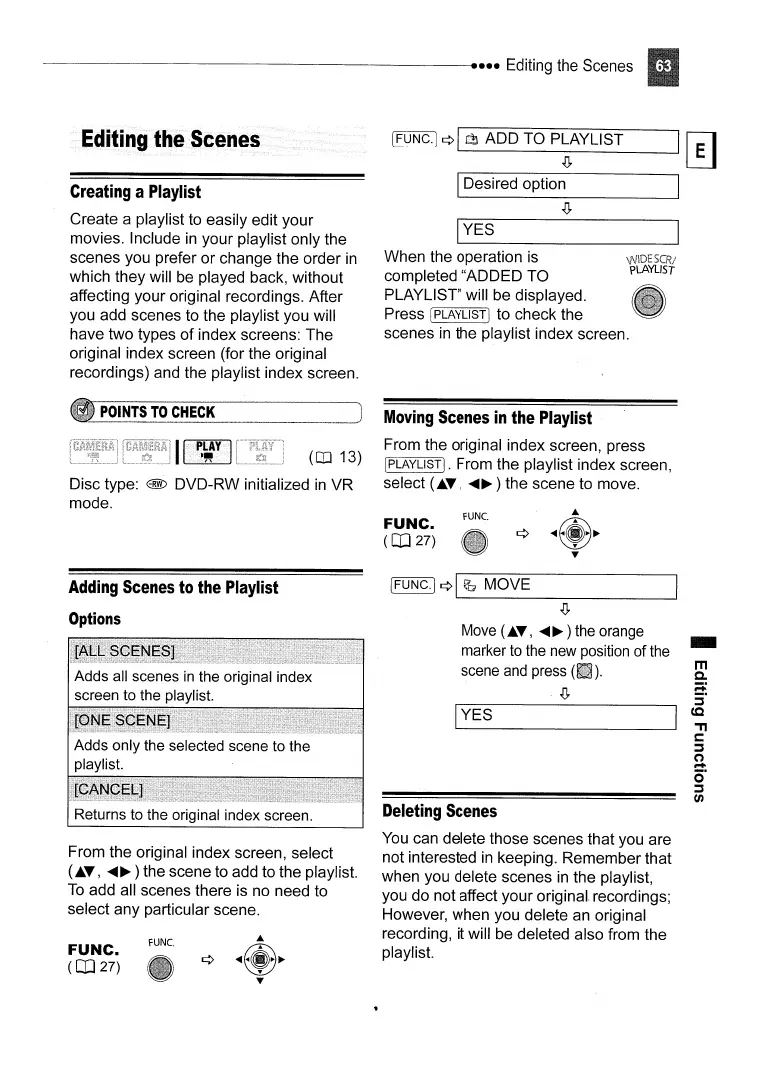
Create a playlist to easily edit your
movies. Include
in
your playlist only the
scenes you prefer or change the order
in
which they will
be
played back, without
affecting your original recordings. After
you add scenes to the playlist you will
have two types
of
index screens: The
original index screen (for the original
recordings) and the playlist index screen.
[FUNC·I
¢1121
ADD
TO
P~AYLIST
10
Ir--D-e-s-ir-e-d-o-p-tio-n---------.I
IYES
When the operation is
completed "ADDED TO
PLAYLlST" will be displayed.
Press
IPLAYLlST! to check the
scenes
in
the playlist index screen.
Moving
Scenes
in
the
Playlist
From the original index screen, press
!PLAYLlSTJ. From the playlist index screen,
select (..... ,
.....
~)
the scene to move.
POINTS
TO
CHECK
(CD
13)
Disc type: @ DVD-RW initialized
in
VR
mode.
FUNC.
(CO
27)
rUNe.
Adding
Scenes
to
the
Playlist
Options
IFUNC.j ¢ I
(JQ
MOVE
IYES
-D.
Move
(..... ,
.....
~)
the
orange
marker
to
the
new
position
of
the
scene
and
press
(tIl).
-D.
Deleting
Scenes
You
can delete those scenes that you are
not interested
in
keeping. Remember that
when you delete scenes
in
the playlist,
you do not affect your original. recordings;
However, when you delete an original
recording, it will be deleted also from the
playlist.
rUNe.
FUNC.
(CO
27)
From the original index screen, select
(..... ,
.....
~)
the scene to add to the playlist.
To
add all scenes there is no need to
select any particular scene.



 To Next Page