• Be careful when deleting original recordings.
Once deleted, an original scene cannot be
recovered.
• Do not change the position
of
the power
switch or the
·~/O
switch while the scene is
being deleted.
I
q(t:;~1
-+
I
..
/II
I •
)CJ
I
~~DRlVEMODEDEFFECTSlIGH:
© button
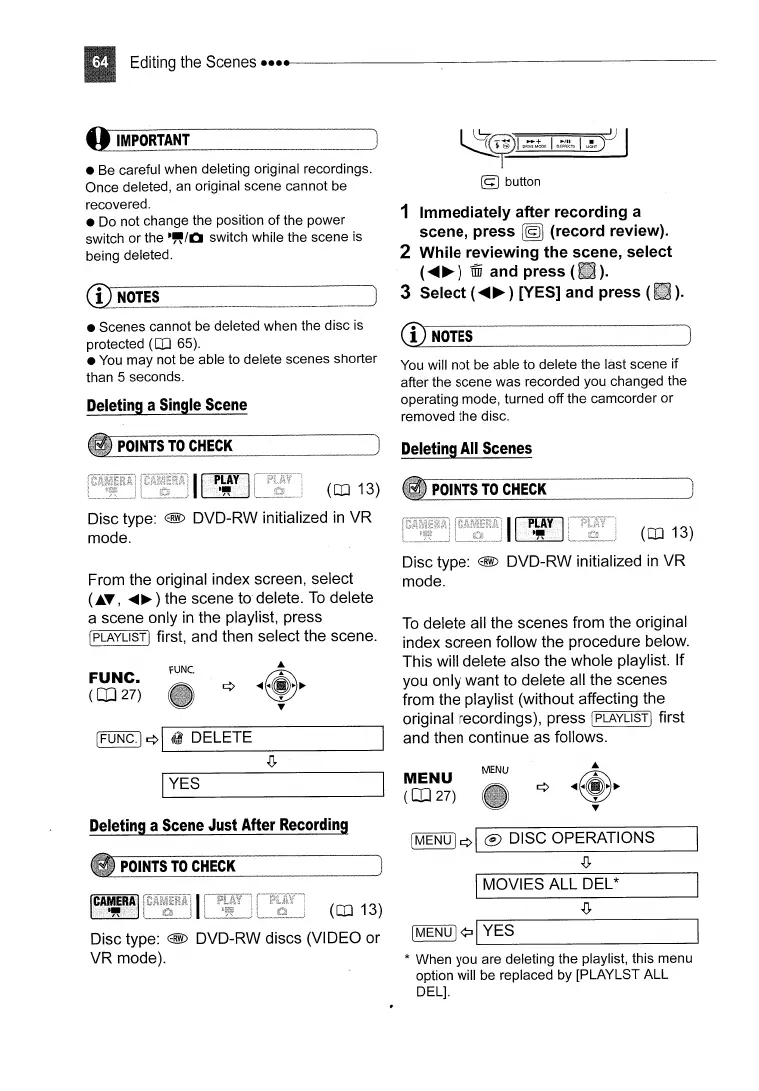
1 Immediately after
recording
a
scene,
press
~
(record review).
2 While reviewing
the
scene,
select
(
.....
~)
1ffi
and
press
(
).
3 Select (
.....
~
) [YES] and press (
).
• Scenes cannot be deleted when the disc is
protected
(OJ
65).
•
You
may not be able to delete scenes shorter
than
5 seconds.
Deleting
a
Single
Scene
(1)
NOTES
You will not be able to delete the last scene
if
after the scene was recorded you changed the
operating mode, turned off the camcorder or
removed the disc.
POINTS
TO
CHECK
To
delete all the scenes from the original
index screen follow the procedure below.
This will delete also the whole playlist. If
you only want to delete all the scenes
from the playlist (without affecting the
original recordings), press
!PLAYLlSTj first
and then continue as follows.
(OJ
13)
Disc type:
@ DVD-RW initialized
in
VR
mode.
POINTS
TO
CHECK
Deleting
All
Scenes
rUNe.
[FUNC.I
¢I
dj
DELETE
(OJ
13)
Disc type:
@ DVD-RW initialized
in
VR
mode.
FUNC.
(CO
27)
From the original index screen, select
(A~,
.....
~)
the scene to delete.
To
delete
a scene only
in
the playlist, press
!PLAYLlSTJ first, and then select the scene.
Deleting
a
Scene
Just After
Recording
IYES
MENU
IMOVIES ALL DEL*
[MENU]
¢I
® DISC OPERATIONS
.(J,
[MENU I
¢:J
I_Y_E_S
_
* When you are deleting the playlist, this menu
option will be replaced by [PLAYLST ALL
DEL].
MENU
(CO
27)
(OJ
13)
POINTS
TO
CHECK
Disc type: @ DVD-RW discs (VIDEO or
VR mode).
[e.
AM.
Eft
....
A
..
J
.~



 To Next Page