Other Recording Options
•••
~.~~~~~~~~~~~~~~~~~~~-
Options
• Default value
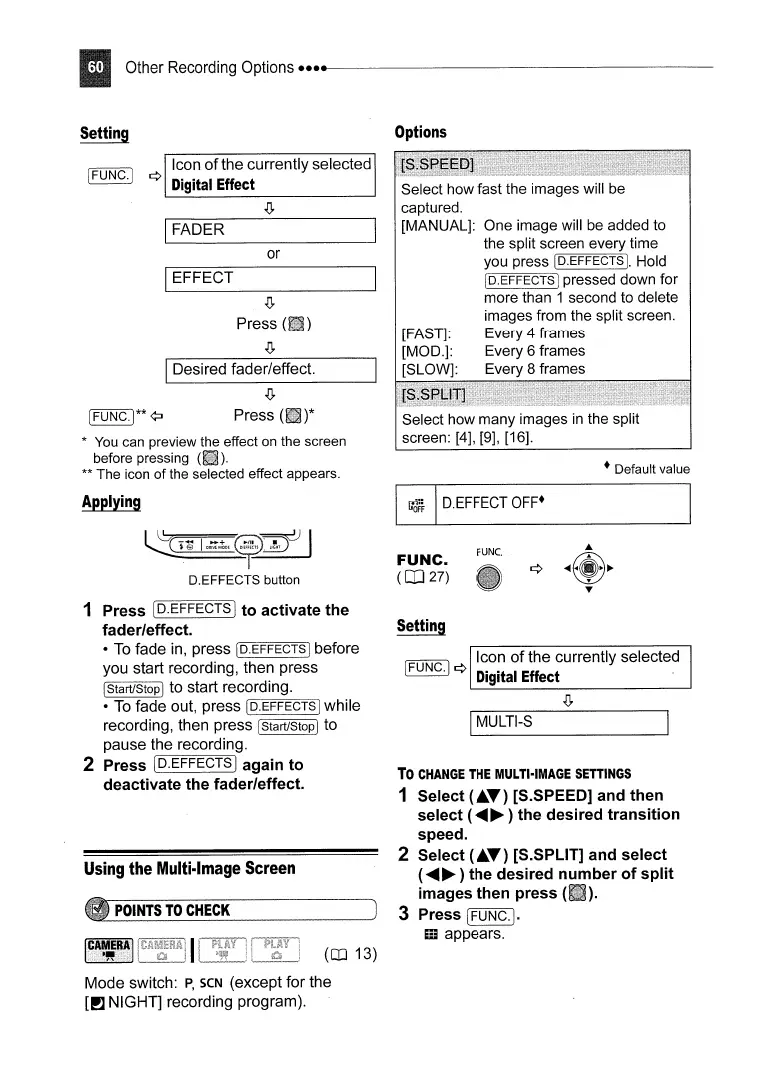
Select how many images
in
the split
screen: [4], [9], [16].
rUNe.
Select how fast the images will
be
captured.
[MANUAL]: One image will
be
added to
the split screen every time
you press
IO.EFFECTS
].
Hold
!O.EFFECTSj pressed down for
more than 1 second to delete
images from the split screen.
[FAST]: Every 4 frames
[MOD.]: Every 6 frames
[SLOW]: Every 8 frames
FUNC.
(QJ27)
~
D.EFFECT
OFF·
IDesired fader/effect.
IFADER
~--
I
-+
~~C)
I
~@
DRlV'MODE9~
D.EFFEGTS button
.Q,
Press
IEFFECT
or
Icon
of
the currently selected
[FUNG.] ¢
Digital
Effect
.Q,
[FUNG.I**~
Press
* You can preview the effect on the screen
before pressing
(fill).
**
The
icon
of
the selected effect appears.
1 Press
[D.EFFECTS)
to activate the
fader/effect.
•
To
fade in, press !O.EFFECTS Ibefore
you start recording, then press
IStart/Stop Ito start recording.
•
To
fade out, press IO.EFFECTS] while
recording, then press
[Start/StopIto
pause the recording.
2 Press I
D.EFFECTS
Iagain to
deactivate the fader/effect.
Using
the
Multi-Image
Screen
POINTS
TO
CHECK
(OJ 13)
Mode switch:
P,
seN (except for the
[!1 NIGHT] recording program).
Icon
of
the currently selected
[FUNG·I ¢
Digital
Effect
.Q,
I
MULTI-S
To
CHANGE
THE
MULTI-IMAGE
SETTINGS
1 Select
(.A.T)
[S.SPEED] and then
select (
......
~
) the desired transition
speed.
2 Select
(.A.T)
[S.SPLIT] and select
(
......
~)
the desired number of split
images then press (
).
3 Press
!FUNC.!.
mappears.



 To Next Page