(2) Scan Results Area
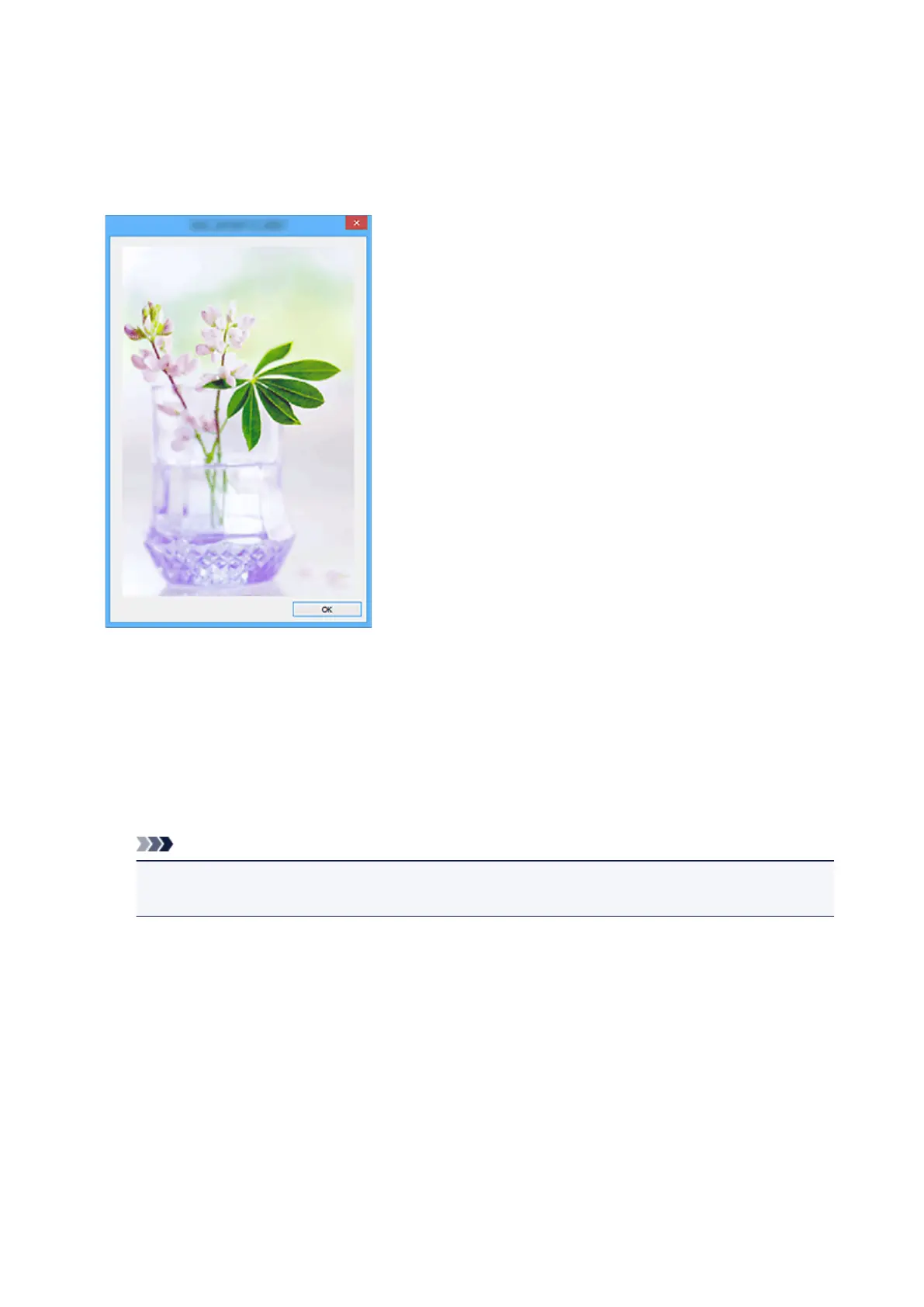
Displays the thumbnails of the scanned images. You can change the save order of images via drag-and-
drop. The file names for saving appear below the thumbnails.
Double-click a thumbnail to enlarge the view of the scanned image.
(3) Save Settings Area
Scan More
Starts scanning again, and then adds the image to the Scan Results area.
File Name
Enter the file name of the image to be saved. When you save a file, the date and four digits are
appended to the set file name in the "_20XX0101_0001" format.
Note
• When you select the Save to a subfolder with current date checkbox, the date and four digits
are appended to the set file name.
Save in
Displays the folder in which to save the scanned images. To add a folder, select Add... from the pull-
down menu, then click Add in the displayed Select Destination Folder dialog box and specify the
destination folder.
The default save folders are as follows.
• Windows 10/Windows 8.1/Windows Vista:
Documents folder
• Windows 8/Windows 7:
My Documents folder
761









 To Next Page