6-18
Cisco 1240 Connected Grid Router Hardware Installation Guide
OL-26223-04
Chapter 6 Installing the Router
Additional Router Connections
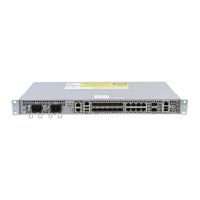
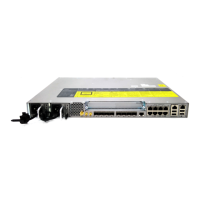
Figure 6-12 Console Port Location
Connecting
This section describes how to connect a PC terminal to the console port.
Your router kit includes a console cable with an RJ-45 connector on one end, and a DB-9 connector on
the other end.
• When a terminal is connected to the console port, you can connect directly to the router and
configure it. You can connect a PC terminal to this port while the router is operating normally.
• To connect a PC terminal to the router, you must provide one of the following adapters, depending
on the device port: RJ-45-to-DB-25 female DTE adapter, RJ-45-to-DB-9 female DTE adapter
(labeled TERMINAL), or USB-to-DB-9 adapter.
• To remove the RJ-45 cable from the console port, compress the retention latch on the RJ-45
connector while removing the cable from the port. Use any small, flat, non-metallic tool to press the
latch while pulling the cable from the port.
To connect a PC or PC terminal to the console port, follow these steps:
Step 1 Connect the RJ-45 connector on the console cable to the console port on the router.
Step 2 If your device requires a DB-9 adapter, connect the adapter you provide to the DB-9 connector on the
cable.
Step 3 Connect the adapter-end or DB-9 connector-end of the console cable to your terminal or PC.
Related Information
• For information about starting a terminal session over the console port with Microsoft Windows,
Mac OS X, or Linux, see the “Starting a Router Terminal Session” appendix.
• For more information about this port, see the “Router Hardware Description” chapter.




 To Next Page