Sample Configurations
Scheduling an Event
Cisco PVC2300 and WVC2300 Internet Video Cameras with Audio Administration Guide 115
9
Scheduling an Event
To schedule an event, follow these steps:
STEP 1 Click Setup in the toolbar.
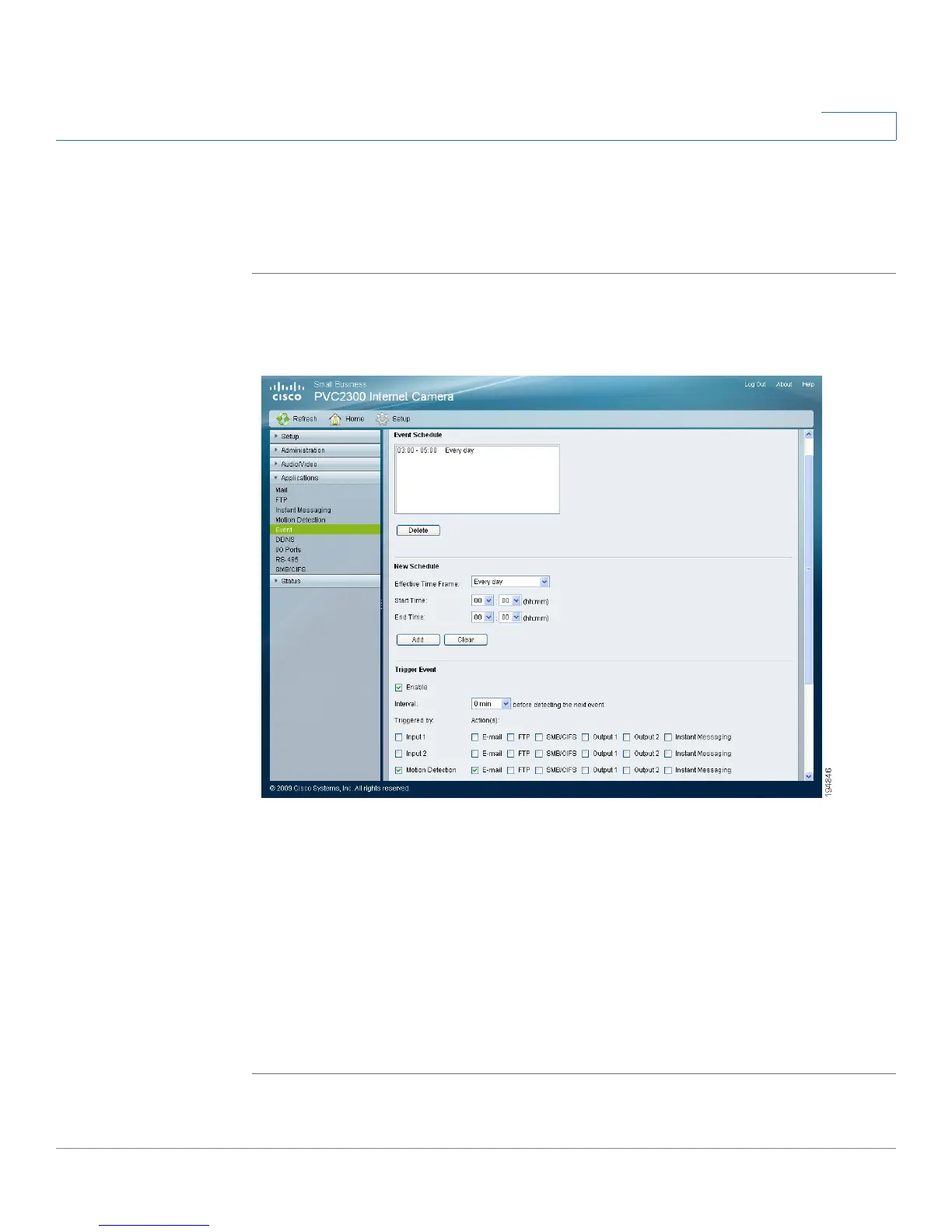
STEP 2 Click Applications > Event. The Applications > Event window displays.
STEP 3 In Trigger Event, configure the following:
• Enable—Check the box to enable the configured trigger events.
• Motion Detection—Check the box so that movement in a motion detection
window can be used to trigger events.
• E-mail—Check the check box, so that an e-mail will be delivered to the
account configured in the Applications > Mail window when a trigger event
occurs.
STEP 4 Click Save.



 To Next Page