Sample Configurations
Configuring E-Mail Alerts
Cisco PVC2300 and WVC2300 Internet Video Cameras with Audio Administration Guide 113
9
Configuring E-Mail Alerts
When using motion detection, you may want to be advised by e-mail when
movement is detected. Configure your e-mail settings first and then configure
scheduling an event. See “Scheduling an Event” on page 115 and “Configuring
Motion Detection Area and Sensitivity” on page 116.
To configure e-mail alerts, follow these steps:
STEP 1 Click Setup in the toolbar.
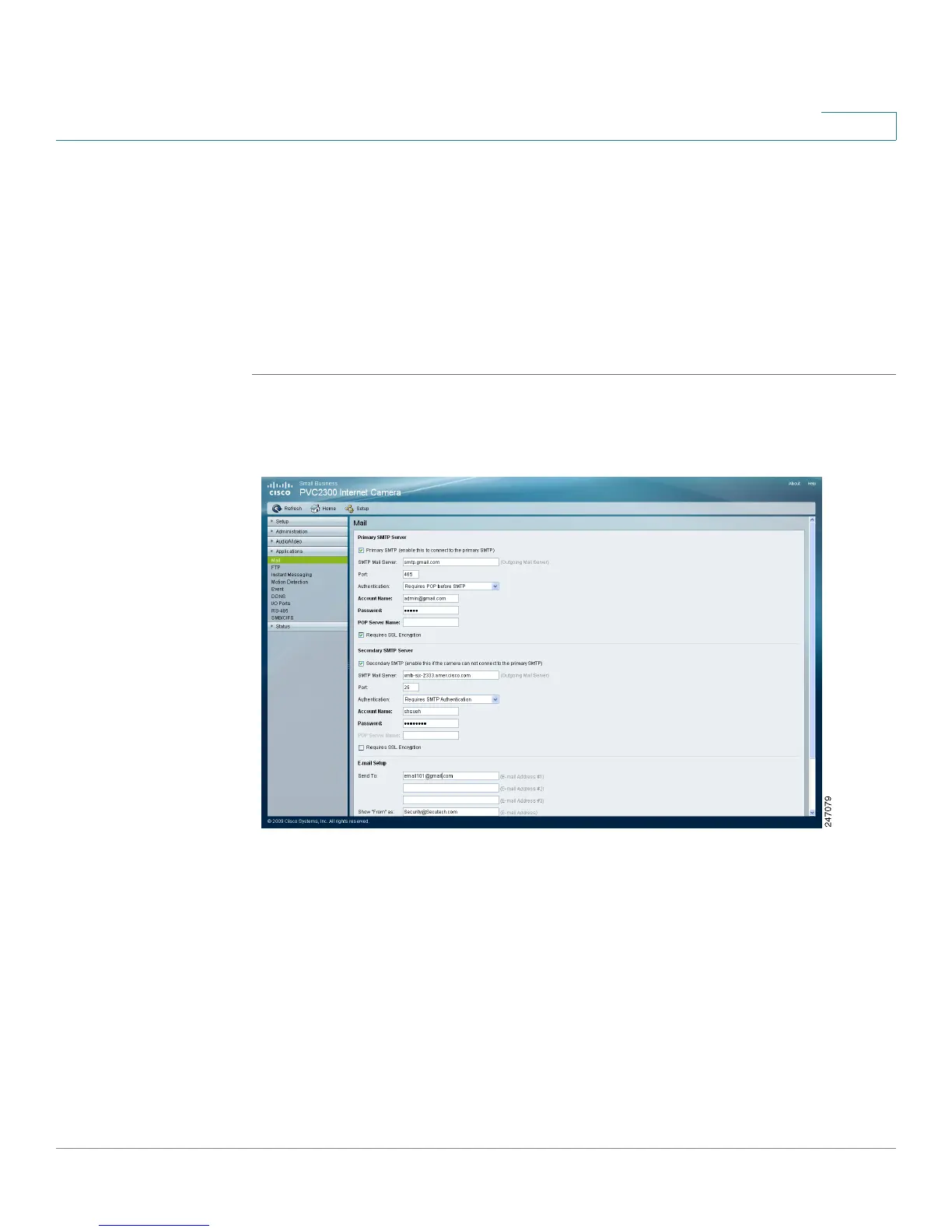
STEP 2 Click Applications > Mail. The Applications > Mail window displays.
STEP 3 In Primary SMTP, configure the following:
• Check the check box Primary SMTP to upload to the primary SMTP.
• SMTP Mail Server—Enter the address of the Simple Mail Transport
Protocol (SMTP) server to be used to send e-mail.
• Port—Enter the port number of the mail server. The default is 25.
• Authentication—From the drop-down list, choose one of the following
options:
- Not Required—Authentication is not required to send mail.



 To Next Page