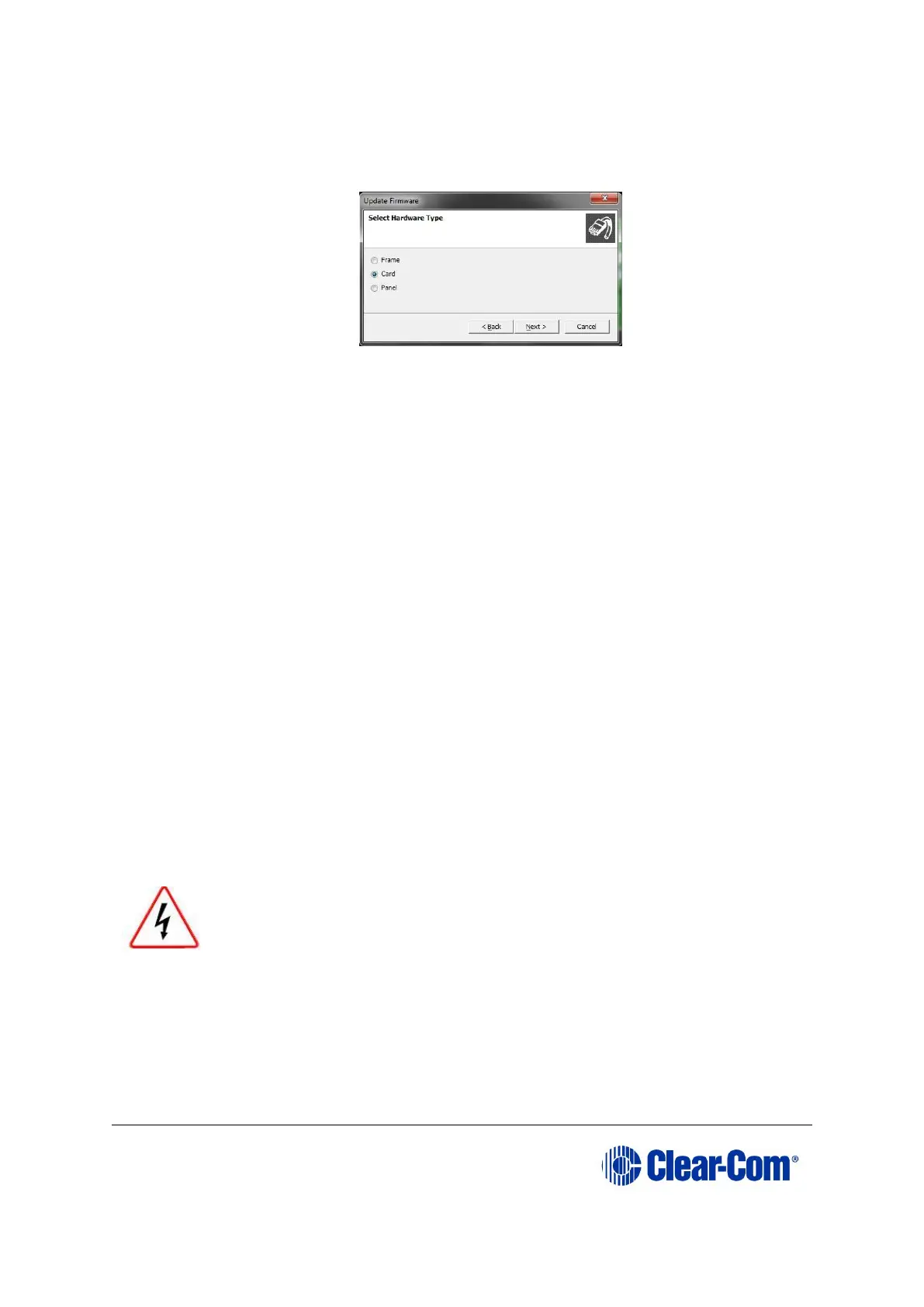
6. The Update Firmware wizard dialog is displayed. Click Next.
In the Select Hardware Type screen, ensure that the Card radio button is
selected.
Figure 7-1: Select Hardware Type
7. In the next dialog, click Browse and navigate to the required *.fwc file for the
MVX-A16 card application:
a. Go to Drivers USB > ECLIPSE DRIVERS > Omega-Median-Delta >
xxxxxx – MVX Application (where xxxxxx represents the part number).
The folder contains the *.fwc file and a Read Me file (*.txt) with version
information.
b. Select the*.fwc file and click OK / Open.
8. Click Next and confirm that the details displayed are correct.
9. Click Next and confirm that the download commences.
10. When the download has completed, click Finish to close the update firmware
wizard.
Note: The MVX-A16 card status light flashes green while the upgrade is in process (LED on to
off ratio: 1:4 at 0.5Hz). When the upgrade is complete, the status light is lit green at a
steady heartbeat (LED on to off ratio: 1:1 at 1Hz).
11. Ensure that the MVX-A16 cards reset once the download is complete. Reset
should take approximately 1 minute.
7.2.2 Upgrading the MVX-A16 boot and app code using the
Renesas FDT
Remove power from the devices first, to avoid working with the
system while it is live. Observe all electrical shock hazard warning
and precautions for handling electrostatic sensitive devices
You can use the Renesas FDT to upgrade:
• The MVX boot code file separately (*.mot).
• The MVX boot code and MVX application code simultaneously, using the combined MVX
boot and application code file (*.mot).



 To Next Page