c. Enter the name of the E-QUE card firmware file.
17. The application code downloads to the E-QUE card. When the download is complete, the
E-QUE card reboots.
Note:
If when downloading file, T T T T is displayed on the Tera Term serial screen, this indicates a
problem downloading the file. Check the network connection and the IP addresses that were
entered. Also check that the filename has no file extension.
Tip: On the Tera Term screen towards the end of the boot sequence messages there will be
a status message that shows a date stamp and version string. Check this string to verify the
firmware version.
9.3 Upgrading the E-QUE card (MK2)
You must upgrade the E-QUE card (MK 2) in the following order:
1. E-QUE card application code (using the procedure described in this section).
Note:
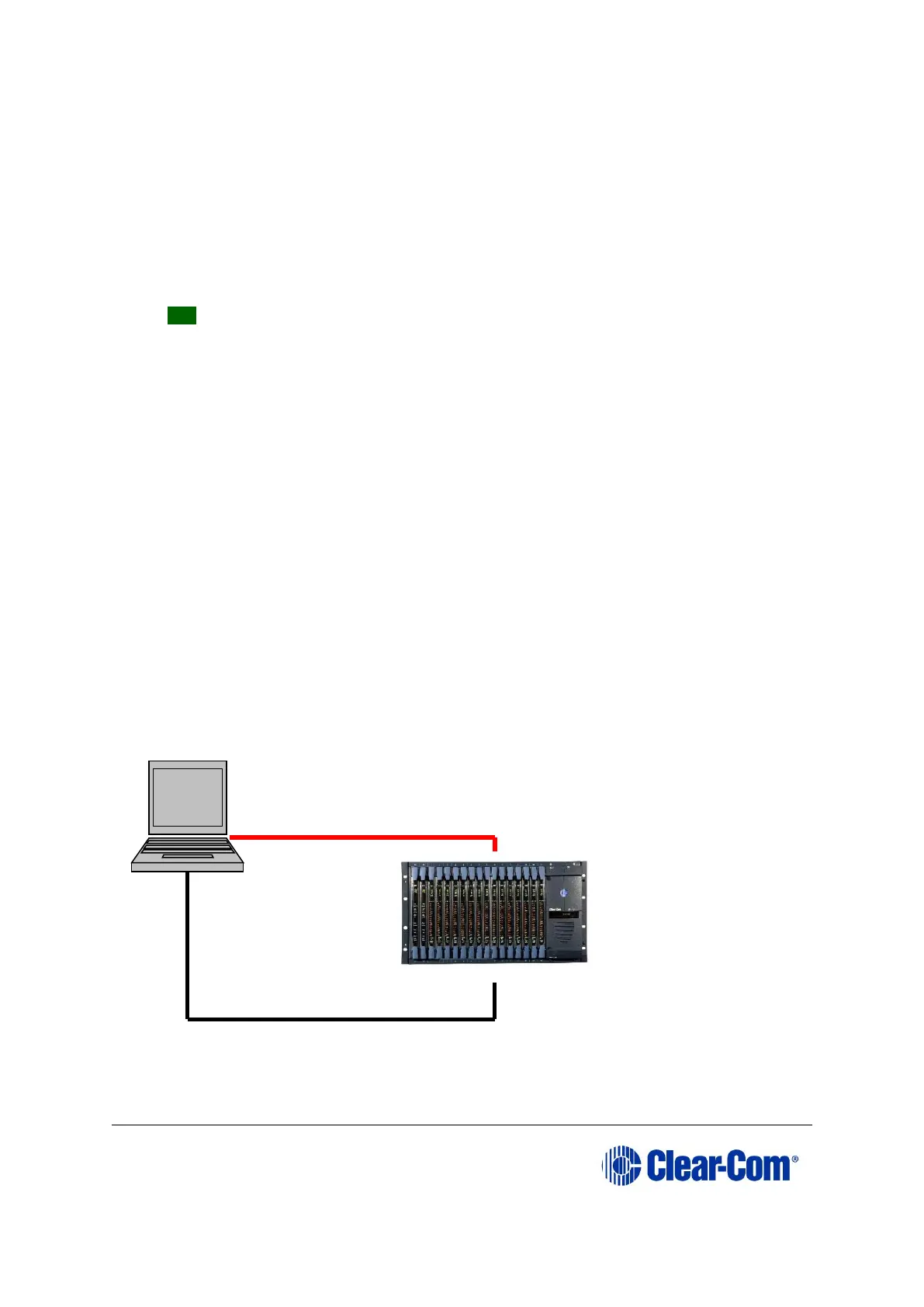
An MVX upgrade cable is required. The procedure also requires an Ethernet connection
between the E-QUE card and the PC. If the card and the PC are not connected to the
network, they can be connected directly using a crossover Ethernet cable.
2. E-QUE card FPGA code (see 9.4 Upgrading the E-QUE card (MK1 and MK2) FPGA with
Xilinx tools).
Note:
Requires specialized equipment. For more information about installing and using Xilinx
programming tools, see Appendix J:Xilinx tools.
3. E-QUE card (MK2) Boot PROM (if required) (see 9.6 Upgrading the E-QUE card (MK2)
boot ROM).
Figure 9-8: E-QUE upgrade



 To Next Page