Appendix E: Hitachi Renesas Flash
Development Tool
To install and configure the Hitachi Renesas Flash Development Tool (FDT):
1. Navigate to the installation file on the Eclipse installation USB:
USB\3
rd
_Party_Software\Hitachi_FDT\fdt3_04.exe
Double click to install.
Note:
Later versions can be downloaded from
http://www.renesas.com/products/tools/flash_prom_programming/fdt/download_search_results.jsp#
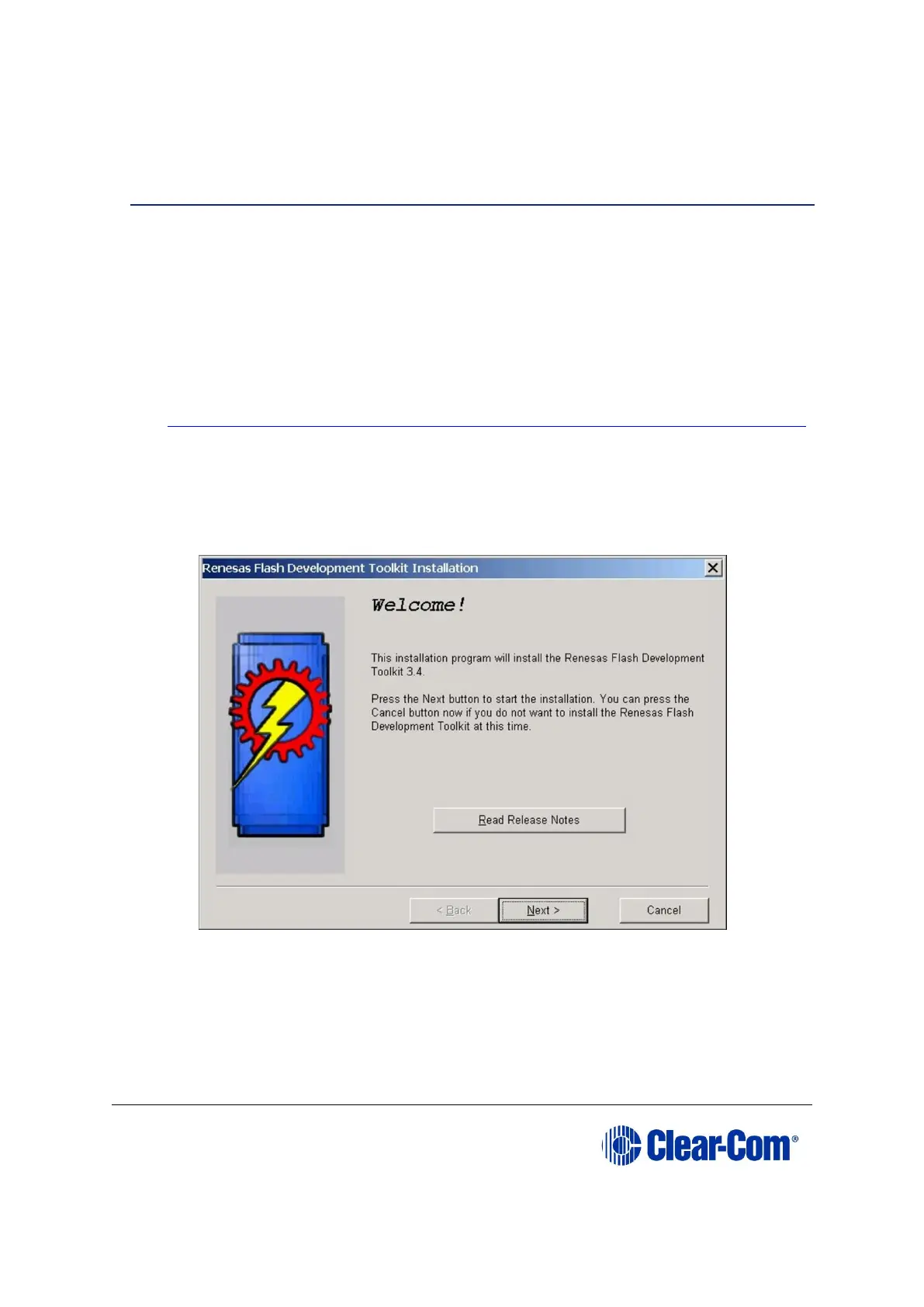
2. When the installation file is run, the installer displays a series of setup screens to
configure the installation.
Figure 17-5: Initial install screen
Click Next.
3. Select the required language (International English, Asia (Japanese), Asia
(English)).



 To Next Page