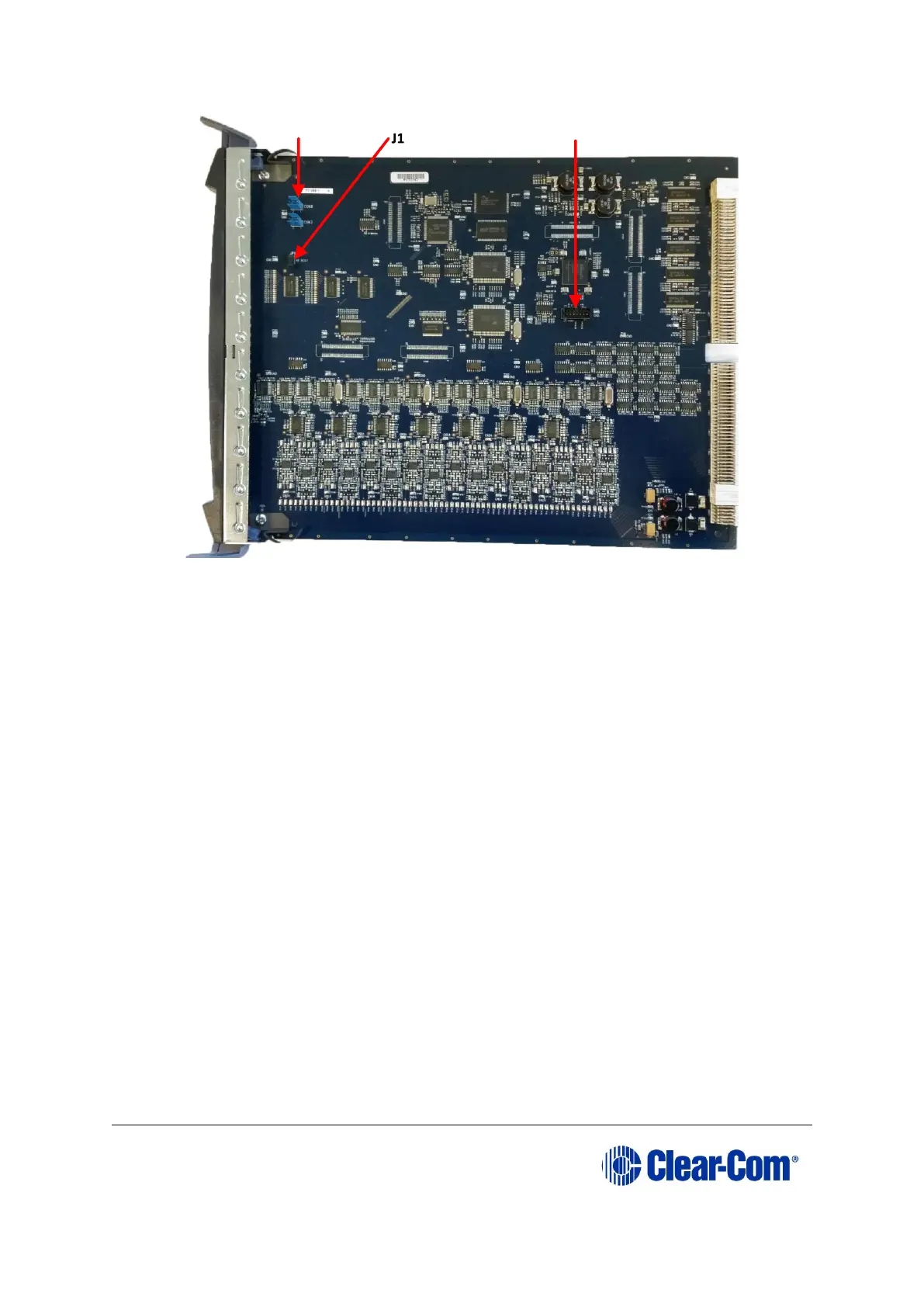
Figure 7-3: MVX-A16 MK II card: J1, CON8 and CON12
7.3 Checking the MVX-A16 MK I or MK II boot and
application code version
You can check the MVX-A16 boot and application code versions by going to EHX>
Matrix Event Log > Matrix Overview.
You can also use the Firmware report tool in EHX to confirm the application code version.
To use the Firmware report tool:
1. Go to EHX> System> Layout.
2. Right click the matrix icon.
3. Select Firmware > Firmware report.
To check the firmware version using Tera Term:
1. Install Tera Term. Tera Term is available to install from both of the Eclipse HX 9.0
upgrade media:
• Software USB > SOFTWARE - EHX.xxx > 3rd_Party_Software >
Teraterm
• Drivers USB > ECLIPSE DRIVERS > 3rd_Party_Software > Teraterm
2. Open Tera Term and select the following port settings:



 To Next Page