9.2 Upgrading the E-QUE card (MK1)
You must upgrade the E-QUE card (MK1) in the following order:
1. E-QUE card application code (using the procedure described in this section).
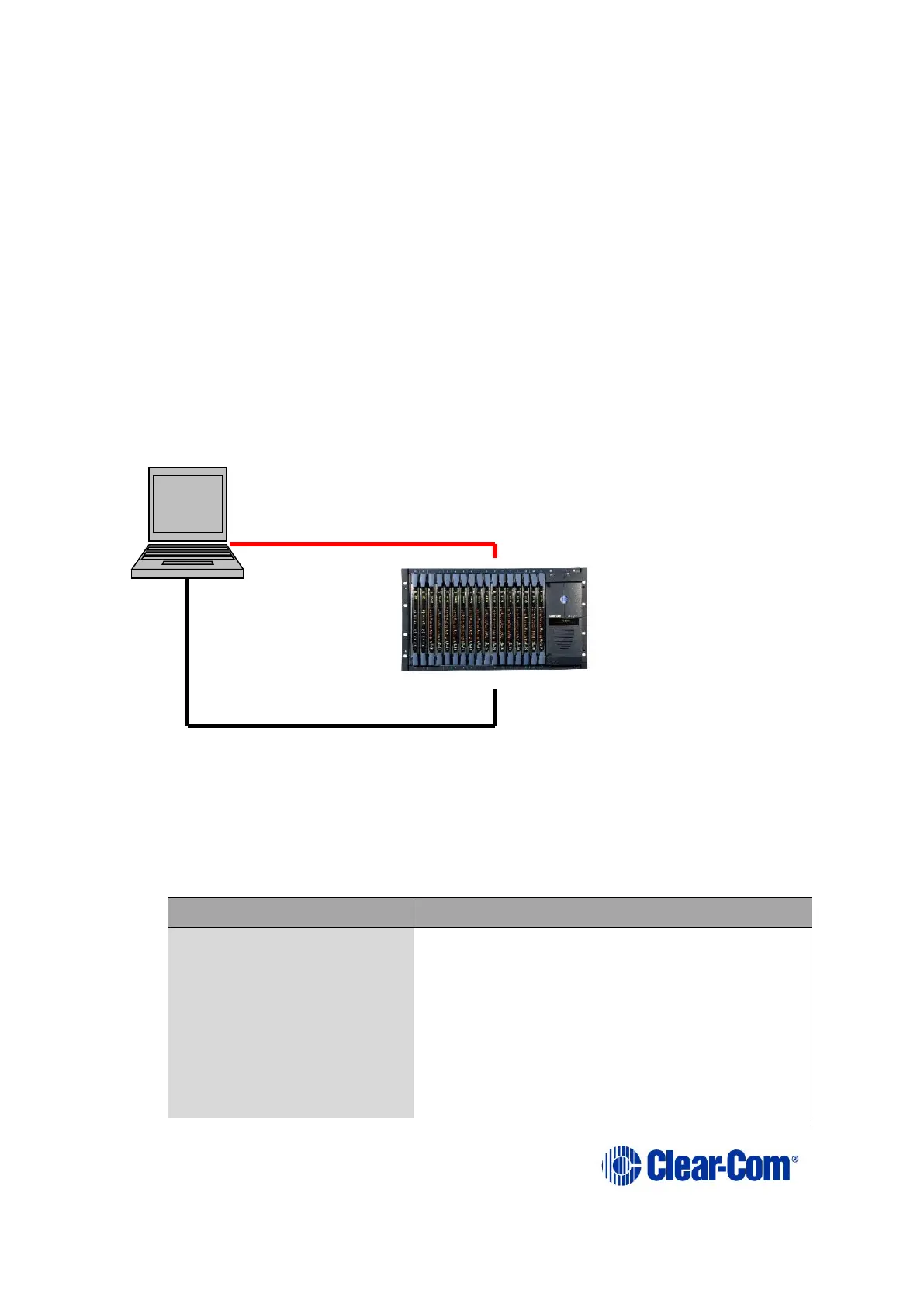
Note: An MVX upgrade cable is required. The procedure also requires
an Ethernet connection between the E-QUE card and the PC. If
the card and the PC are not connected to the network, they can
be connected directly using a crossover Ethernet cable.
2. E-QUE card FPGA code (see 9.4 Upgrading the E-QUE card (MK1 and MK2) FPGA with
Xilinx tools).
Note: Requires specialized equipment. For more information about
installing and using Xilinx programming tools, see Appendix
J:Xilinx tools.
3. E-QUE card (MK1) Boot PROM (if required) (see 9.5 Upgrading the E-QUE card (MK1)
boot ROM).
Figure 9-3: E-QUE upgrade
To upgrade the application code of the E-QUE card (MK1):
1. Ensure that you have the following equipment:
Tera Term must be configured and operational.
You can find the Tera Term application on both
of the Eclipse HX 9.0 upgrade media:
Software USB > SOFTWARE - EHX.xxx >
3rd_Party_Software > Teraterm
Drivers USB > ECLIPSE DRIVERS >
3rd_Party_Software > Teraterm



 To Next Page