Commonwealth Bank Albert User Guide 23
4.1 Learn how to use the solution.
Entering a PIN
(continued)
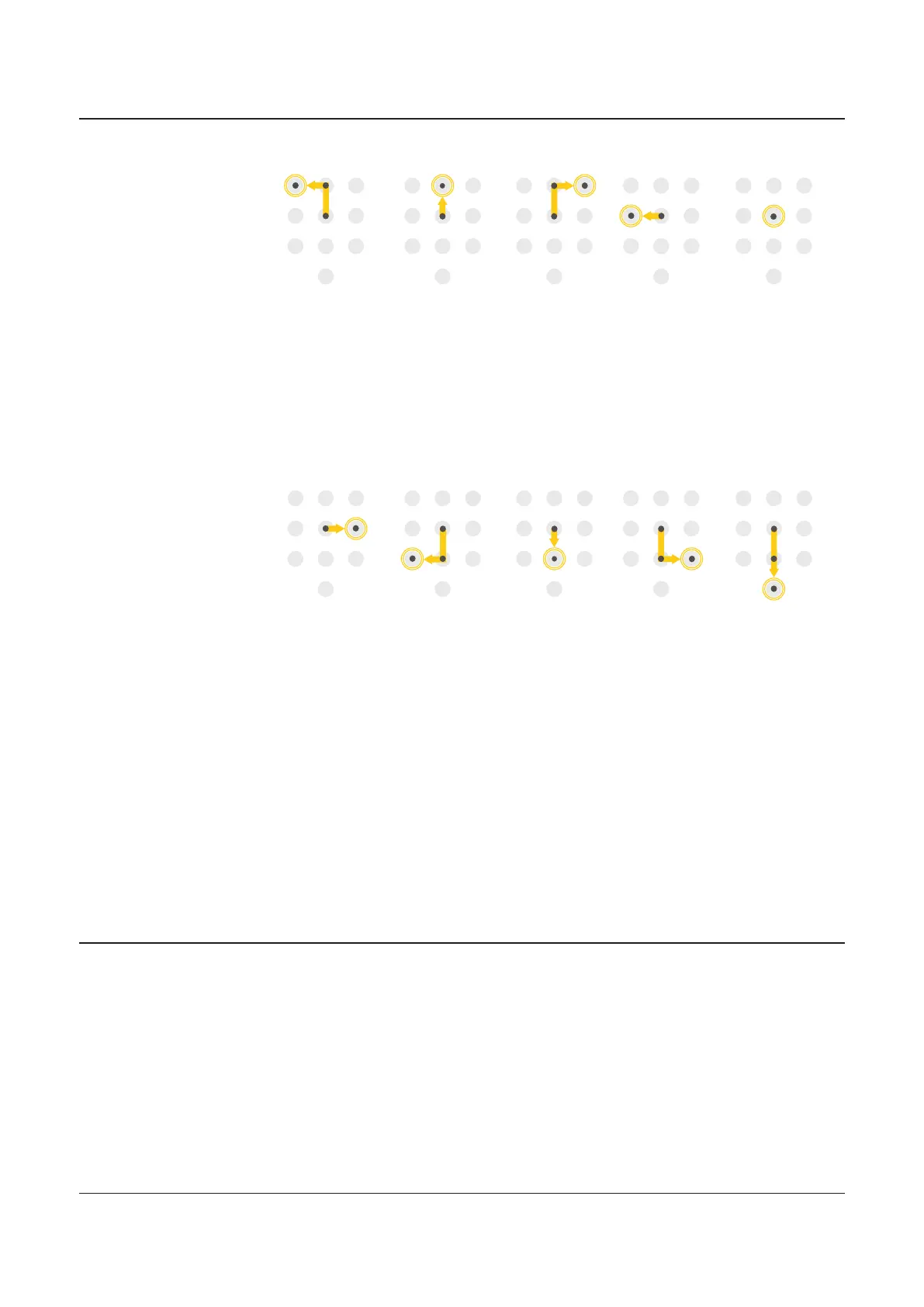
Enter your PIN using the following swipe motions.
2
5
32
5
4 5 5
One.
Swipe up and
then swipe
le. Double
tap with a
single finger.
Two.
Swipe up.
Double tap
with a single
finger.
Three.
Swipe up
and then
swipe right.
Double tap
with a single
finger.
Four.
Swipe le.
Double tap
with a single
finger.
Five.
Double tap
with a single
finger.
65
7 8
5
3
4 6
7
0
9
2
5
1
8
5
98
0
5
8
Six.
Swipe right.
Double tap
with a single
finger.
Seven.
Swipe down
and then
swipe le.
Double tap
with a single
finger.
Eight.
Swipe down.
Double tap
with a single
finger.
Nine.
Swipe down
and then
swipe right.
Double tap
with a single
finger.
Zero.
Swipe down
twice. Double
tap with a
single finger.
• Submit PIN: Press and hold the screen with two fingers until
transaction starts processing.
• Cancel Purchase: Press and hold the screen with three fingers.
• Restart PIN entry: Tap once with three fingers.
Note: Diagonal swipes are not supported or allowed.
Confirming a PIN Long press anywhere on
the screen with 2 fingers to
submit the PIN. For security
reasons, the PIN entry time
allowance on the terminal is
20 seconds.
Important – Customers will
get 3 chances to enter a PIN
correctly before their account
is locked.


 To Next Page