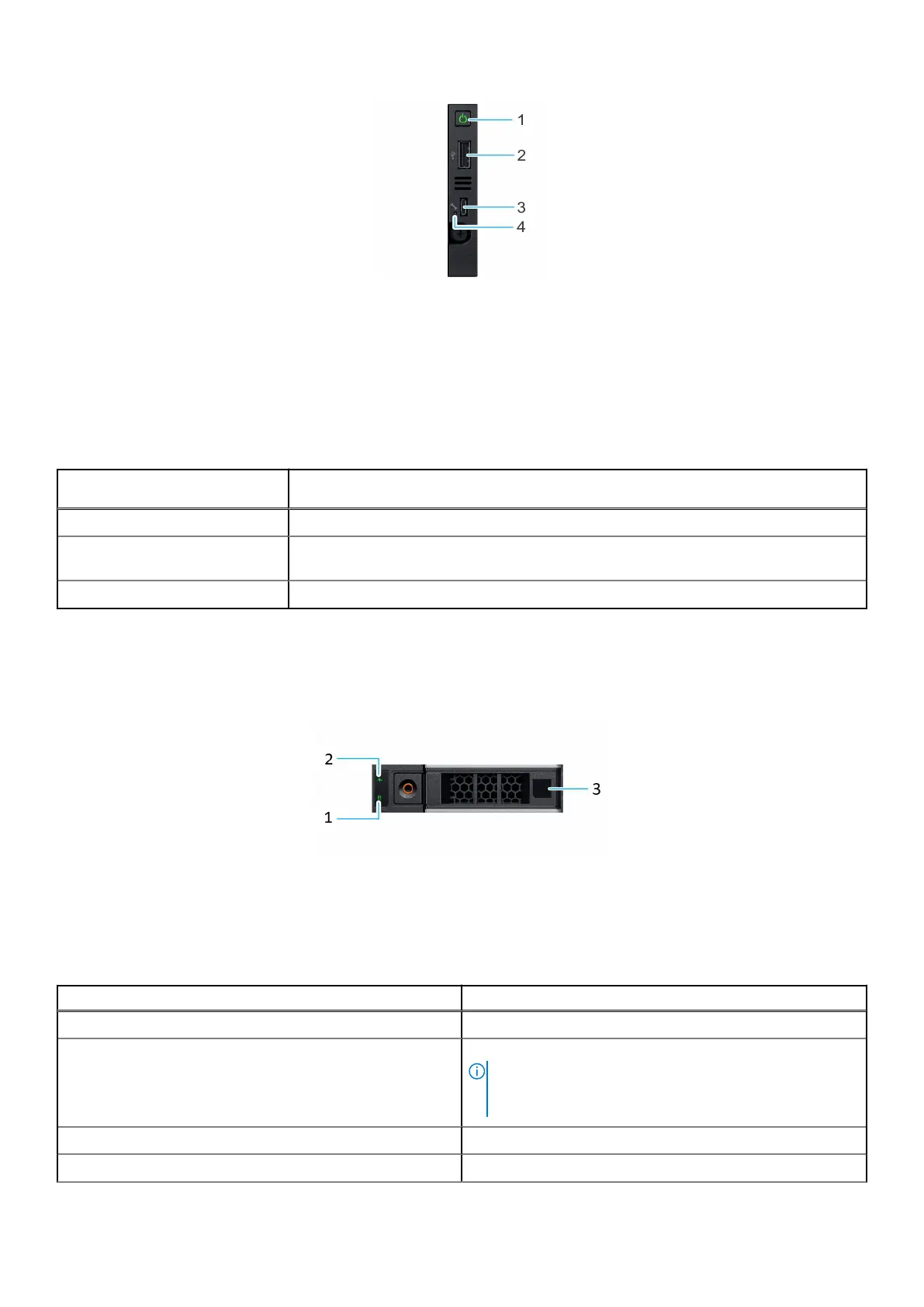
Figure 3. Right control panel
1. Power button 2. USB 2.0-compliant port
3. Micro USB 2.0-compliant port for iDRAC Direct 4. iDRAC LED indicator
The iDRAC Direct LED indicator lights up to indicate that the port is connected and is being used as a part of the iDRAC
subsystem. You can configure iDRAC Direct by using a USB to micro USB (type AB) cable, which you can connect to your
laptop or tablet. The following table describes iDRAC Direct activity when the iDRAC Direct port is active:
Table 5. iDRAC Direct LED indicator codes
iDRAC Direct LED indicator
code
Condition
Solid green for two seconds Indicates that the DM5500 is connected.
Flashing green (on for two
seconds and off for two seconds)
Indicates that the DM5500 is connected and is recognized.
Powers off Indicates that the DM5500 is unplugged.
Drive indicator codes
The LEDs on the drive carrier indicate the state of each drive. Each drive carrier in your system has two LEDs: an activity LED
(green) and a status LED (bicolor, green/amber). The activity LED flashes whenever the drive is accessed.
Figure 4. Drive indicators
1. Drive activity LED indicator
2. Drive status LED indicator
3. Drive capacity label
Table 6.
Drive indicator codes
Drive status indicator code Condition
Flashes green twice per second Identifying the drive or preparing for removal.
Off Drive ready for removal.
NOTE: The drive status indicator remains off until all
drives are initialized after the system is turned on. Drives
are not ready for removal during this time.
Flashes green, amber, and then turns off Predicted drive failure.
Flashes amber four times per second Drive failed.
Understand the PowerProtect Data Manager Appliance 15




 To Next Page