3
2
10
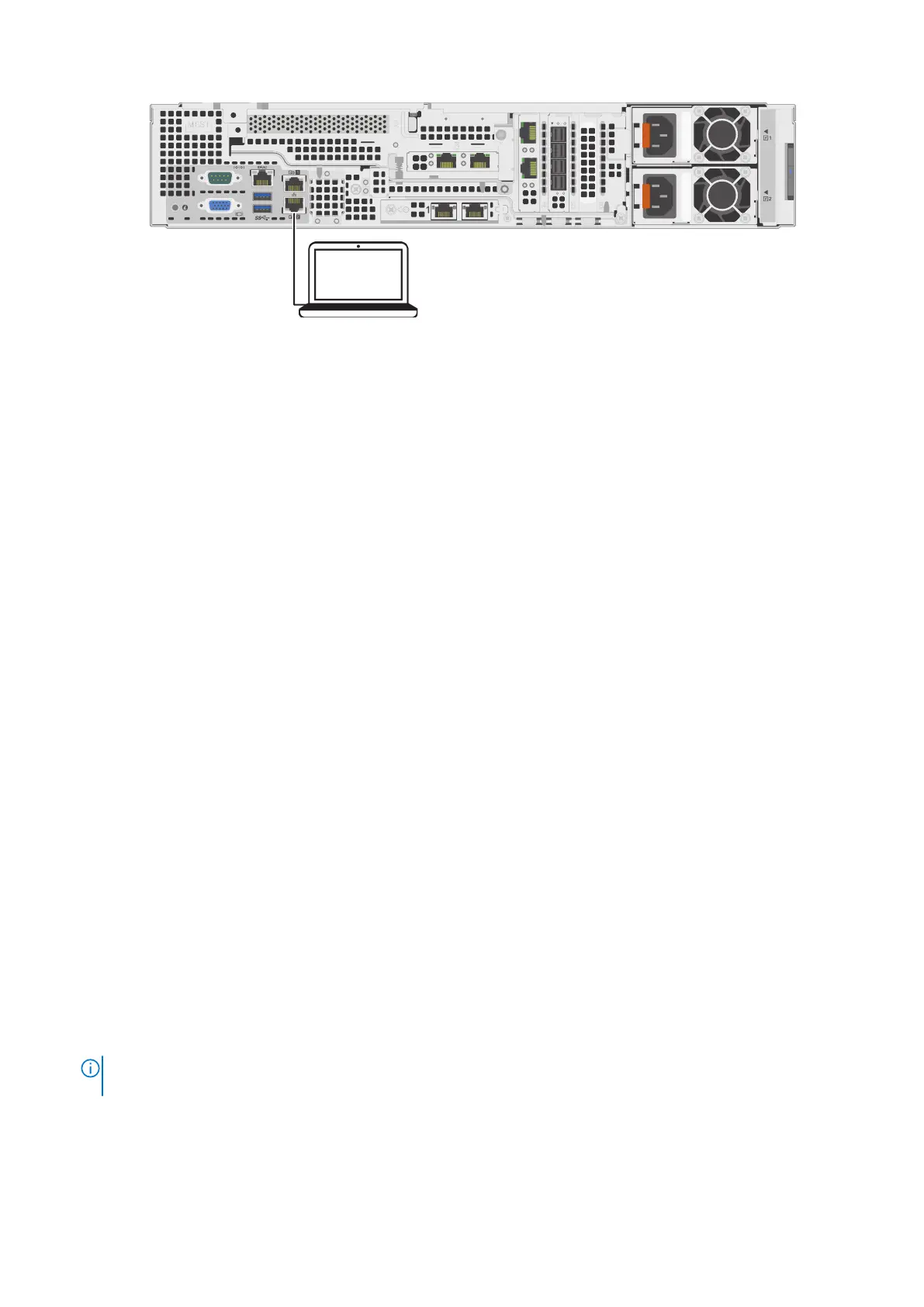
CAT5e/CAT6 cable
connection to
service computer
PowerProtect
DM5500
Figure 46. DM5500 cable connection to the service computer
2. Assign the static IP address 192.168.100.98 to the service computer and the subnet mask 255.255.255.240 for the Ethernet
interface that is connected to the DM5500. A default gateway is not required.
a. To set a static IP address on a Windows service computer, perform the following steps.
i. Open Control Panel.
ii. Click Network and Internet.
iii. Click Network and Sharing Center.
iv. Click the Change adapter settings option on the left navigation pane.
v. Right-click the network adapter and select the Properties option.
vi. Select the Internet Protocol Version 4 (TCP/IPv4) option.
vii. Click the Properties button.
viii. Select the Use the following IP address option.
ix. Assign the static IP address - 192.168.100.98.
x. Specify the subnet mask - 255.255.255.240.
xi. Specify a default gateway - not required.
xii. Under the Use the following DNS server addresses set Preferred DNS server section, set the Preferred DNS
server address, usually your router's IP address or server IP address providing DNS resolutions.
xiii. (Optional) Specify an Alternative DNS server, which the computer will use if it cannot reach the preferred DNS
server.
xiv.Click OK.
b. To set a static IP address on a Mac service computer, perform the following steps.
i. From the Apple menu, select System Preferences.
ii. Select Network.
iii. From the sidebar, select an active network interface.
iv. Make a note of the current IP address that is assigned to your Mac. You must select a new IP address from within the
private IP address range listed.
v. Click Advanced.
vi. Select TCP/IP.
● In the Configure IPv4 field drop-down menu, select Manually.
● In the IPv4 Address field, enter the 192.168.100.98 static IP address.
● In the Subnet Mask field, enter 255.255.255.240
vii. Click OK.
viii. Click Apply.
3. Open the command prompt on the service computer and ping the 192.168.100.100 management IP address and verify you
can reach it.
4. Disconnect the service computer from whichever Gb1 or Gb2 service port you used on the back of the DM5500.
NOTE:
For security purposes, you must leave the Gb1 and Gb2 service ports disconnected. After the initial DM5500
configuration, these ports may only be used by Dell service personnel for configuration or servicing.
5. Log in to the Data Manager Appliance Configuration UI.
58
Preconfiguration tasks




 To Next Page