Power on the DM5500
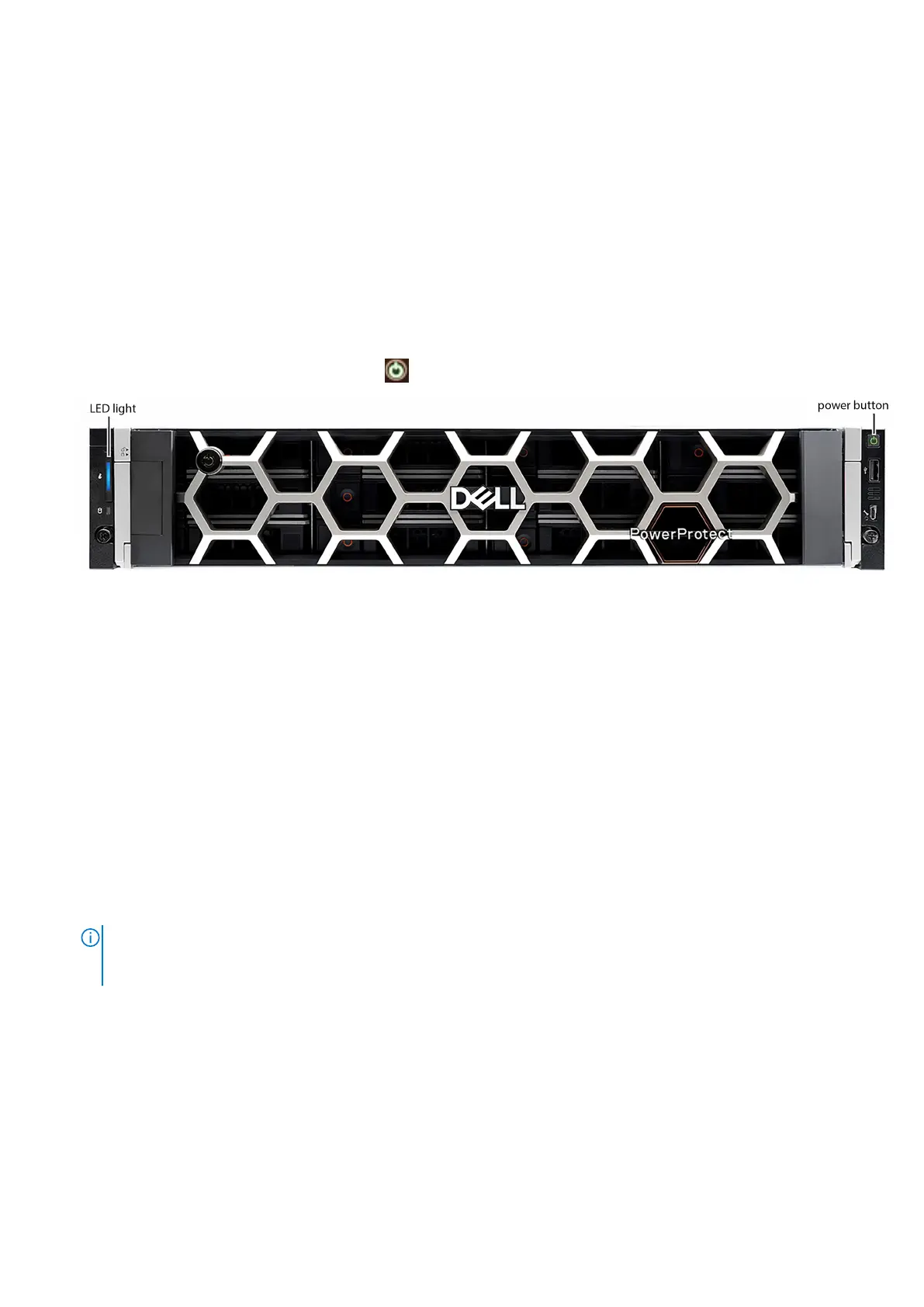
This section describes how to power on the DM5500 using the power button.
Prerequisites
Power, network, and iDRAC cabling must be complete on the DM5500.
VLAN configuration must be set up and verified.
The DM5500 must be connected to a power source. Two power sources are recommended for redundancy.
Steps
1. Power on the DM5500 by pressing and holding the power button located in the front right corner of the appliance.
The power icon on the button will light up green and the LED displays a solid blue line when the DM5500 is powered on.
2. Proceed to assign static IP address to the service computer for initial DM5500 login.
Assign static IP address to the service computer for
initial DM5500 login
The service computer that you use for the initial login to the Data Manager Appliance Configuration UI must be assigned a static
IP address.
Prerequisites
● The DM5500 must be installed in the rack.
● The DM5500 must be cabled to the switch(es).
● The DM5500 must be powered on.
Steps
1. Connect the service computer to the service port on the back of the DM5500 using a CAT5e/CAT6 cable.
NOTE:
You can use either one of the Gb1 and Gb2 service ports on the back of the DM5500. The following figure
shows the service computer connected to the lower Gb2 service port, but you could use the upper Gb1 service port
instead. You can use only one of these ports at a time.
Preconfiguration tasks 57




 To Next Page