Initial DM5500 configuration in the Data Manager
Appliance Configuration UI
This section describes how to configure the DM5500 in the Data Manager Appliance Configuration UI.
Steps
1. On the Create Secure Credentials page, perform the following actions:
a. In the Current Password field, specify dm@<appliance serial number>.
Example: dm@DPDID220100130
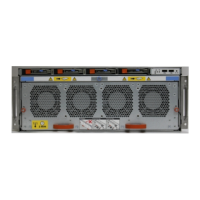
The DM5500 serial number is found on the white label of the pull-out information tag in the back of the server, to the
right of the power supply units. The serial number is a 14-character mix of letters and numbers that are used to identify
the
DM5500 to Customer Support. For the location of the information tab, see DM5500 back panel features.
b. The New Admin Username field is populated as admin and is grayed out. You cannot change the default admin
username.
c. In the New Password and Reenter New Password fields, specify an administrative password.
This new password will be the password that you will use to log in as the admin user to the Data Manager Appliance UI
after you finish configuring the appliance in the Data Manager Appliance Configuration UI.
Ensure that the password meets the following requirements:
● Minimum of nine characters and a maximum of 63 characters
● At least one numeric character (0-9)
● At least one uppercase character (A-Z)
● At least one lowercase character (a-z)
● At least one special character from the following list of acceptable characters:
_ . @ ! # % ^ * -
NOTE: You cannot copy and paste the password into the UI fields, you must type it.
d. Click Next.
The End User License Agreement page appears.
2. The End User License Agreement page, review the license agreement and click Accept.
3. Click Next.
The Network page appears. You can configure a single or separate data and management network.
NOTE:
IP addresses must be on a network that allows Internet Control Message Protocol (ICMP) packets because the
DM5500 uses the Ping tool to check network accessibility.
4. On the Network page, enter the following in the Interfaces section:
a. In the Management IP field, enter the IP address.
NOTE:
DM5500 checks forward/reverse DNS lookup for the Management IP address. The software does not check
forward/reverse DNS lookup for separate data network IP addresses.
b. In the Management FQDN field, enter the Fully Qualified Domain Name (FQDN).
c. In the Management Domain name field, enter the domain name.
d. In the Data IP 1 field, enter the IP address.
NOTE:
If you only provide one data IP address, a Warning dialog appears stating that you should provide two data
IP addresses for optimal performance.
e. (Optional) In the Data IP 2 field, enter the IP address.
5. On the Network page, enter the following in the Management VLAN section:
NOTE:
The management VLAN values you input in the following fields are automatically populated in the Data VLAN
section. The default is that the management and data networks are the same. However, if you want the data network to
be separate from the management network, you can edit the values in the Data VLAN section, as described in the next
step.
a. In the Management VLAN ID field, enter a numerical VLAN ID.
60
Configure the DM5500 in the Data Manager Appliance Configuration UI




 To Next Page