● Username: admin
● Password: Use the new password that you set up in step 1c on the Password page in the Initial DM5500 configuration in
the Data Manager Appliance Configuration UI section.
In the Data Manager Appliance UI, the Get Started page appears.
Get Started page
The Get Started page provides configuration options that are required when you first log in to the Data Manager Appliance UI.
This page continues to display by default each time you log in until you click Launch.
The Get Started page enables you to configure or edit the following menu items:
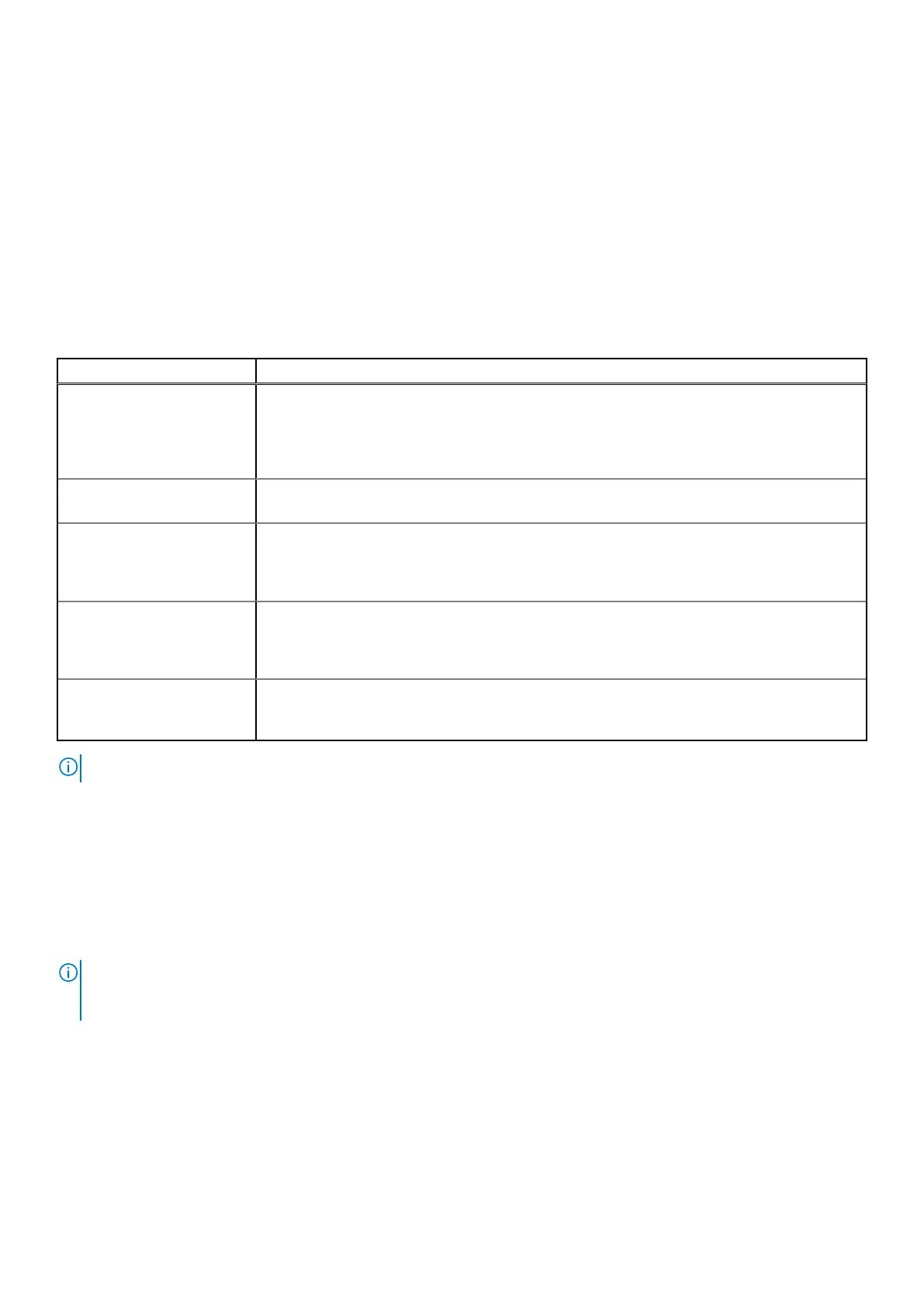
Table 25. Data Manager Appliance UI Get Started menu items
Options Description
License Launches the License dialog, which prompts you to add a license file to the Data Manager
Appliance. You can upload the DM5500 license to increase the appliance storage capacity from
its default value of 12 TB. You can expand the storage in increments of 12 TB to the maximum
capacity of 256 TB. Once a license is uploaded, you can view license details, such as capacity
usage and software ID.
Email Launches the Email Setup tab on the Support dialog, where you can set up the email server
for application notifications and messages.
Auto Support Launches the AutoSupport tab on the Support dialog, where you can enable AutoSupport
to automatically send diagnostic and usage data like telemetry reports and alert summaries to
Dell. This information enables Dell services and support teams to diagnose issues and improve
system efficiency.
SupportAssist Launches the SupportAssist tab on the Support dialog, where you can configure the
SupportAssist support tool. SupportAssist communicates with PowerProtect DM5500 to
monitor your environment, automatically detect current and potential issues, and collect and
store diagnostic data. SupportAssist securely sends troubleshooting data to Customer Support.
Security Launches the Security dialog, where you can create a local Security Officer that can authorize
security workflows. A Security Officer can manage user accounts and roles, privileges, audit
logs, and authentication sources.
NOTE: Once you configure the menu items, the Get Started page does not appear again.
You should perform these tasks in the following order from left to right in the UI:
1. License
2. Email
3. Auto Support
4. SupportAssist
5. Security
For more information about License, Email, Auto Support, SupportAssist, and Security see the PowerProtect Data
Manager Appliance Administrator Guide.
NOTE:
When using the PowerProtect Data Manager Appliance UI, you should periodically verify that you are using the most
recent version of the UI. To do this, go to Administration > Maintenance and Updates and click Check For Updates on
the Appliance Updates tab.
Configure the DM5500 in the Data Manager Appliance Configuration UI 63




 To Next Page