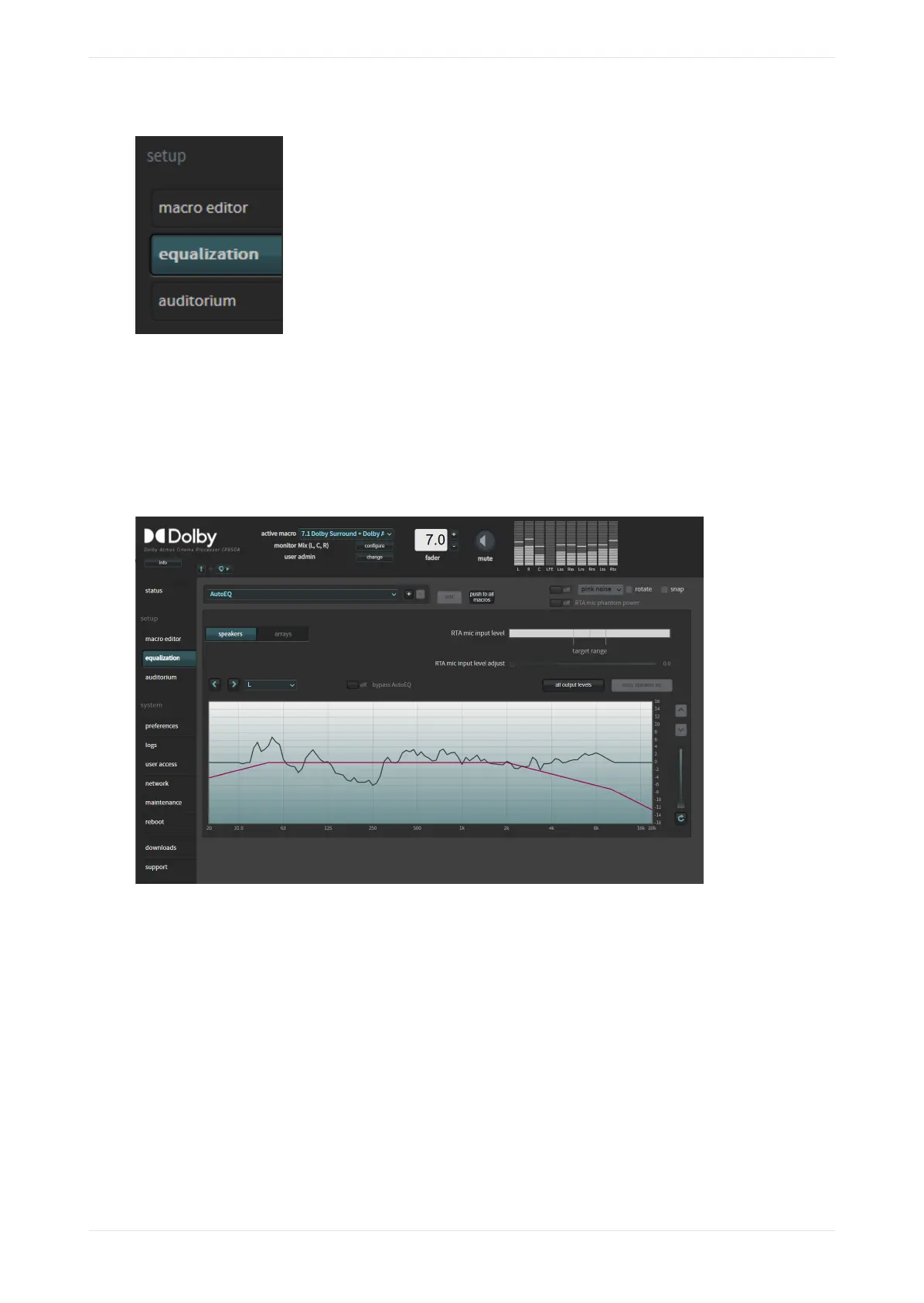
Figure 66: Select equalization in setup menu
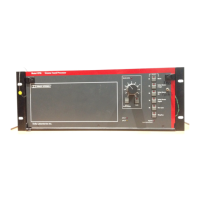
The real-time analyzer appears in the equalization screen, as shown in the following figure.
The default EQ preset is AutoEQ. You cannot edit the AutoEQ preset parameters. However, you can save a
copy of these parameters under a dierent name and make changes to the copy to create a new preset, as
described in Chapter 4 (see link at end of this chapter). You can push a specific EQ preset to all macros. This
saves time aer creating a new EQ preset and having to manually update every macro. Select the push to all
macros button and the system pushes the highlighted (active) EQ preset to all macros.
Figure 67: Real-Time Analyzer equalization screen
Test-signal generator and microphone phantom power
The Dolby CP950/CP950A provides a test-signal generator to play out dierent audio test files that are used
for calibrating a cinema audio system. You can select a test signal from the drop-down menu. Click the
respective on/o button to turn the selected signal on and o.
The CP950A provides additional rotate and snap functions. The rotate function pans the test signal through
the speakers in a predefined pattern. The snap function jumps the test signal through the speakers in the
same predefined pattern.
You can select an option from the test-signal generator drop-down menu, as shown in the following figure.
Displaying the equalization screen
Dolby Cinema Processor CP950 and Dolby Atmos Cinema Processor CP950A Manual 57
Issue 9 Part Number 8800298 19 January 2022



 To Next Page