DxO ONE - User Guide - Copyright © DxO Labs 1999-2015 - All rights reserved 117
The camera must be connected to your iPhone to be able to display this information. The camera must be connected to your iPhone to be able to display this information.
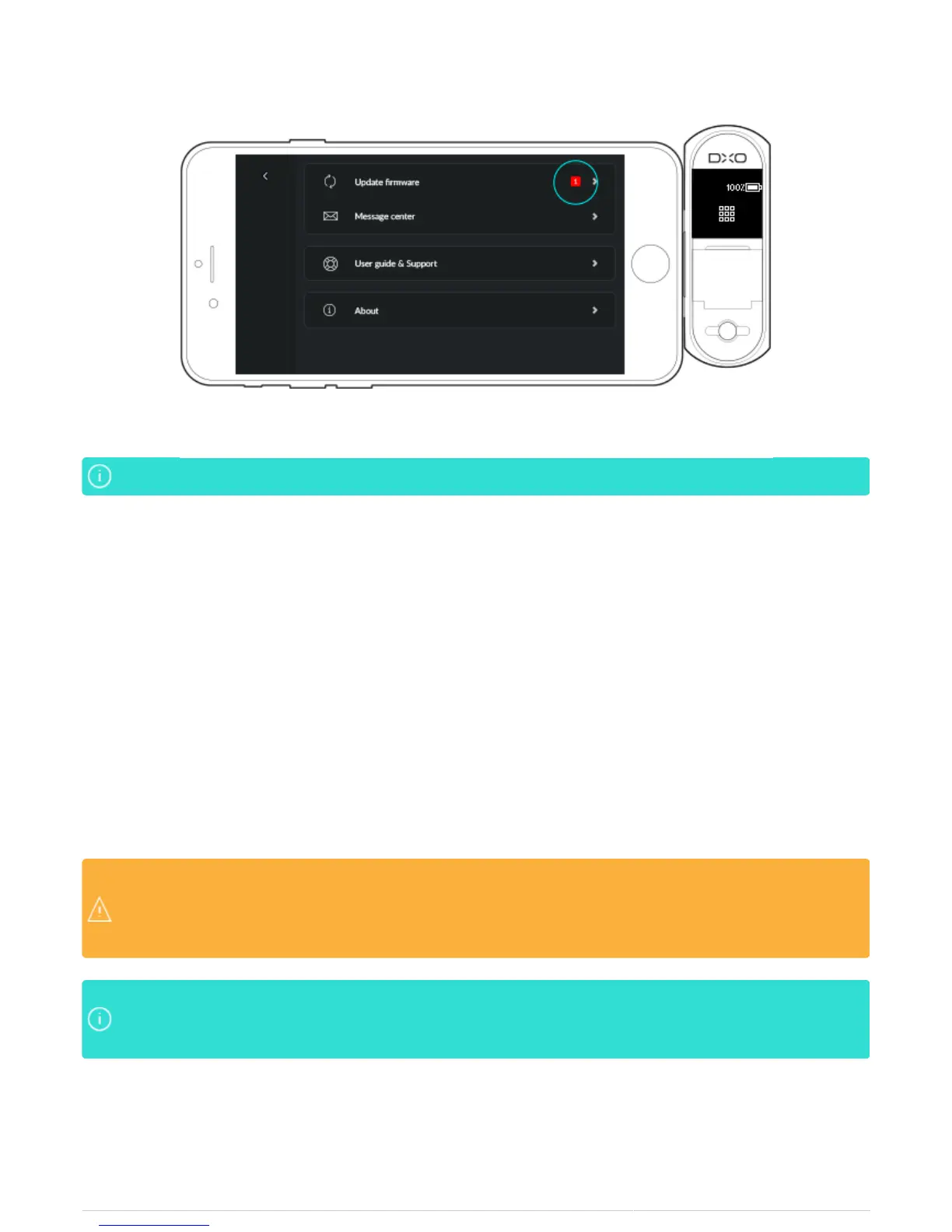
To update the firmware:
1. Before beginning the download, make sure that:
Your DxO ONE has a minimum charge of 70% if it is not plugged into a power source.
●
You are actively connected to the internet.
●
2. Tap on the application menu in the upper left.
3. In the following screen, tap on Download.
4. A progress bar will appear during the download. You cannot use your DxO ONE during the firmware update.
5. Your DxO ONE will automatically reboot when the installation is complete.
Do not disconnect the camera from your iPhone or close the app during the update. If you disconnectDo not disconnect the camera from your iPhone or close the app during the update. If you disconnect
your iPhone or switch applications at the beginning of the firmware update, the new firmware will notyour iPhone or switch applications at the beginning of the firmware update, the new firmware will not
be installed. If you disconnect the camera after reboot, the new firmware will be installed on thebe installed. If you disconnect the camera after reboot, the new firmware will be installed on the
camera.camera.
If your iphone is not connected to Wifi, the application won’t automatically download the firmwareIf your iphone is not connected to Wifi, the application won’t automatically download the firmware
update when available. Tap on update when available. Tap on Download nowDownload now to manually start the download over cellular network to manually start the download over cellular network
connection.connection.


 To Next Page