DxO ONE - User Guide - Copyright © DxO Labs 1999-2015 - All rights reserved 85
Remote Control
Connecting the DxO ONE to a Wi-Fi Direct
Network
As Apple is still fine-tuning minor iOS10 releases, we have temporarily disabled the Wi-Fi directAs Apple is still fine-tuning minor iOS10 releases, we have temporarily disabled the Wi-Fi direct
connection feature in the DxO ONE 2.0 app. The DxO ONE team will continue to work non-stopconnection feature in the DxO ONE 2.0 app. The DxO ONE team will continue to work non-stop
in close collaboration with Apple to adapt your DxO ONE app to these last-minute changes and toin close collaboration with Apple to adapt your DxO ONE app to these last-minute changes and to
ensure you continue to have a great experience with your camera.ensure you continue to have a great experience with your camera.
If you don't have access to a Wi-Fi network, you can use Wi-Fi Direct to set up a peer-to-peer network between
your iPhone and your DxO ONE.
1. Connect the DxO ONE to your iPhone.
2. Turn on the DxO ONE on to launch the iOS application.
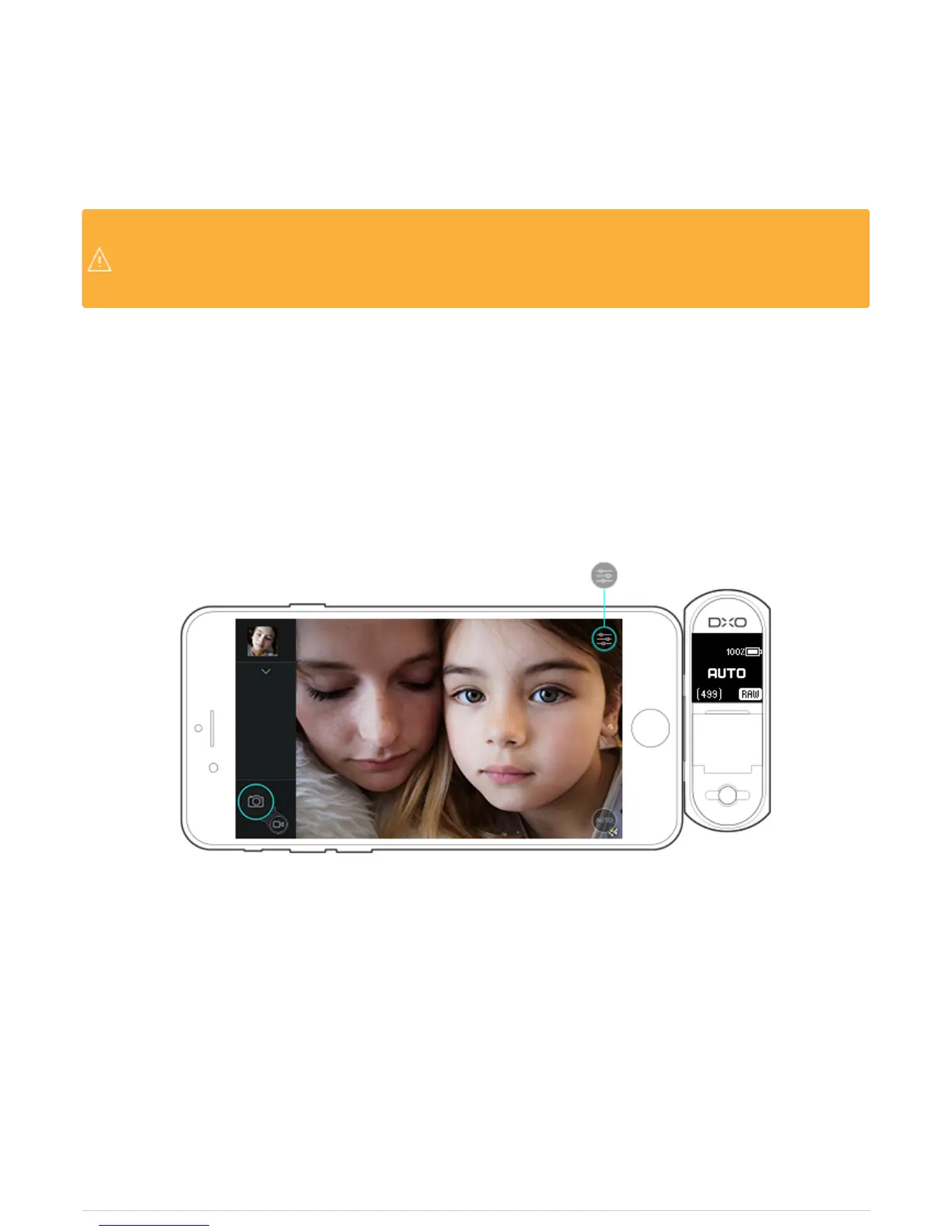
3. Touch the Shooting settings icon.
4. Scroll down to the Remote control section.
5. Touch the sidebar to the right of Direct Connection.


 To Next Page