DxO ONE - User Guide - Copyright © DxO Labs 1999-2015 - All rights reserved 31
Stand-alone capture modes
Recalling settings
By storing your settings, you can select the shooting settings you want to use when in standalone mode. Storing
settings works in any P, A, S, M or Scene photo mode, as well as in video mode.
1. Connect the DxO ONE iPhone.
2. Select the shooting mode you want.
3. Select the shooting settings you want (white balance, speed, aperture, sensitivity, etc.).
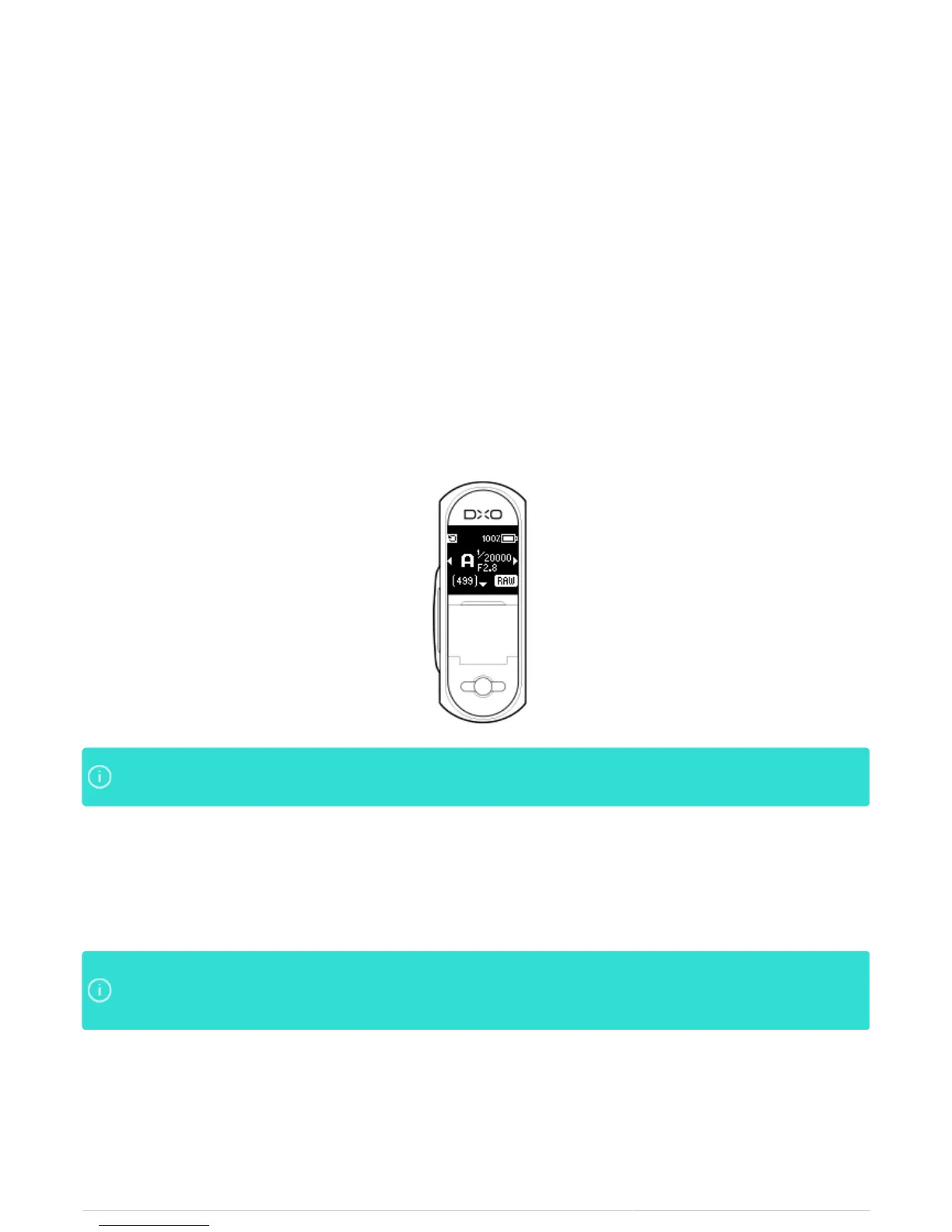
4. Disconnect the DxO ONE: All the settings you have chosen are stored and are displayed on the OLED screen.
5. An icon in the upper left corner of the OLED screen confirms that the settings are stored.
In standalone mode, you can also activate the framing assistant, which will let you use your OLEDIn standalone mode, you can also activate the framing assistant, which will let you use your OLED
screen to compose your still and video images.screen to compose your still and video images.
6. To return to Auto mode for photo video, sweep the back screen horizontally.
If you turn off your DxO ONE, you will find your stored settings (including the framing assistant, if activated)
when you turn it back on.
When you reconnect the DxO ONE to your iPhone, the stored settings will remain active so long asWhen you reconnect the DxO ONE to your iPhone, the stored settings will remain active so long as
you have not changed them. (The framing assistant, however, will be automatically deactivated whenyou have not changed them. (The framing assistant, however, will be automatically deactivated when
you reconnect.)you reconnect.)


 To Next Page