EBS-6100 Printer User's Manual
Paragraph 5 - Examples of How to Operate the Printer
EBS
Ink-Jet Systems
®
104
20070529#20.5
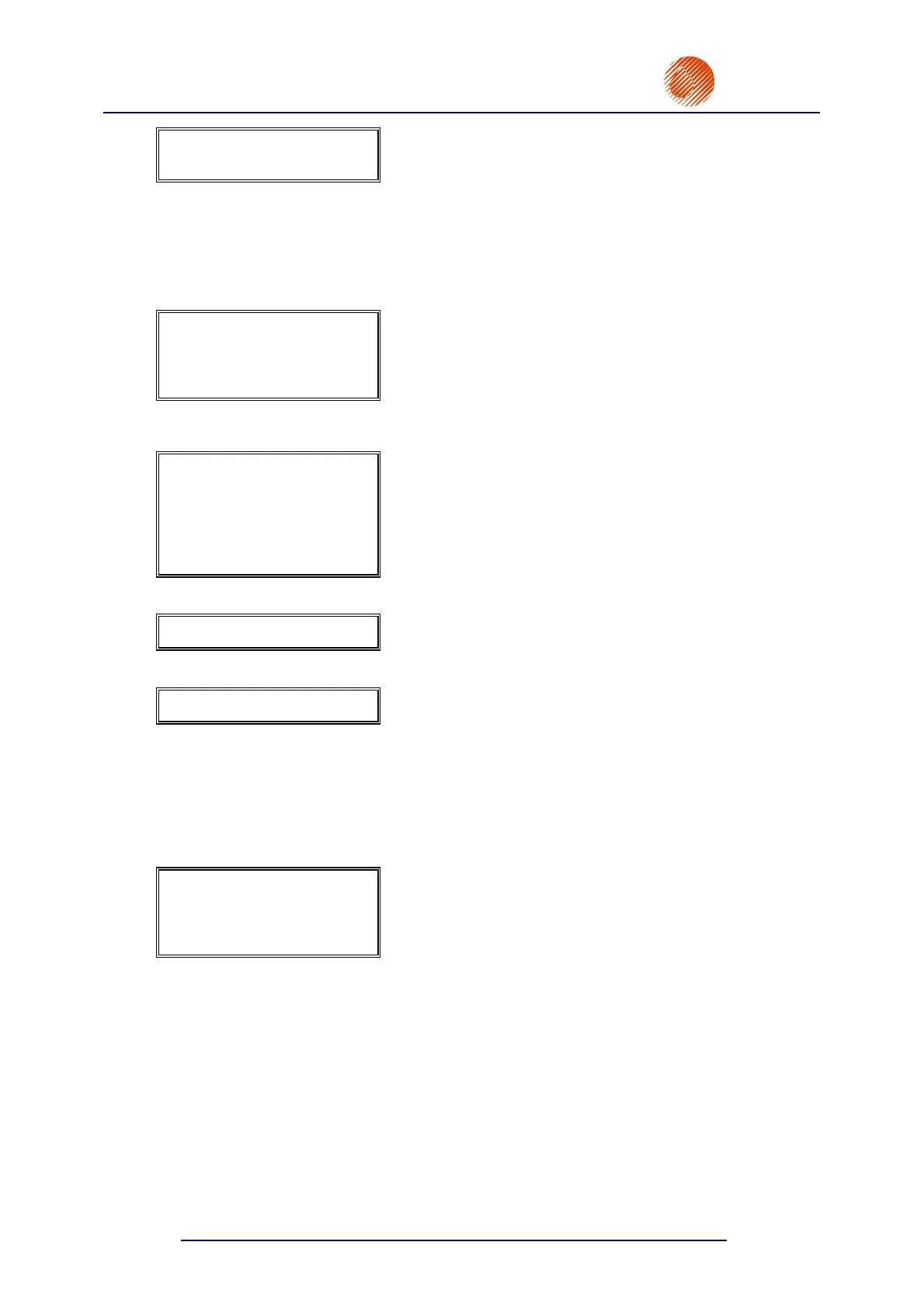
Char. set : Latin 7x5
Typeface : Normal
• Set parameters for the second subfile as in the
example above, then change the Char. set and
Typeface and confirm.
• Input contents for the second subfile:
AlteZiegelei19-25,D-51588Nümbrecht.
• Press the « ¡ keys to create the third subfile
to the right of the previous one.
• Using the
Y £ keys move the newly created
subfile upwards as much as possible.
Type : Ins. text
Text name : LOGO
Front dis : 0
Back dist : 0
• Set parameters for the third subfile and confirm.
NOTE: The text file called LOGO has been
defined in section 5.2.4 How to Print
Logos.
• Press the
« ¡ keys to create the fourth subfile
to the right of the previous one.
Type : Text
Char. set : Latin 7x5
Typeface : Normal
Distance : 2
Rotation : None
Spec.reg. : None
Typeface : Length *3
• Set parameters for the fourth subfile and confirm.
• Input contents for the fourth subfile:
Germanmanufacturerof.
• Press the
« ¤ keys to create the fifth subfile
below the previous one and set the same
parameters as for the fourth subfile, changing the
Typeface parameter.
• Input contents for the fifth subfile:
INK-JET.
Typeface : Normal
• Press the
« ¤ keys to create the sixth subfile
below the previous one and set the same
parameters as for the fifth subfile but change the
Typeface parameter and confirm the selection.
• Input contents for the sixth subfile:
printers.
• Press the
« ¡ keys to create the last seventh
subfile to the right of the previous one.
• Using the
Y £ keys move the newly created
subfile upwards as much as possible.
Type : Ins. text
Text name : DATI
Front dis : 5
Back dist : 0
• Set parameters for the seventh subfile and confirm.
NOTE: The text file called DATI has been defined
in section 5.2.1 How to Print the Current
Date and Time.
2) Define print parameters following the instructions given in section 5.1 How to Print the
First Sample Text File point 7).
3) Print the text file called ABCD following the instructions given in section 5.1 How to Print
the First Sample Text File point 8).


 To Next Page