6.
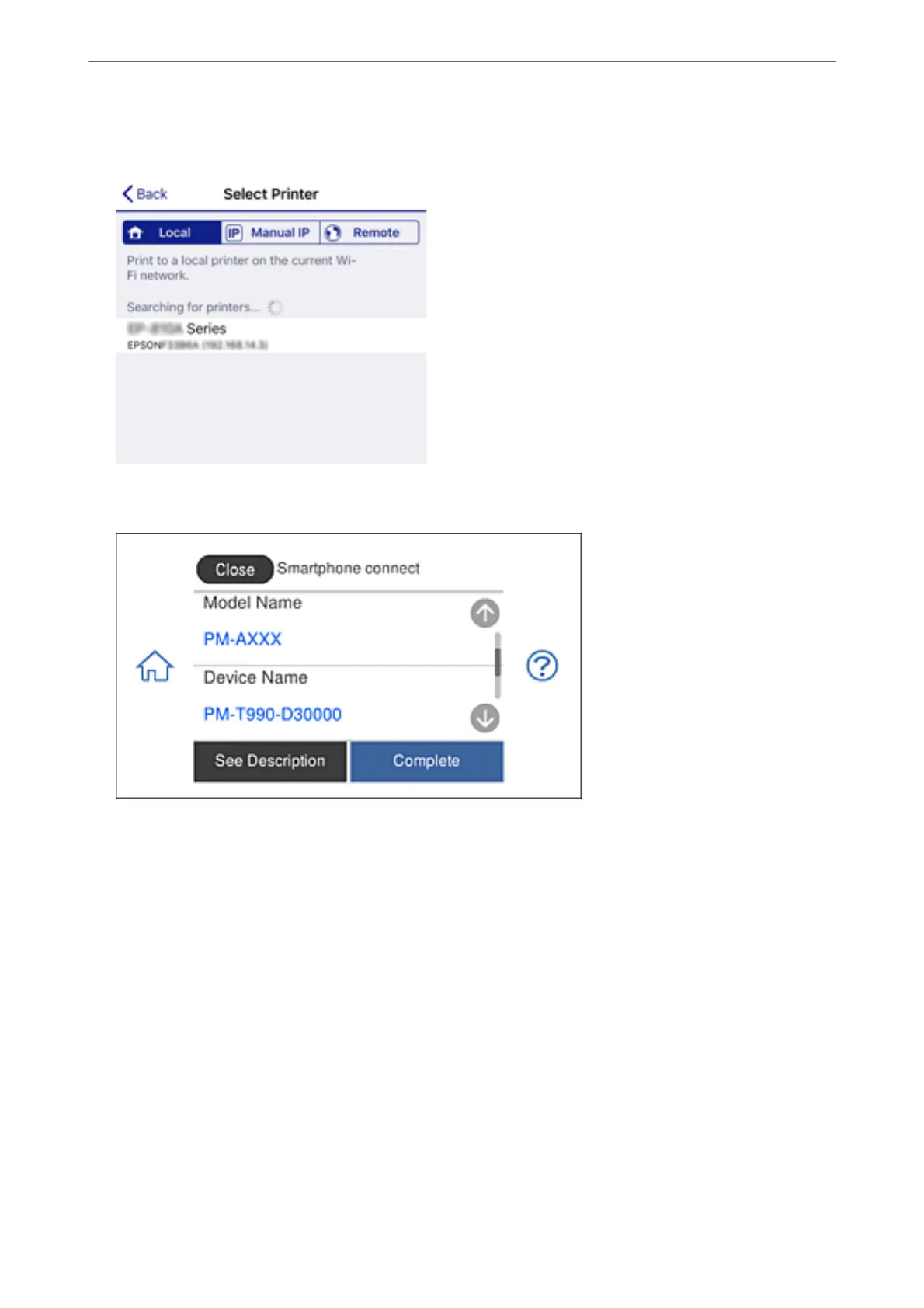
On the Epson iPrint screen, select the printer that you want to connect to.
See the information displayed on the printer's control panel to select the printer.
Note:
Printers may not been displayed depending on the Android device. If printers are not displayed, connect by selecting
Other OS Devices. See the related information link below for connecting.
7.
When the device connection approval screen is displayed, select Approve.
8.
On the printer's control panel, select Complete.
For smart devices that have been connected to the printer before, select the network name (SSID) on the smart
device's Wi-Fi screen to connect them again.
Related Information
& “Application for Printing Easily from a Smart Device” on page 296
& “Connecting to Devices other than iOS and Android Using Wi-Fi Direct” on page 274
Adding or Replacing the Computer or Devices
>
Connecting a Smart Device and Printer Directly (Wi
…
273



 To Next Page
 Loading...










