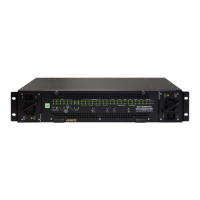
Model 5601MSC
Model 5601MSC Master SPG/Master Clock System
TECHNICAL DESCRIPTION Revision 2.2 Page - 179
6. If the 5601MSC is not discovered, attempt to add it manually to the tree. Right-click on the
Hardware item in the Navigation Tree or go the Tr
ee menu. Select Add/Update Agent. Enter the
IP address of the 5601MSC and click OK. The IP address should show up in the Navigation
Tree. If it shows up as an unclassified agent ( ), this means that the VistaLINK
®
Pro
software must be updated with the latest “VLProProd_MSC5601.JAR” file that is available to
download from the Evertz website. See the SNMP section
4.6.1 for information on performing a
JAR file update. If the device could not be contacted it will show up in grey text as either
or and further troubleshooting is required.
7. If SNMP is still not working, verify that the community strings that the VistaLINK
®
Pro client is
using match those that have been set on the 5601MSC. See section 4.5.9.3.2
for information on
setting the community strings on the 5601MSC. The Read community string is normally set to
“public” (lower-case letters). The Write community string is normally set to “private” (lower-case
letters). In the VistaLINK
®
Pro client, these strings are set by going to the File menu and
accessing Dis
covery Settings.
8. If the community strings on the 5601MSC match those on the VistaLINK
®
Pro client, check to
see if there is an IP address conflict between the 5601MSC and another device on the network.
Perform another ping test to the 5601MSC and then run the command “arp –a”. Scan the ARP
table and find the IP address assigned to the 5601MSC and verify that the MAC address
(physical address) displayed beside it matches the MAC address shown on the ControlEthernet
status screen. If a different MAC address is shown, then the computer is actually communicating
with another device on the network that is configured with the same IP address as the
5601MSC.
9. If further troubleshooting is required, it may be useful to download the NET-SNMP tool set
(
www.net-snmp.org). These are command-line utilities that can be used to diagnose problems
with SNMP. For example, executing “snmpwalk –v 1 –c public 172.21.1.56” should contact a
5601MSC at 172.21.1.56 and display a list of the basic SNMP objects. Possible sources of
problems could be network settings on the SNMP client computer, firewall restrictions, or IP
routing configuration problems (if the 5601MSC is located on a different subnet).
5.3.3.4.2. VistaLINK® Not Receiving SNMP Traps from the 5601MSC
1. Verify that the trap destinations have been configured. Every time a trap event occurs, the
5601MSC sends an SNMP trap to up to four destinations. Each trap destination must have an
IP address entered and must be enabled. This is done in the SNMP menu located in the
password-protected engineering menu. Refer to section 4.5.9.3.3 on configuring traps.
2. Check that the desired trap events have been enabled. The 5601MSC can send traps based on
several events. In order for a trap to be sent, one or more trap events must be enabled. See
section 4.5.9.3.3.
3. Restart the VistaLINK
®
Pro server and observe the server log. Pay attention to any error with the
logging system or trap listening. All SNMP traps are sent using UDP to port 162. Only one
program can be listening on this port at a time. If another program has previously opened port
162, this will block the VistaLINK
®
Pro server from accessing that port. Open a command
prompt window and enter the command “
netstat –a –b –n –p udp”. This will list all UDP
ports open by all programs on the computer. The command may take a while to fully complete.
Look for the line that indicates port 162. It should show that a “javaw” process (VistaLINK
®
) has
port 162 open (see example below). If another program has captured the port it must be
terminated before VistaLINK
®
Pro can receive traps.



 To Next Page