Model 5601MSC
Model 5601MSC Master SPG/Master Clock System
MASTER CLOCK Revision 2.2 Page - 77
In the bottom-right corner of the left LCD the frequency reference status is shown. When Ref Ok is
displayed this means the currently selected frequency reference is present and the 5601MSC has
locked to it properly. This will be Ref unlk with a yellow background if the frequency reference is
missing or the 5601MSC is unable to lock to the supplied reference.
Other messages are possible on the left LCD. These messages require a manual user jam, or mode
change to clear. See section 4.3.12 for more information. Such messages include REF JAM NEEDED,
which will be displayed if the 5601MSC is in Slow mode and is in the process of gradually relocking to a
change in the frequency reference. If the time reference lock type has been set to USER, then TIME
JAM NEEDED will be displayed when the system time and reference time mismatch.
4.2. FRONT PANEL MENU SYSTEM
The 5601MSC menu system consists of three root menus. The INPUT, OUTPUT, and GENERAL
buttons allow you to quickly go to each of the three main menus, while the SELECT, ESC,
and
buttons and control knob are used to navigate the menu.
To enter the Input menu, press the INPUT button, which will then illuminate to show that it is now the
active menu. Likewise the Output or General menus can be entered by pressing the OUTPUT or
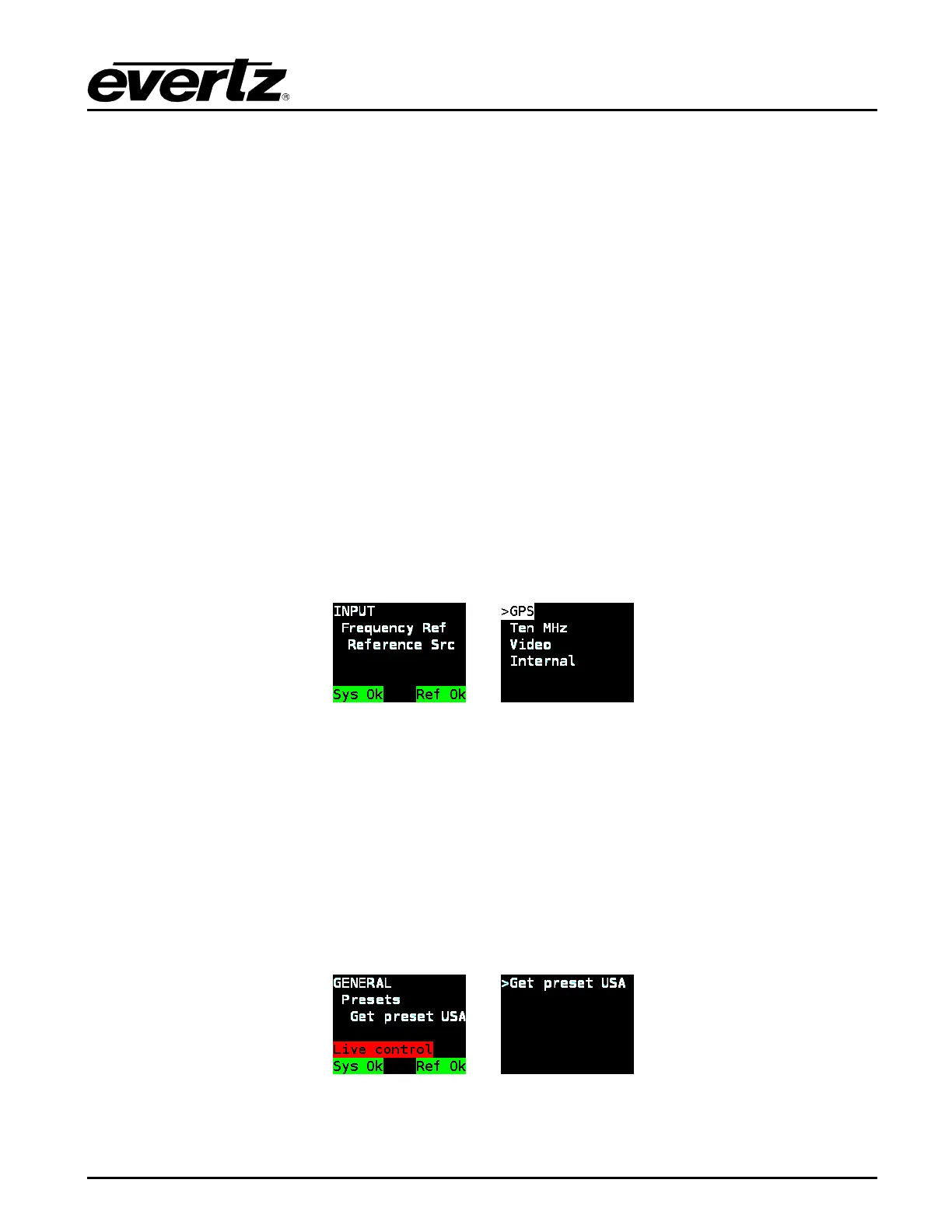
GENERAL buttons. The menu selections will be displayed on the right LCD. The > character is used as
a selection cursor to show which menu item is currently selected. Use the and buttons or turn the
control knob to move the > character beside the desired sub-menu and press the SELECT button to
enter it. The menu tree is shown on the left LCD and identifies which menus have been entered. Press
the ESC button to return to the previous level in the menu structure. Refer to Figure 4-4 below:
Figure 4-4: Menu System and Selection List
When a menu item is selected, there can be several different formats to modifying the value of the
selected setting. The most common is the selection list (see Figure 4-4). In a selection list, the currently
active value is highlighted in white. The > character can be moved to select a new value, but the
change won’t take effect until the SELECT button is pressed, after which the new value will become
highlighted to show it is now active. Press the ESC button at any time to exit from the selection list.
Other formats are used for changing numeric items.
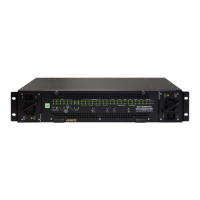
When accessing some menu items, the message LIVE CONTROL will be displayed on the left LCD
with a red background. This message is a warning that pressing SELECT on the menu item will perform
an immediate task such as jamming a reference (see section 4.3.12) or saving a preset (see section
4.5.11). Use caution with such menu items. Refer to Figure 4-5 below for an example.
Figure 4-5: Menu Item Live Control
When adjusting the value of some settings, the message LIVE CONTROL will be displayed on the left
LCD with a yellow background. This message is a warning that any change made with the and



 To Next Page