X1200 Series Router Manual
Page 3-12
Revision 1.3.2
OPERATION
3.8.1. Setting the Configuration of the AES Router Section
(Early X1202H-AES Routers with 2 breakout panels only)
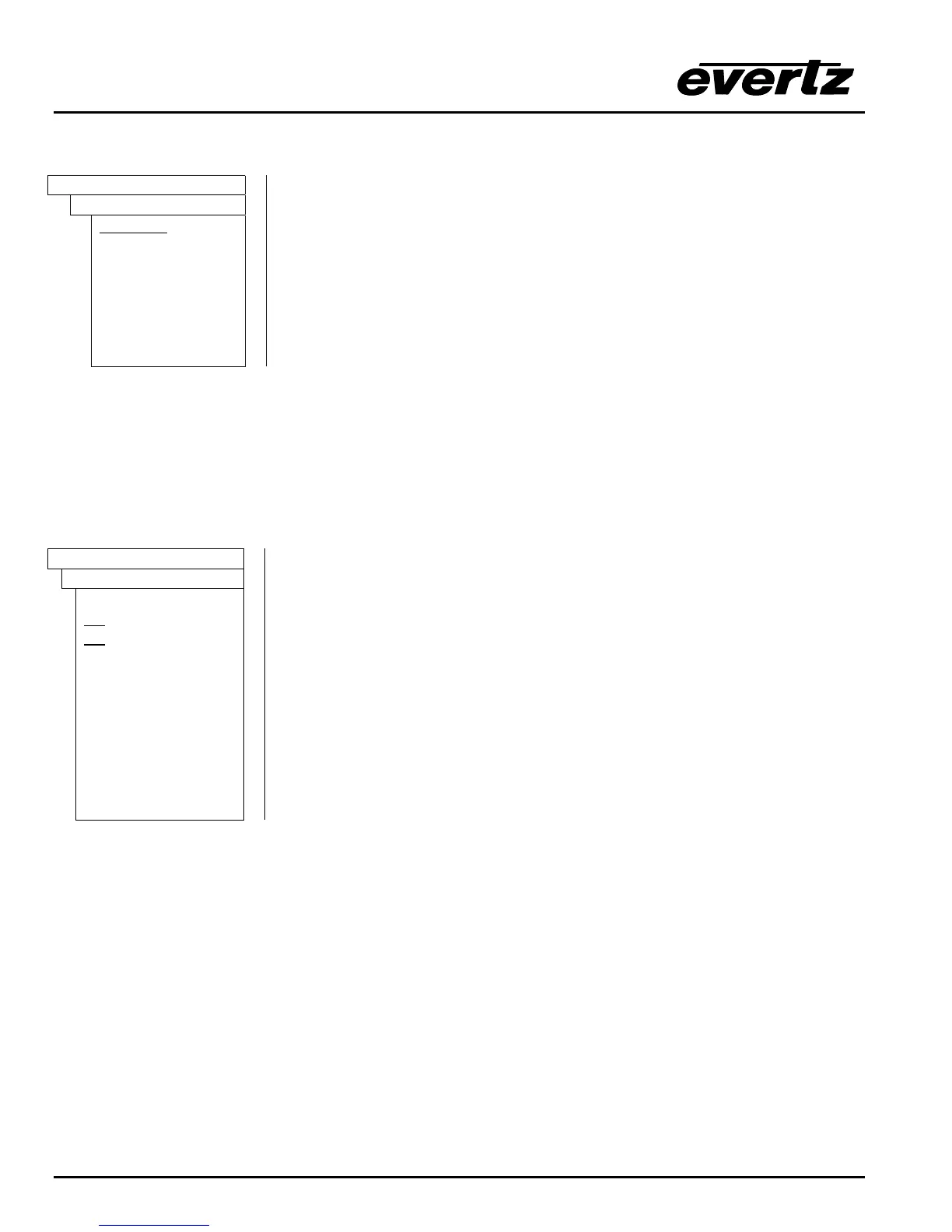
INPUT SETUP
AES mode
4(12 x 1)
2(12 x 2)
Some early units fitted with the AES option were shipped with two breakout
panels.
In the 2(12 x 2) configuration audio busses 1A and 1B are associated with
video buss 1 and 2A and 2B are associated with video buss 2. The Audio
follow V1 and Audio follow V2 menu items are disabled.
In the 4(12 x 1) configuration the four audio busses can be associated with
either video buss V1 or V2 using the Audio follow V1 and Audio follow V2
menu items.
3.8.2. Setting up the Audio Follow Video Groups
On early units fitted with the AES option that were shipped with two breakout panels, when the AES Mode
is set to 4(12x1), the Audio Follow V1 and Audio Follow V2 menu items set up which audio busses are
assigned to follow video buss 1 and 2 respectively. For simplicity only the menu items for the V1 are
shown in the manual. These menu items are disabled when these routers are in the 2(12x2) mode, and
for later routers shipped with one breakout panel.
INPUT SETUP
A Follow V1 Setup
AFV sel buss
1A
2B
2A
2B
When you select this menu item the V1 button will be blinking. The buttons
for the Audio busses that are assigned to V1 will be On. If you make any
changes the V1 button will stop blinking
To remove an assigned audio buss press the one of the illuminated buttons
- the LED will go Off and a message (e.g. 1A available) will be shown
momentarily on the front panel.
To assign an available audio buss, press on of the non-illuminated buttons –
the LED will go On and a message (e.g. 1A assigned) will be shown
momentarily on the front panel.
To confirm your selection press the SELECT button. The V1 button will
start blinking again indicating that you have confirmed your changes.



 To Next Page