X1200 Series Router Manual
OPERATION
Revision 1.3.2
Page 3-15
It is important to make sure that the structure of the text file that contains the router labels is correct, or the
router will not accept any of the label definitions. The simplest way to create a file with the correct layout
is to download the current labels from the router using the Send File menu choice. You can then just edit
the label names, and then upload the new file back to the router using the Receive File menu choice.
Any serial protocol (remote panel or GVG) that is currently open on the remote port will be closed during
the Label updating procedure. The serial protocol will be reopened once the upload or download has
finished.
Use the procedure described in section 4.3 to upload label text files to the router.
3.9.2. Changing the Input Labels from the Front Panel.
From the Input Label menu use the ↑ & ↓ buttons and press the SELECT key to select the input buss you
wish to label. The method of labelling each of the inputs is the same. The button corresponding to the
buss you have chosen will blink. For simplicity the manual will describe how to label the video inputs.
Press the button corresponding to the input you wish to label. The label associated with the selected input
bus will be displayed on the front panel with the leftmost character blinking. Use the ↑ & ↓ buttons to
change the first character of the displayed label. When you change the blinking character, the buss LED
will stop blinking. When you have selected the desired character, press the SELECT button to save the
changes for the first character and advance to the next character. The buss LED will start blinking again
indicating you have confirmed the changes to the first character. Follow the same procedure until you
have finished entering the label. Make sure that you press the SELECT button after you change the
rightmost character. Press the SETUP button to return to the select input menu. To change the label on
another input press the desired input button and follow the same procedure. When you have changed all
the labels for the selected buss, press the SETUP button to return to the INPUT LABEL menu.
3.10. CONFIGURING THE VIDEO OUTPUTS (HD ROUTERS ONLY)
The OUTPUT SETUP menus are used to configure the Video Outputs on the High Definition routers. This
menu is not available on the Standard Definition routers. The chart below shows the items available in the
OUTPUT SETUP menu. Section 3.10.1 give detailed information about the sub menus.
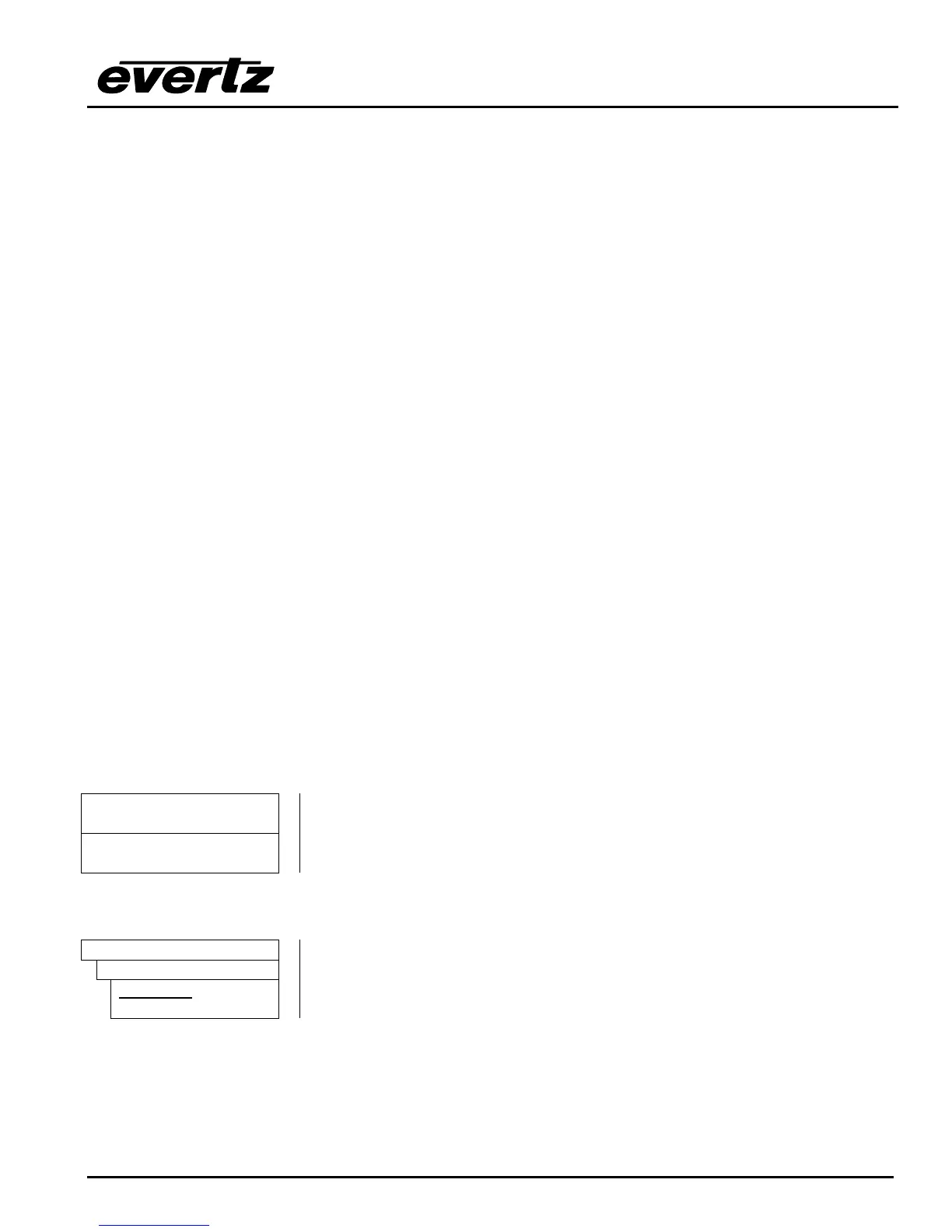
Setup V1 Output
Configures whether the outputs from Video Buss 1 will be reclocked or non-
reclocked
Setup V2 Output
Configures whether the outputs from Video Buss 2 will be reclocked or non-
reclocked
3.10.1. Selecting the Reclocking Mode of the HD Video Outputs (HD Routers only)
OUTPUT SETUP
Setup V1 Output
reclocked
non reclocked
The Setup V1 Output and Setup V2 Output menu items determine if the
respective video outputs will be reclocked or not. For simplicity only the
menu items for V1 are shown in the manual.
3.11. MANUALLY ACTIVATING THE BYPASS RELAYS
The BYPASS menus are used to manually activate the Video and Audio bypass relays. (If the Bypass
Relay Option is not installed this menu will be disabled.) The chart below shows the items available in the



 To Next Page