User Manual EDITING February 16, 2010
Xynergi Media Production Centre Page 116
Step 5 Press the
Enter key to paste the clipboard.
Notes about Cut and Paste
Cut Tail
Works the same way as cut head, but cuts the later part of the clip
Range and Head
When a range is active, pressing the cut head key cuts the audio from the start of the range to the
cursor. This will not work if the cursor is not in the range.
Range and cut tail work similarly together.
Multiple Clips and Tracks
When there is no range, the target for editing is all the clips on selected tracks that are touching the
cursor. It’s easy to tell which, because they are always red.
When there is a range, the target is all the clips (and parts of clips) on selected tracks that are inside
the range. Again, the target clips are always red.
An exception – with a range you can use the mouse to deselect a clip. To do this, hold down the
Ctrl
key and click with the mouse. The clip will turn blue, showing that it is no longer selected.
You can also extend the selection using
Ctrl-mouse-click on a clip. This will cause the range to
expand so that it includes the newly selected clip, and it will preserve the existing selection as well.
Pasting
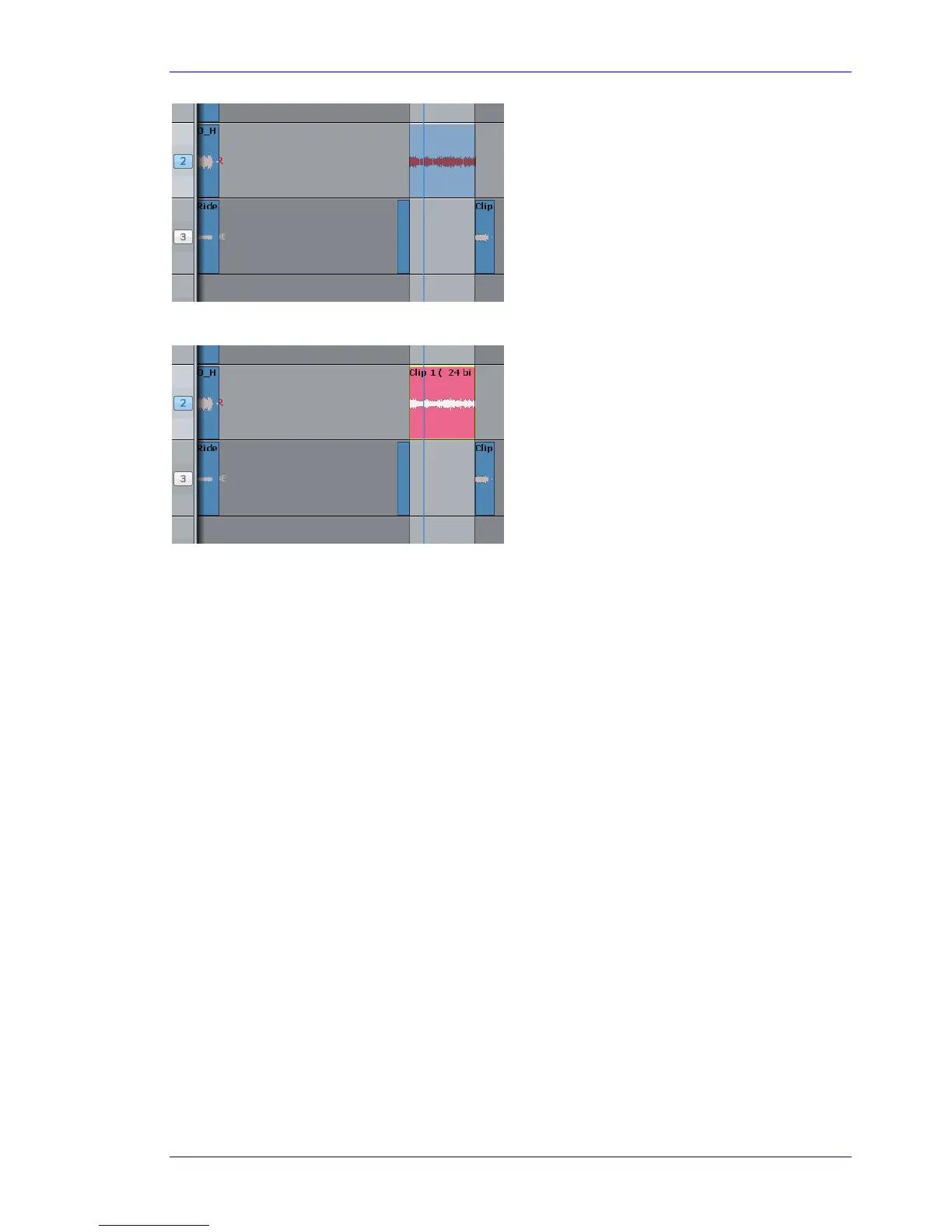
Pasting the clipboard (use the Enter key) means putting a copy of it at the current position, on
whatever tracks are selected.
You can paste the clipboard contents at any time, not just after a cut operation, and as often as you
like.
The ghost moves to the
new track.
The clipboard (former
range) is pasted. The
range persists after the
edit.



 To Next Page