User Manual EDITING February 16, 2010
Xynergi Media Production Centre Page 126
You can also type values into the
X-Level or X-Point field using the Numeric Keypad or the
QWERTY key numbers. Always start with a minus when typing X-Level values, as they are
always negative.
Step 2 Turn off the
length soft key if you do not wish to apply the Smart Panel fade durations to the
selected clips.
Step 3 Press the
Enter key to apply the fade shape as specified.
Capturing Fade Shapes
To capture a fade means to extract all of its parameters, making them available to apply to other clips.
Step 1 Press the
capture soft key.
Step 2 Press the
fade head, fade tail or fade clip key to capture the fade length and shape from
the current clip. The current clip is the clip currently touching the play head on the active track.
Having captured those values, you can apply them to any other red clip by pressing the
fade clip key.
Turn off
shape or length if you don’t want to apply it.
Deleting Fades
Step 1 Press the delete soft key, then press the fade head, fade tail or fade clip key to delete
fades. Pressing the
fade clip key affects fades at both the Head and Tail of each selected (red)
clip, while pressing
head affects only fades at the head and tail affects only fades at the tail.
Presets
Presets are used to save fade shapes only, not lengths. The system provides a number of Fade Presets,
and you can also save your own Custom presets.
To recall a system preset:
Step 1 Press the
Preset soft key, then press keys 1-9 on the numeric keypad to choose one of the 9
factory fade presets.
Step 2 To apply the recalled shape to a clip, turn off the
length soft key and press the fade head,
fade tail or fade clip key, depending which part(s) you wish to apply.
To recall a custom preset:
Step 1 Press the
Preset soft key, then press the custom preset soft key, then use the Jog Wheel to
scroll through the list of custom presets.
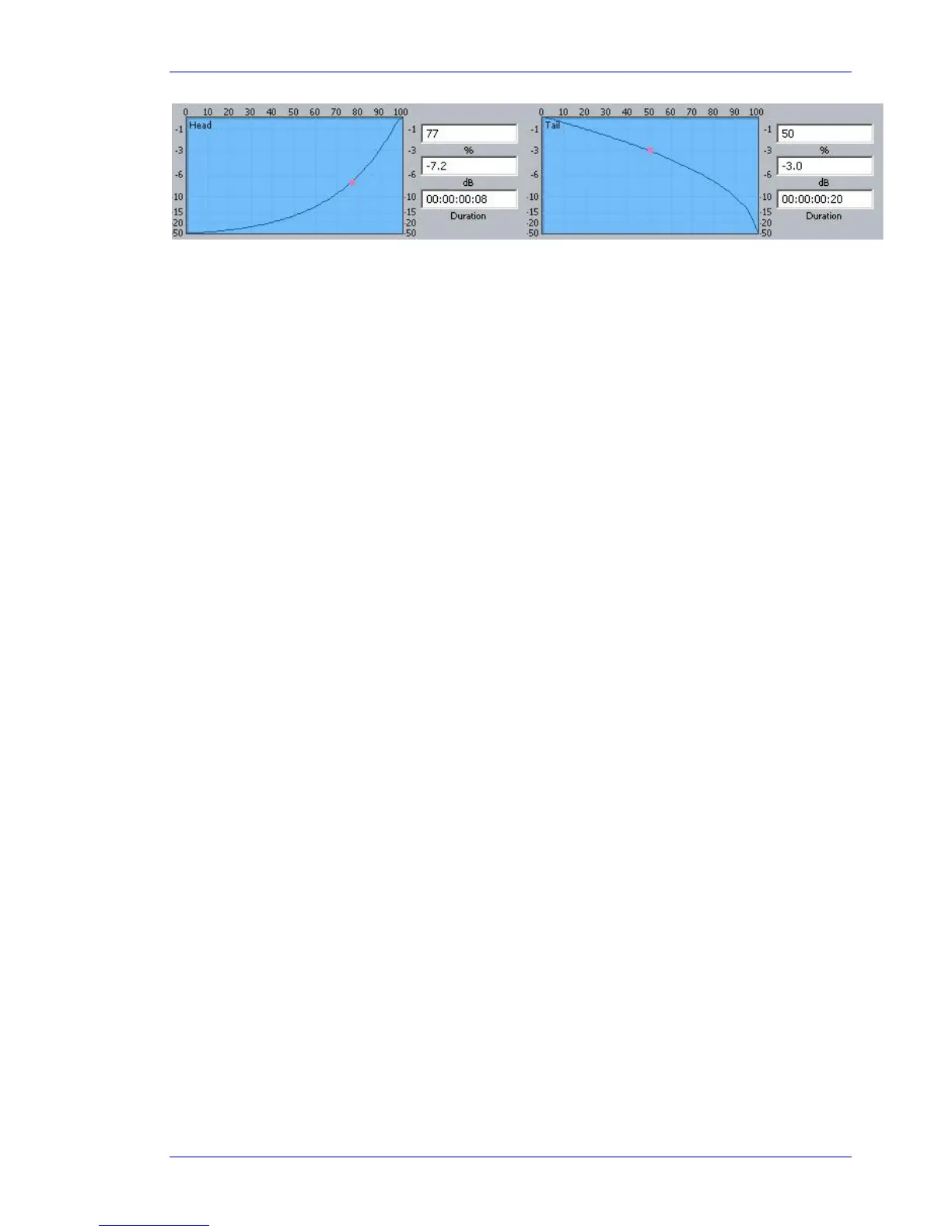
Each of the custom presets (if any exist) will be shown in turn, and its shape displayed in the
Fade panel.
Stop scrolling when you have loaded the preset you want.
To save the current shape to a new custom preset:



 To Next Page